Add a Physical Input Trigger to an EPIC Event
Quick Reference QR-AE-007 · Audio Enhancement EPIC · Rev 1.0 · Sept 2026
Make a button or contact closure on an MS-series amp or CZA-1300 start an existing event, like Lockdown.
📄 View or download this guide as a PDF
Click the PDF icon below to open the guide right here in your browser. In the viewer, use Download (top right) to save a copy, or the printer icon to print it.
1️⃣ Open the event
Log into EPIC and go to Settings › Events. Click the User Event you want the input to trigger. This example uses Lock Down.
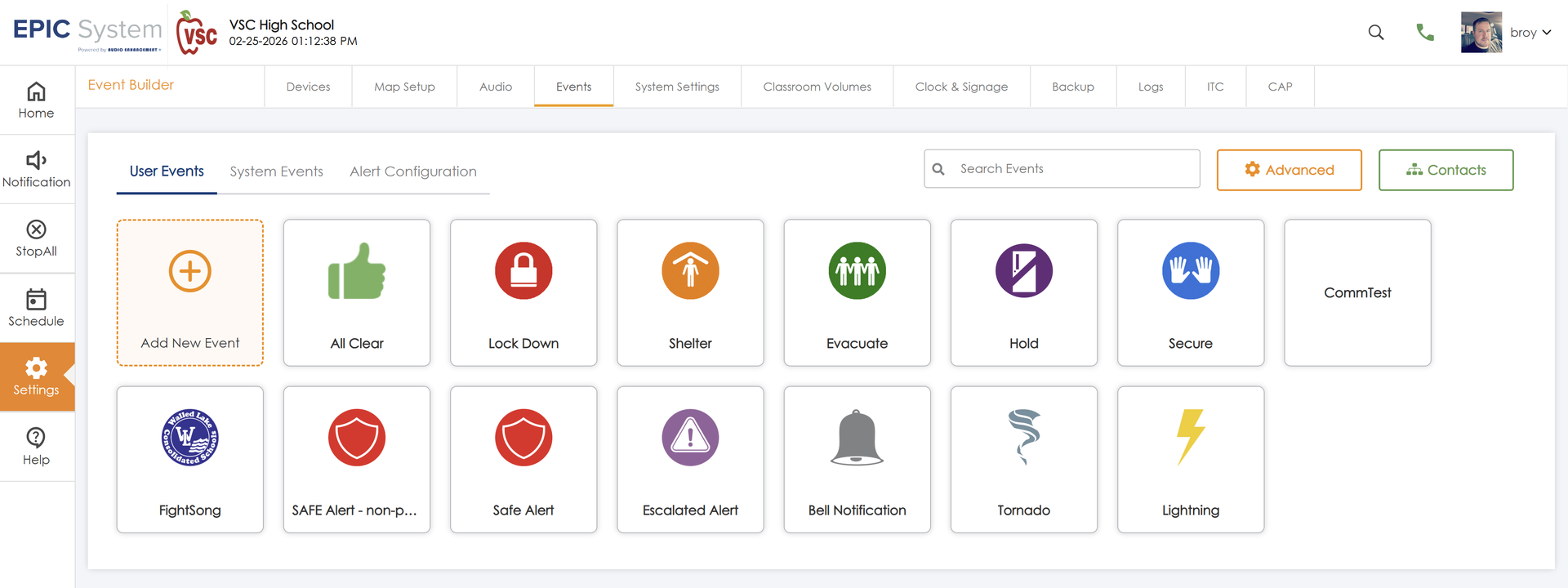
Settings › Events › User Events.
2️⃣ Add a device-change condition
Under When any of these happen, open the drop-down and choose Devices – A device detects a change.
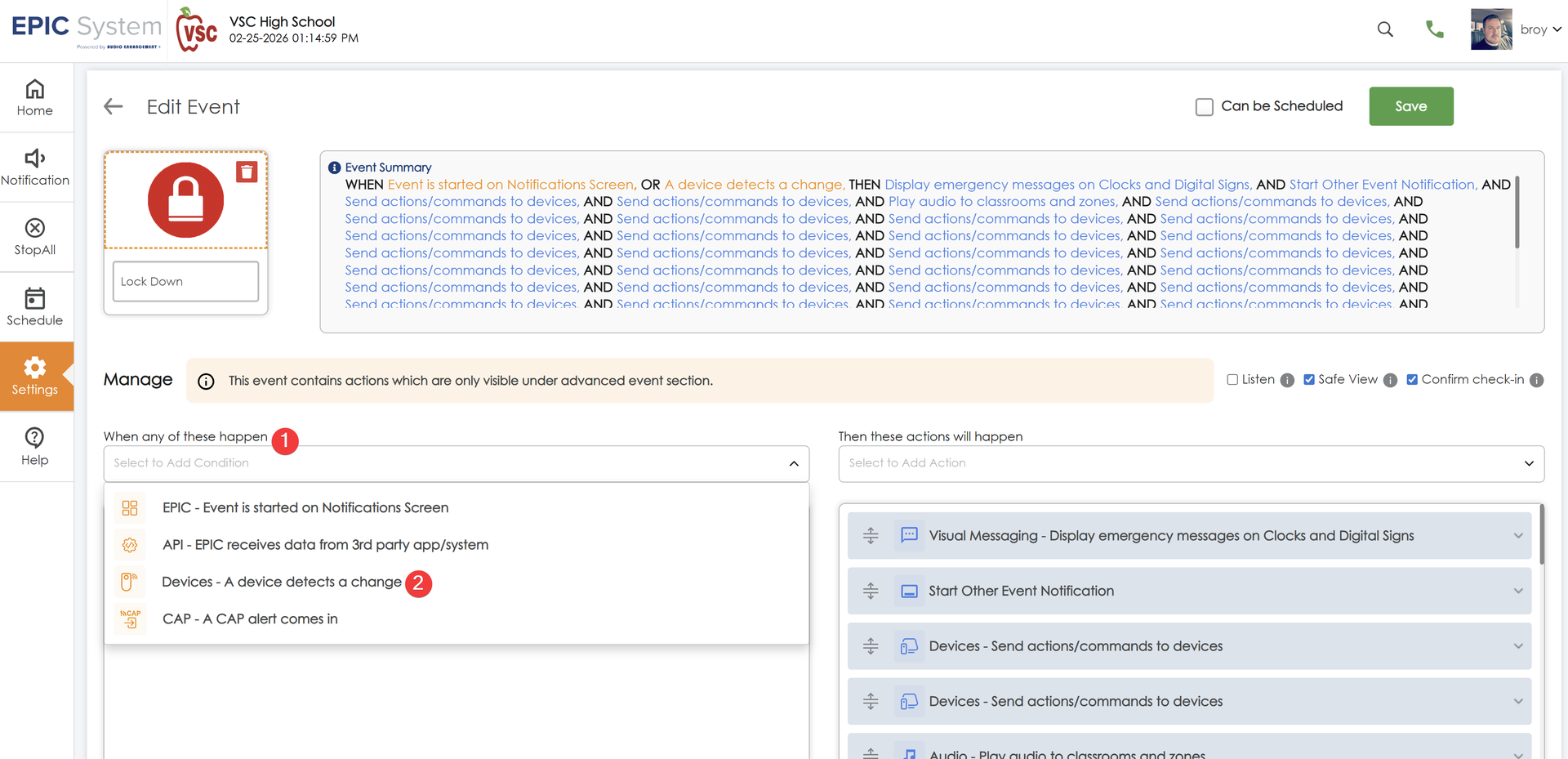
Edit Event › When any of these happen › Devices – A device detects a change.
3️⃣ Pick the device and input
- In the new condition, click + Add Device.
- Select the Device Type.
- Select the Device(s) the input is wired to.
- Select the Input and state (e.g. Input 3 Closed). See the note below.
- Click Add Device, then Save the event.
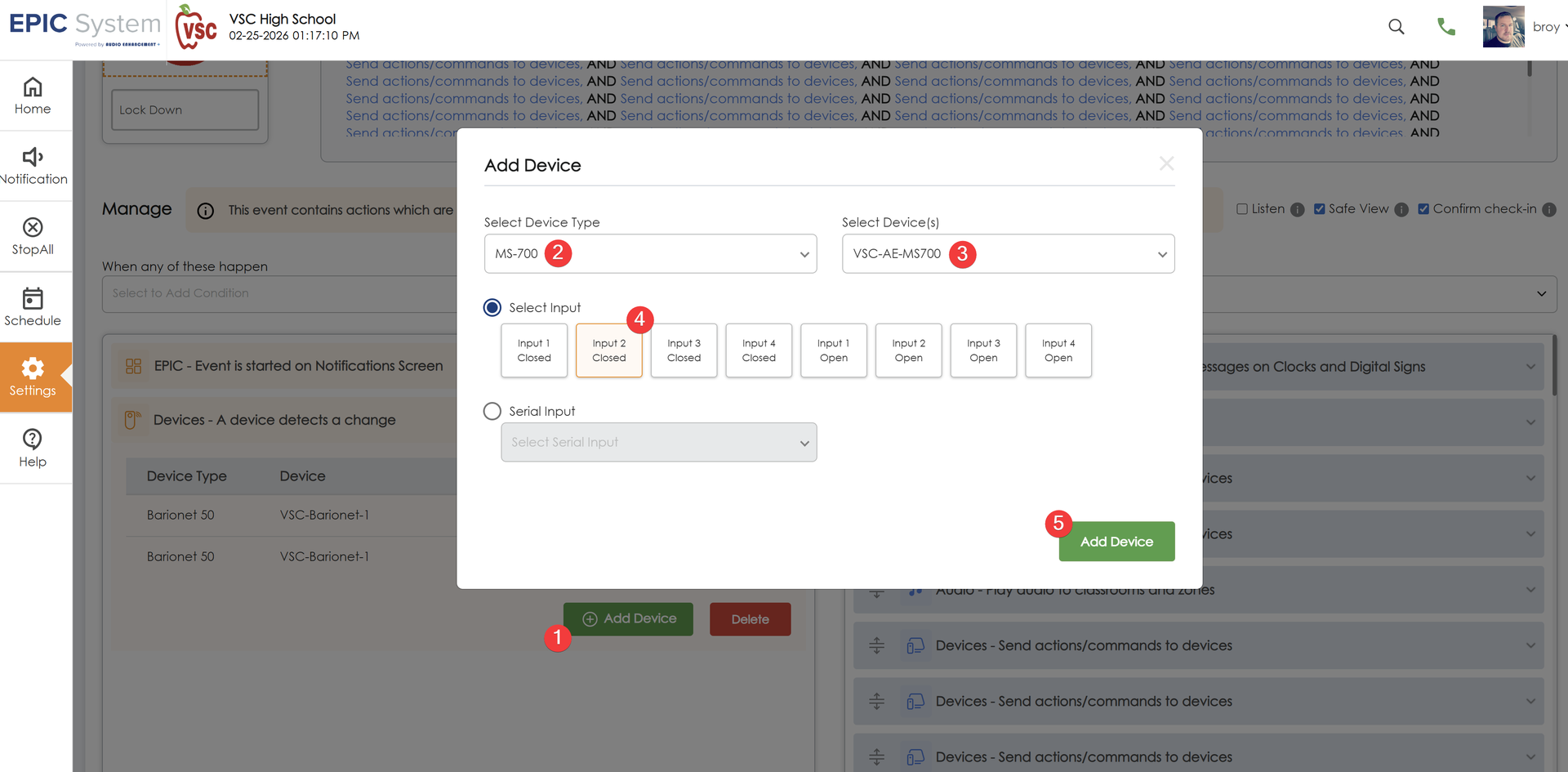
Add Device dialog: device type, device, input and state, then Add Device.
Which inputs are free?
Device | Input 1 | Input 2 | Inputs 3 & 4 |
MS-300 / 500 / 600 / 700 | Pre-set: Call the office (MS-700: WPA port pin 3) | Pre-set: Emergency / SAFE Alert (MS-700: WPA port pin 6) | MS-700 only: open for use on the GPIO 3&4 port (pin 3 = Input 3, pin 6 = Input 4) |
CZA-1300 | Call (WPA) | Emergency (WPA) | Open for use on the GPI connector (pin 1 GND, pin 2 GPI 3, pin 3 GPI 4) |
📚 Sources & credits
- Procedure: Brad Roy, VSC Director of Operations (demo: VSC High School, EPIC 3.x)
- Audio Enhancement, EPIC 2.5 Admin Manual DC-40654.0824: using an input to trigger an event (p. 78)
- Audio Enhancement, MS-700 Optimum System Quick Start Guide DC-41034.0824: WPA and GPIO 3&4 pinouts
- Audio Enhancement, CZA-1300 Quick Start Guide DC-41049.0525: GPI/GPO and WPA pinouts
- For MS-300/500/600 GPIO pinouts, see that model's Quick Start Guide on the AE Knowledge Base.
Source files: SharePoint › Odoo › Quick Reference › VSC Guides › Audio Enhancement › QR-AE-007.