Integrate CENTEGIX CrisisAlert with EPIC
Quick Reference QR-AE-009 · Audio Enhancement EPIC · Rev 1.5 · Oct 2026
Two supported ways to have a CENTEGIX alert take over the EPIC system: the Inbound API (recommended) or the CENTEGIX Paging Interface wired to an MSx device.
📄 View or download this guide as a PDF
Click the PDF icon below to open it right here in your browser. In the viewer, use Download (top right) to save a copy, or the printer icon to print it.
CENTEGIX can start an EPIC event two ways. With the Inbound API, the CENTEGIX cloud sends an HTTPS request and EPIC runs its own event. With the Paging Interface, a CENTEGIX box closes a relay into an MSx device and EPIC pages CENTEGIX's audio to the whole school. Pick one with the district first.
Pick your method
| A · Inbound API (recommended) | B · CENTEGIX Paging Interface (hardware) | |
|---|---|---|
| How it works | CENTEGIX cloud sends an HTTPS POST to EPIC, which starts an EPIC event (e.g. lockDown) | CENTEGIX box closes a relay into an MSx device's WPA input and feeds its audio into the WPA mic input |
| Audio played | EPIC's own audio files for that event | CENTEGIX's audio message, played to the all-call zone |
| Hardware | None | CENTEGIX Paging Interface + one dedicated MSx device |
| Needs | District admin access to the CENTEGIX Admin Panel; the EPIC server reachable from CENTEGIX | An MSx device with a WPA port, firmware 1.1.1+, not in any zone or room |
| AE docs | DC-41154.0525 · DC-41122.0125 | DC-40995.01 ("the only way supported by AE" to interface the Paging Interface) |
A1 · Method A · Inbound API: create API credentials in EPIC
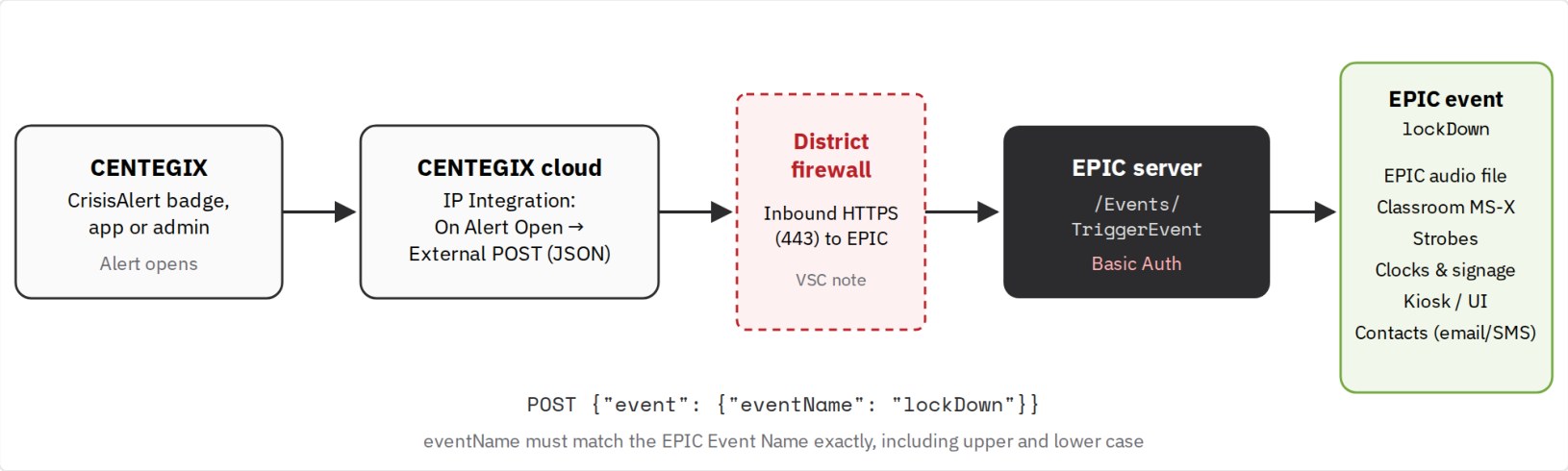
Method A at a glance: CENTEGIX alert › CENTEGIX IP Integration › HTTPS POST › EPIC Inbound API › EPIC event.
- Log into EPIC as an Administrator.
- Go to Settings › System Settings › Integrations › API Credentials. (On older EPIC versions it's a separate API Credentials tab.)
- Click New Integration (top right).
- Name it Centegix and set Integration Type to Basic Auth. The other choices are OAuth2 and API Key.
- Click Create Credentials. EPIC generates a username and password and lists them in the table.
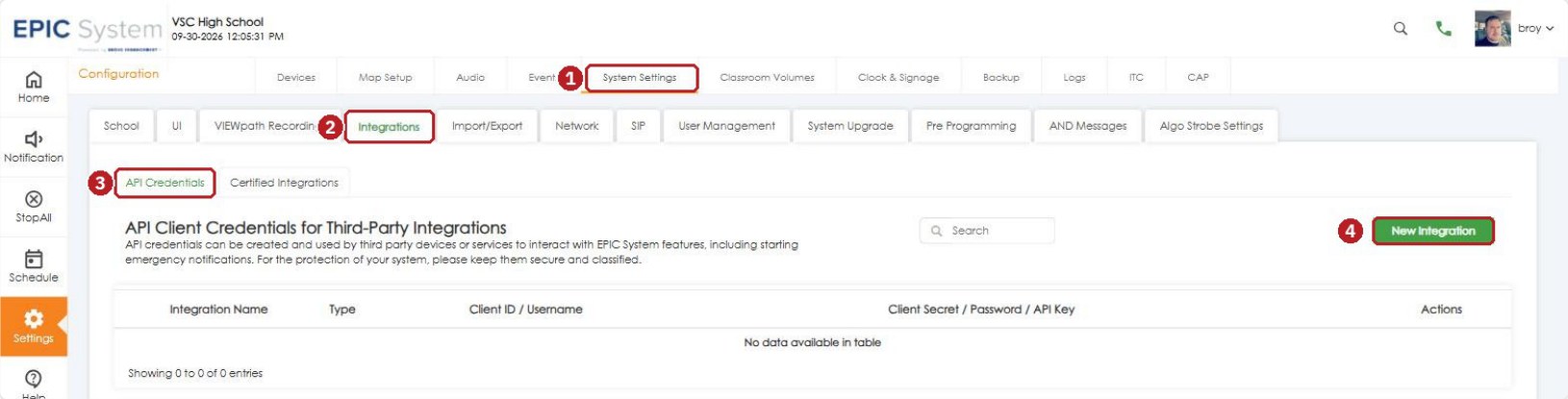
EPIC 3.2.5: System Settings (1) › Integrations (2) › API Credentials (3) › New Integration (4).
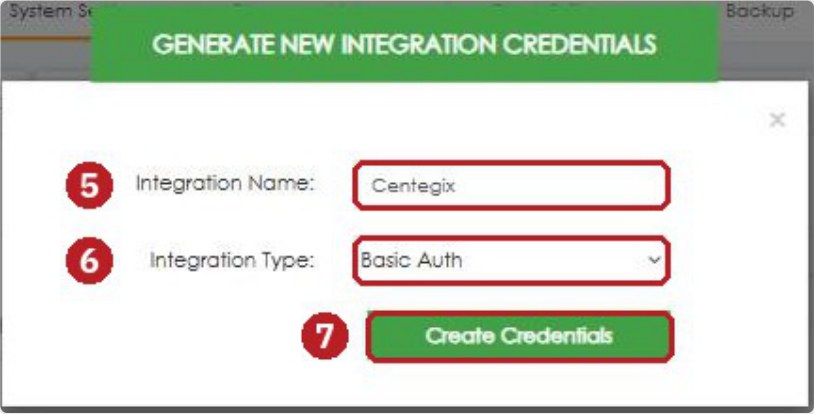
Name it Centegix (5), set the type to Basic Auth (6), then Create Credentials (7).
A2 · Confirm the EPIC event name
CENTEGIX triggers an EPIC event by name. The name must match the EPIC Event Name exactly, including capitalization. AE's example is Lockdown, whose built-in Event Name is lockDown. The Display Name doesn't matter. To check it: Settings › Events › Advanced › Event Properties, then search for the event.
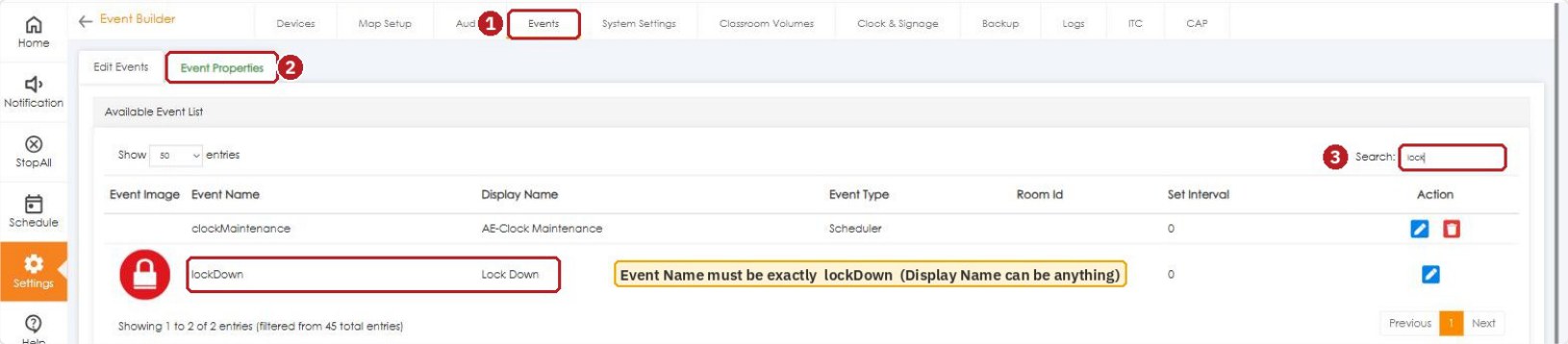
Events (1) › Advanced › Event Properties (2) › search (3). Use the Event Name column: lockDown.
A3 · The request CENTEGIX sends
| Field | Value |
|---|---|
| HTTP method | POST |
| URL | https://{epic}/Events/TriggerEvent. {epic} is the EPIC server's address as reachable by CENTEGIX. |
| Header | Content-Type: application/json |
| Authorization | Basic {Base64(username:password)} using the EPIC-generated credentials |
| Body | {"event": {"eventName": "lockDown"}} |
Per AE, the same request can also stop an event: send the name of a built-in event, or any event that has the Stop action in EPIC (e.g. an All Clear).
A4 · Configure CENTEGIX (district admin)
No CENTEGIX screenshots here: VSC doesn't have CENTEGIX Admin Panel access. These steps come from AE's doc. The district admin or the CENTEGIX PM does this part.
The district needs admin access to the CENTEGIX Admin Panel. In the CENTEGIX Admin Panel:
- Go to IP Integrations › Add New Integration.
- Event: On Alert Open.
- Alert Type: choose the CENTEGIX alert type (e.g. Lockdown).
- Endpoint:
https://{epic}/Events/TriggerEvent - Authentication Scheme: Basic Authorization. Enter the EPIC credentials.
- Action: External Post Request (Web Request) · Object: JSON.
- POST body:
{"event": {"eventName": "<%= alerttype_name %>"}}
A5 · Test the API method
- Coordinate with school administration before any test.
- Use a CENTEGIX test or drill alert for the configured alert type, and confirm the matching EPIC event starts (audio, strobes, clocks, Kiosk).
- Clear it with the event's stop / All Clear, then confirm paging and intercom work normally.
B · Method B · CENTEGIX Paging Interface (hardware)
Use this when the district wants the CENTEGIX audio message played over EPIC. The Paging Interface closes a relay into Input 1 on a dedicated MSx device's WPA port and sends its audio into that port's mic input. EPIC then interrupts everything and pages that audio to the whole school.
| You'll need | |
|---|---|
| MSx device with a WPA port | MS-300B, MS-500B, MS-600 or MS-700 on firmware 1.1.1 or later. Dedicated: no zones, no rooms. |
| CENTEGIX Paging Interface | Supplied and programmed by CENTEGIX |
| Cabling | CAT6 patch cable (to cut) or WPA/I-O breakout adapter + 18 AWG 2-conductor; 3.5 mm cable; Velcro |
| Tools | 18 AWG and 22 to 24 AWG strippers, precision screwdriver, multimeter |
B1 · Wire it
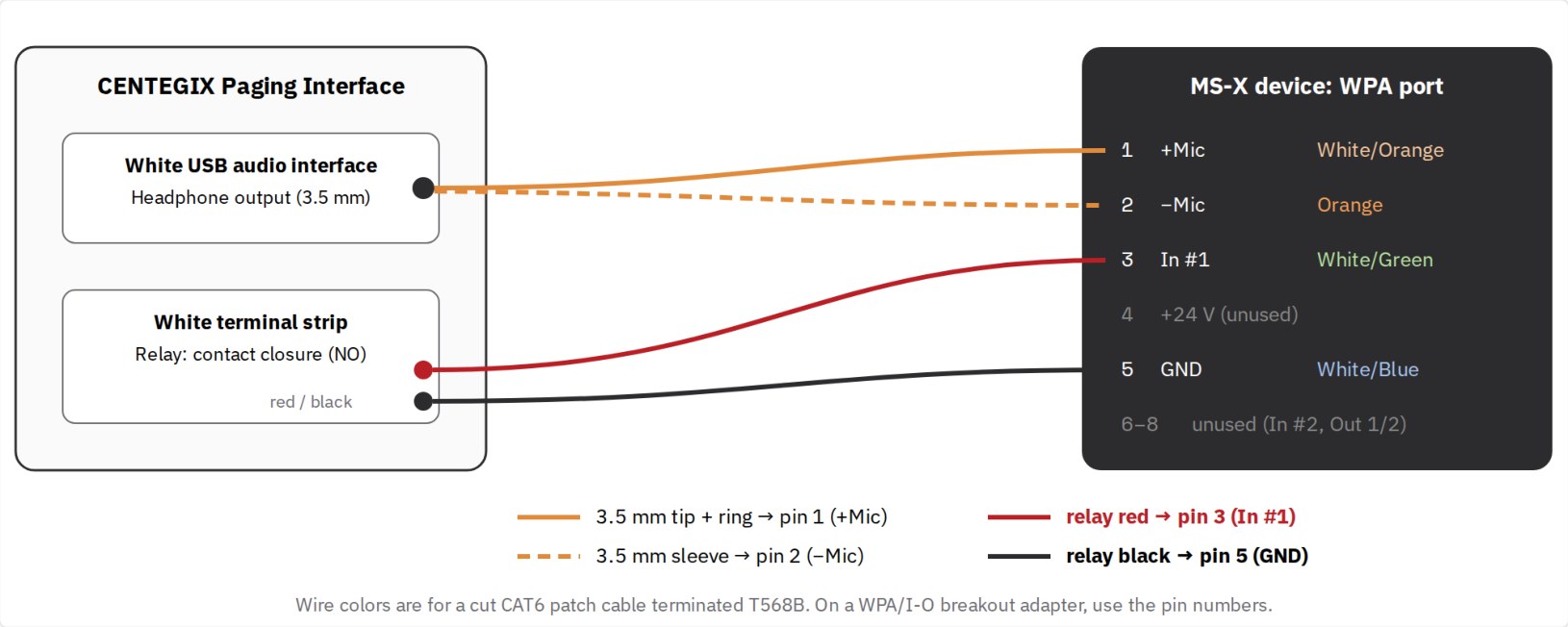
WPA port wiring: audio to pins 1 and 2, relay to pins 3 and 5.
- Audio: 3.5 mm plug into the headphone output of the white USB audio interface. Tip + ring to pin 1 (+Mic), sleeve to pin 2 (−Mic).
- Trigger: the relay on the white terminal strip goes red to pin 3 (In #1) and black to pin 5 (GND).
- Reconnect power to the CENTEGIX device, then reconnect the MSx device to the network.
B2 · Set up the MSx device in EPIC
- Add or adopt the device like any other. Name it with CENTEGIX in it, e.g.
MES-CENTEGIX. - Give it an extension at the end of, or outside, the room range, e.g.
3999. - Don't add it to any zones or assign it to any rooms.
- Click the pencil › Advanced. Set Microphone Gain 43.5 (MS-500A / MS-600 max is 42 dB), clear Call Button Extension To Dial, and set Background Music Enabled to Off. Click Save.
B3 · Build the events (Advanced Event Builder), in this order
| CentegixStartCall | CentegixStopCall | |
|---|---|---|
| Create (Event Properties › Add New Event) | Event Name CentegixStartCall · Display Name Centegix Start Call · Type Application · Image None · Visibility Invisible · Suppress During Emergency unchecked | Event Name CentegixStopCall · Display Name Centegix Stop Call · Type Application · Image None · Visibility Invisible · Suppress During Emergency unchecked |
| Action 1 | MS-x50 › stopAll | MS-x50 › executeTcpControlCommand › CENTEGIX device › DS[CR][LF] · delay 0 |
| Action 2 | UI › clearNotification | UI › clearNotification |
| Action 3 | MS-x50 › executeTcpControlCommand › CENTEGIX device › D5000[CR][LF] · delay 1 | |
| Action 4 | UI › notificationAlert › pick an audio file · Title {schoolName} CENTEGIX Alert · Message CENTEGIX Alert Has Been Activated |
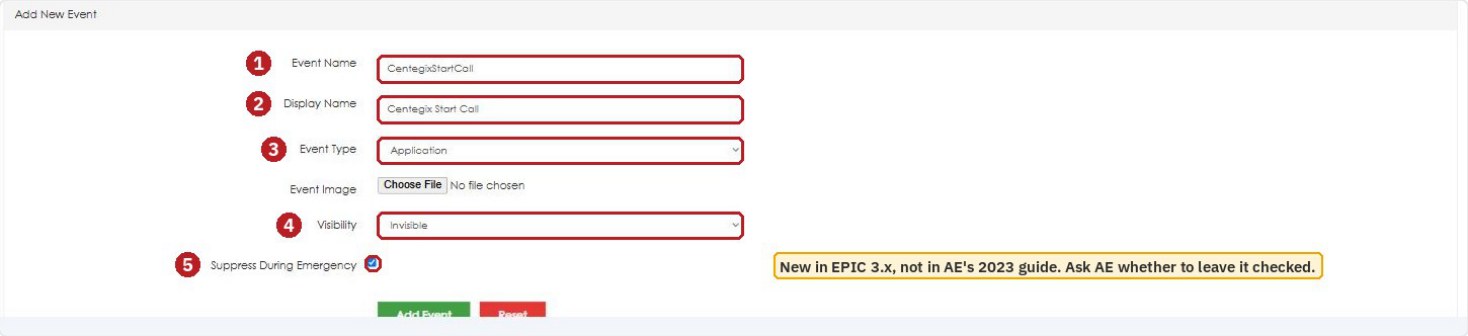
Events › Advanced › Event Properties › Add New Event: Event Name (1), Display Name (2), Type Application (3), Visibility Invisible (4). EPIC 3.2.5 also has Suppress During Emergency (5).
Add the actions under Edit Events (select the new event, then use Add Action at the bottom). On EPIC V2 and later, tick Stop Adding New Devices to Action on each executeTcpControlCommand action.
B4 · Watch the input: changeNotification rules
- Settings › Events › open Change Notification › create a new action.
- Device/Class Type MS-x50 › Event Action
receiveTCPCommand› (V2+) tick Stop Adding New Devices to Action › select the CENTEGIX device. - Response Parameter tab › select onResponseValue (don't change the Starts With syntax) › Response value Regex.
- Rule 1: Compare Value
^.+,.{2},06,.{2}› Event CentegixStartCall › Add Rule. - Rule 2: Compare Value
^.+,.{2},07,.{2}› Event CentegixStopCall › Add Rule. - Click Add Action at the bottom.
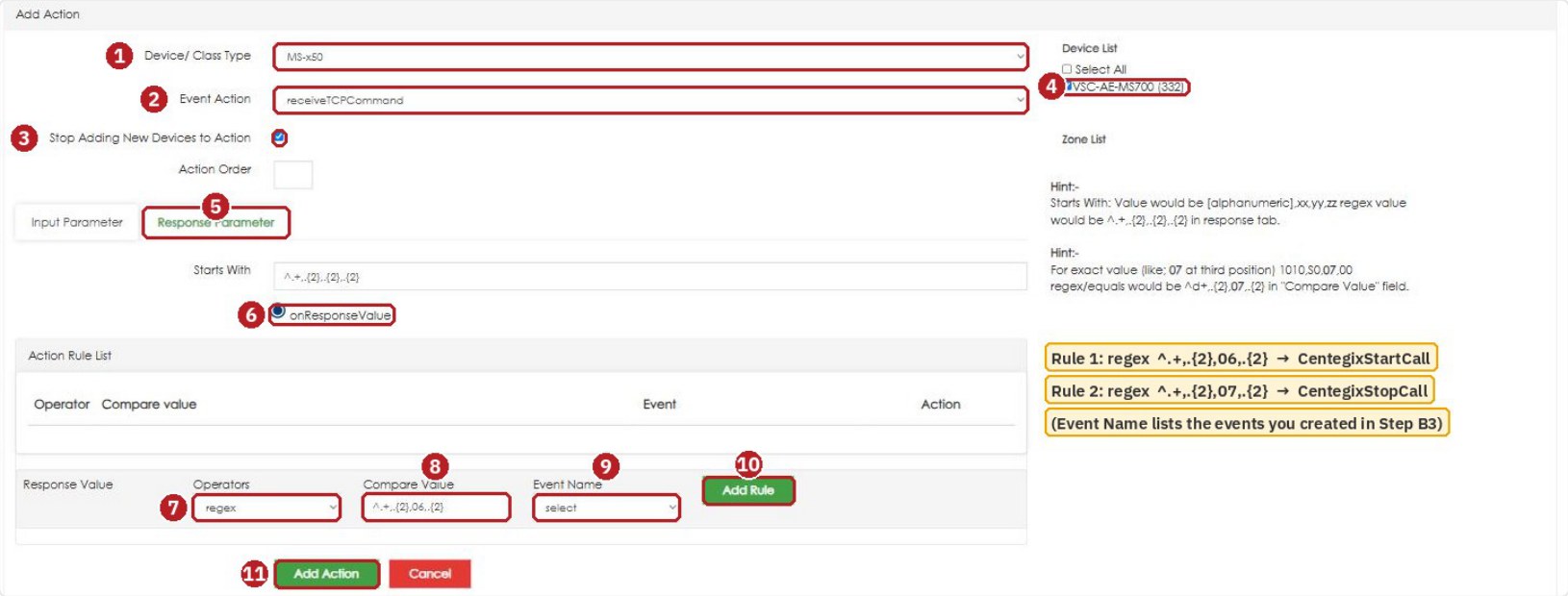
Edit Events › changeNotification › Add Action, numbered in order (1 to 11). The demo MS-700 stands in for the CENTEGIX device. EPIC's built-in hint uses the same regex format.
B5 · Test the hardware method
The Paging Interface has a Test button. It clicks the relay closed, plays a test message ("this is a test"), and holds the closure for the whole message. It's a normally-open device and doesn't alert the rest of CENTEGIX. Clear testing with school administration first.
- Press Test. The test audio should play to all zones.
- At the Kiosk, run an all-call page and an intercom call to confirm the system returned to normal.
- Takeover test: start an all-call page and leave it running, then press Test. The page should be interrupted, the Kiosk UI should reset, the CENTEGIX notification should pop up, and the audio should play.
- At the end, the audio stops and the Kiosk returns home. Test paging and intercom once more.
Field tips
- API alert does nothing? Check the Event Name spelling and case first (
lockDown), then that CENTEGIX can reach the EPIC server over HTTPS (firewall/NAT). - Wrong event name sent?
alerttype_nameonly works when the CENTEGIX alert type's name matches the EPIC Event Name exactly. - Never rename
lockDown. Use the Display Name for anything the school sees.
- Test button plays nothing? Check the relay on pins 3 and 5, then the two regex rules and that the right device is selected in B4.
- No audio, but the event runs? Check the 3.5 mm plug is in the headphone output and lands on pins 1 and 2.
- Keep the CENTEGIX device out of zones and rooms (AE requirement), and don't reuse it for a classroom.
📚 Sources & credits
- Compiled by Brad Roy, VSC Director of Operations, from the manufacturer documents below. Items marked VSC note are VSC field guidance, not AE or CENTEGIX statements.
- Audio Enhancement: EPIC Inbound API for Centegix DC-41154.0525; EPIC Configuration Guide for Interfacing Centegix Paging Interface DC-40995.01 (footer DC-40996.01), dated 7/2023, an older AE document; Centegix Integration with EPIC System DC-41122.0125; MS-700 Optimum System Pinout Guide DC-41213.0925 (WPA pinout)
- CENTEGIX, CrisisAlert Technical Guide V2 (updated 11/20/2025): Integration Device, network, and Intercom Integration Device installation
- Screenshots: VSC's EPIC 3.2.5 demo server (VSC High School), 9/30/2026. Forms were filled in for illustration only; nothing was saved. Reference files: SharePoint › Odoo › Quick Reference › AE Files and Centegix Files.