Replace a Failed MS-700 with the Device Configuration App
Quick Reference QR-AE-012 · Audio Enhancement EPIC · Rev 1.1 · Oct 2026
Swap a classroom MS-700 so the new one takes over the old one's IP, settings, rooms and SAFE badges.
📄 View or download this guide as a PDF
Click the PDF icon below to open it right here in your browser. In the viewer, use Download (top right) to save a copy, or the printer icon to print it.
The trick to a clean swap is giving the new amplifier the same network settings as the old one. EPIC then finds it at the old address, and you push the old configuration back to it. There are four parts: record the old settings, set the new device's network with the app, re-key the password in EPIC, then refresh XD IDs and MAC addresses.
| You'll need | Notes |
|---|---|
| Replacement MS-700 | New or from stock. Write down the serial numbers of the failed and the replacement unit for the RMA. |
| Phone or tablet | AE Device Configuration app (iOS App Store / Google Play). It connects over Bluetooth through the BLE USB adapter shipped with every MS-700. |
| EPIC admin login | To edit the device and run Query All XD / Update MAC Address. |
1️⃣ Record the old device's network settings
Before you pull the failed MS-700, write down from EPIC (Settings › Devices › Known Devices, pencil icon) or from the device itself:
- EPIC server IP address
- The MS-700's IP address, gateway and DNS (and subnet mask)
- The device's password in EPIC (you'll need it in step 4). It's the Device Password field on the Configure Device page (pencil icon); you can highlight and copy it without entering edit mode.
2️⃣ Swap the hardware
Disconnect the old MS-700 and mount the new one, moving every cable to the same port. Power it up (PoE).
3️⃣ Give the new MS-700 the old network settings (app)
- Open the Device Configuration app. Nearby devices are listed by signal strength with a name starting
Brx-. - Find the new MS-700 by its MAC address and tap it. Tap the Identify icon if you're not sure: the amp's LEDs cycle red, yellow, green and it plays a tone.
- Tap Network in the bottom menu.
- Set EPIC IP/URL, Network Mode, IP Address, Subnet Mask, Gateway and DNS to match what you recorded, then tap the check mark (top right) to save.
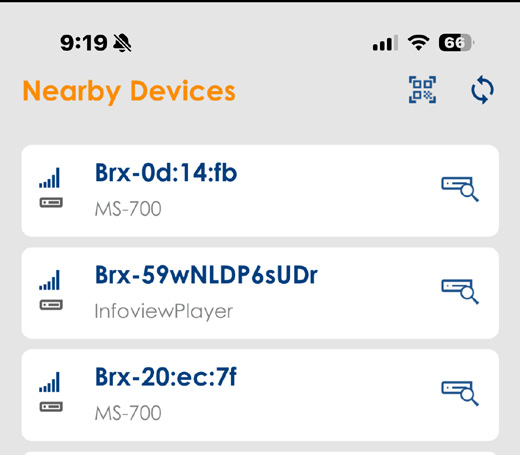
Nearby Devices. Match the MAC address on the new amp.
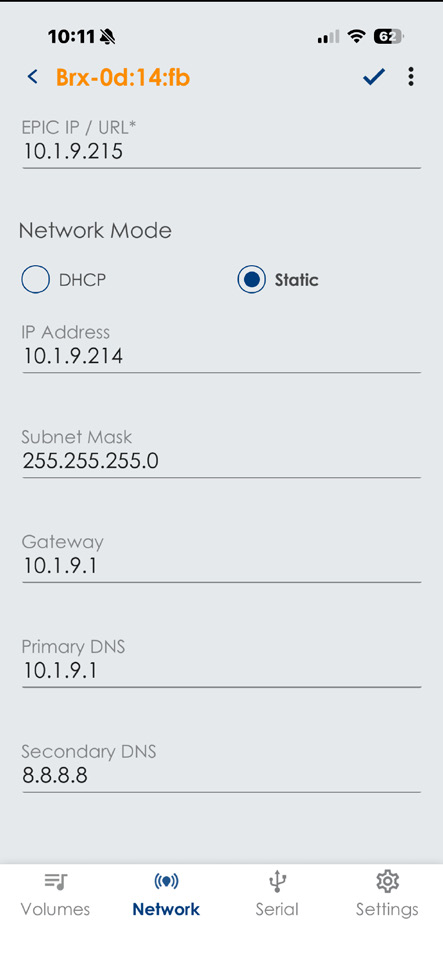
Network tab. Enter the old device's settings, then tap the check mark.
4️⃣ Re-key the password and push the old configuration (EPIC)
- Log into EPIC and go to Settings › Devices › Known Devices. Search for the device by its IP address.
- Click the pencil icon to open Configure Device.
- Click the lock icon next to Device Password.
- Set Device Old Password to
admin(the new unit's factory password) and click Save. The New Password field keeps the password EPIC was using for the old unit. - Click Save on the Configure Device page. EPIC sends the old device's configuration to the new one.
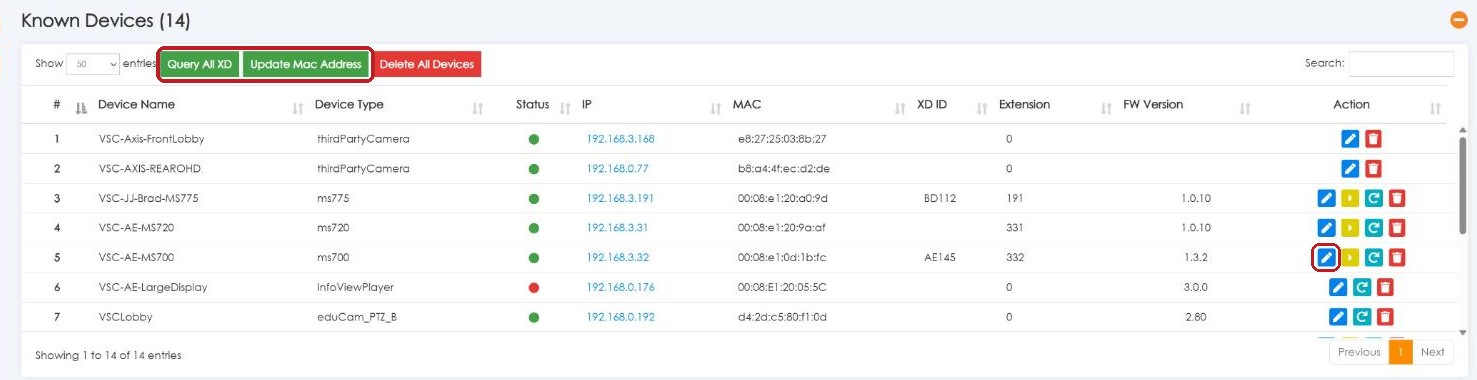
Settings › Devices › Known Devices. The pencil opens the device; Query All XD and Update Mac Address are above the list.
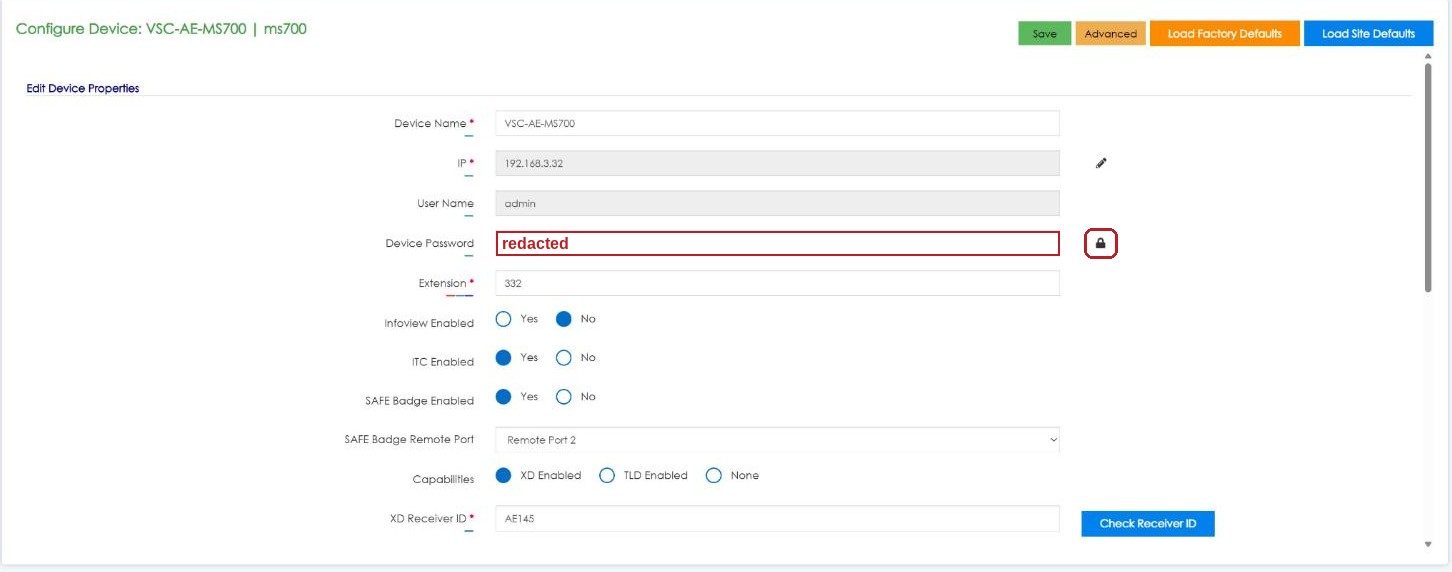
Configure Device. The lock icon opens Edit Password. Password redacted.
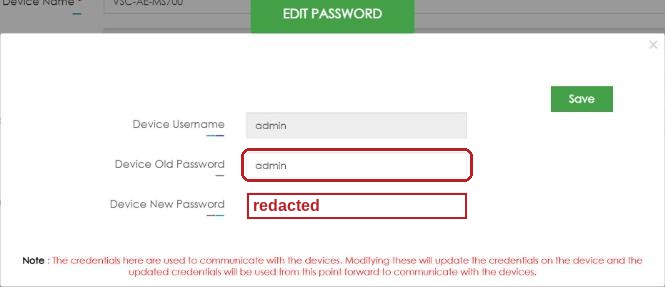
Edit Password: Device Old Password = admin, then Save.
5️⃣ Refresh XD IDs and MAC addresses
Do these once, after all swaps are finished, from Settings › Devices › Known Devices:
- Click Query All XD. This updates the XD Receiver IDs EPIC uses for SAFE badge and teacher-mic alerts.
- Click Update Mac Address so EPIC's records match the new hardware.
6️⃣ Test the room
- Teacher and student mics play through the room speakers. Re-link mics if needed: with the mic off, press LINK on the MS-700 (blinks yellow), then on the teacher pendant hold REC and press and hold PWR; on the student handheld hold PWR LINK and slide TALK up. A beep and an extra green LED on the amp confirm it (details in QR-AE-013).
- A page and an intercom call reach the room, and the call button rings the office.
- If the room uses SAFE: send a test alert from the teacher mic or a badge, with the office told first.
- Check the device's firmware in Known Devices. MS-700s pull the current firmware from EPIC daily or on reboot (see QR-AE-002).
📚 Sources & credits
- Procedure: Audio Enhancement, "Device Configuration App: Replacing a Device Using the App" DC-41313.0926; checked and adapted by Brad Roy, VSC Director of Operations
- Audio Enhancement, Device Configuration Mobile Application Guide DC-41040.0324 (scanning, Identify, Network tab, re-enabling BLE, factory reset)
- App screenshots: Audio Enhancement (DC-41313.0926). EPIC screenshots: VSC's EPIC 3.2.5 demo server (VSC High School), 10/9/2026; device password redacted; nothing was saved.