Staff Logins for EPIC: Single Sign-On or LDAP
Quick Reference QR-AE-018 · Audio Enhancement EPIC · For District IT · Rev 1.0 · Oct 2026
Let staff sign in to EPIC with their district accounts, and keep the kiosk working even if the directory is down.
📄 View or download this guide as a PDF
Click the PDF icon below to open it right here in your browser. In the viewer, use Download (top right) to save a copy, or the printer icon to print it.
EPIC can use the district's existing accounts so nobody needs another password and access ends when an account is disabled. There are two ways to do it. Pick one for staff, and keep a few local accounts for the kiosk and emergencies.
| Single Sign-On (SSO) | LDAP | |
|---|---|---|
| Works with | Microsoft, Google, ClassLink, RapidIdentity, Clever | On-premises Active Directory (the only supported source). Entra ID / Azure AD needs LDAP made available by the district first. |
| Staff sign in with | The district's sign-in page | Their AD username and password, typed into EPIC |
| Best for | Districts already on Google or Microsoft 365; AE's current recommendation | Districts with on-prem AD and security groups for staff roles |
1️⃣ Set up SSO
- Go to Settings › System Settings › User Management › Single Sign On.
- Click the pencil next to your provider (Microsoft, Google, ClassLink, RapidIdentity or Clever).
- Enter the district's sign-in Domain, tick Active, and click Update.
- Add staff as users (one at a time or by CSV Import on the Users List) with their district email. Anyone whose email matches the SSO domain must sign in through SSO; they get a welcome email but no EPIC password.
- Staff click the SSO link on the EPIC login page. If they're already signed in to Google or Microsoft, they go straight in. Test with one account in a private browser window first.
If your provider needs extra app registration, VSC opens a ticket with AE for you.
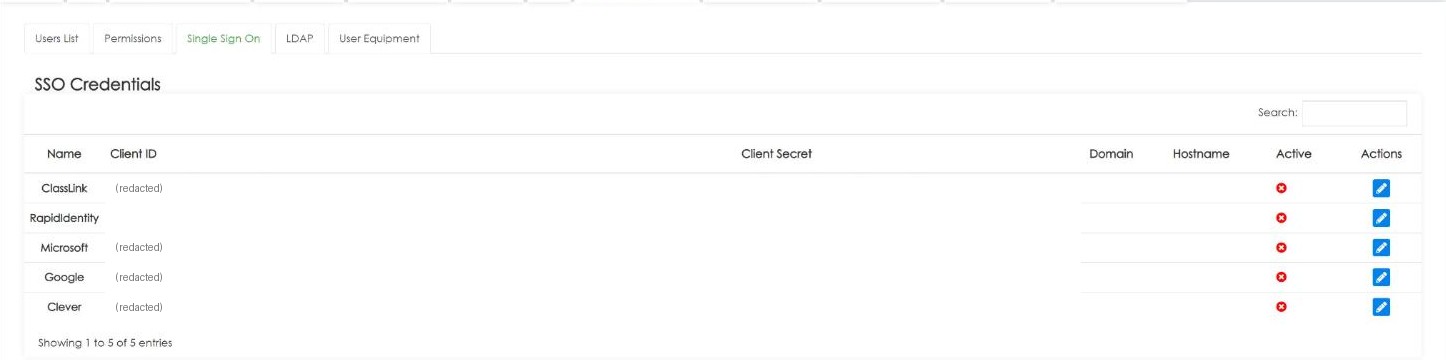
Single Sign On tab: one row per provider, pencil to edit. Client IDs redacted.
2️⃣ Or set up LDAP
- Create a service account just for EPIC: read-only, can see the user and group objects, no other rights. Set it to not expire. Never use a domain admin or a person's account.
- Go to Settings › System Settings › User Management › LDAP. Tick Enable LDAP and fill in the server IP, Base DN (use the top of the domain, e.g.
DC=District,DC=Org), domain, service account and password. - Use SSL (LDAPS) where you can. Click Test LDAP Connection, then Save.
- Map security groups to EPIC roles (security groups, not OUs). The mapping screen only appears once LDAP is enabled, and a role can have several groups (e.g. Intercom Admins › Admin, Office Staff › Standard). A user who isn't in a mapped group can't sign in. Creating groups just for EPIC keeps this clean.
- Import the users: sync everyone in the mapped groups, or Import LDAP Users to pick specific people.
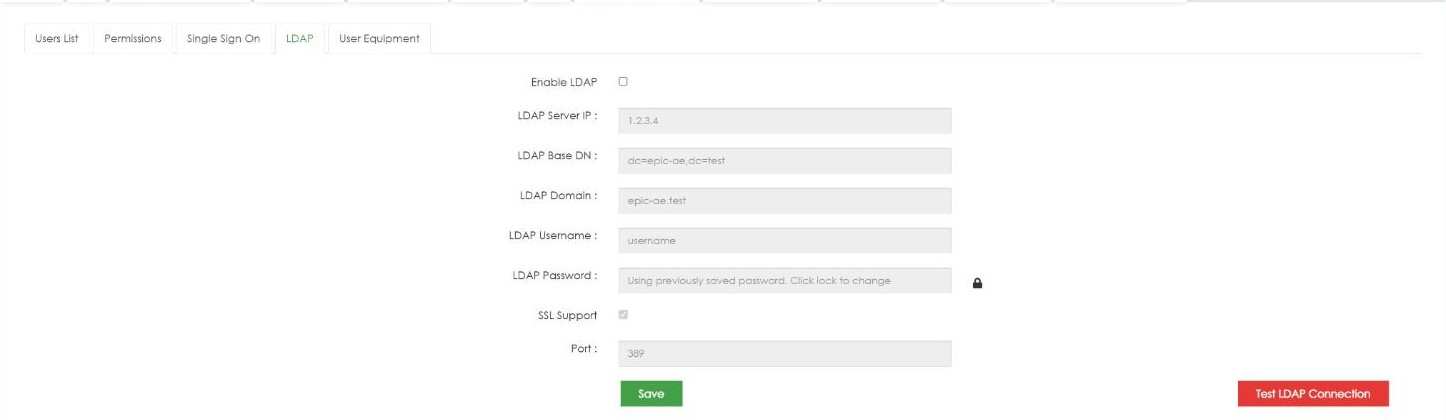
LDAP tab on EPIC 3.2.5 (demo values).
EPIC reads sAMAccountName as the username, displayName as the full name and mail as the email, so make sure those are filled in. EPIC never stores the LDAP passwords; logins are passed straight to the directory. Disabled AD users lose access, but they stay in the EPIC user list until an admin removes them.
3️⃣ Roles and room assignments
- EPIC's roles (Admin, Standard, Teachers and others) are set on the Permissions tab. Admins manage the system, Standard users page, intercom and receive alerts, Teachers see their own room's cameras and recordings.
- Assign teachers to their rooms in Settings › Map Setup (click the room, pick the teacher).
4️⃣ Keep these accounts local
- Contact-only users (EPIC 3.2+): people who only get alert texts and emails, such as district leadership or maintenance partners, can be added as User Group = Contact with no EPIC login. Put them in the right Contact Groups (School Administration, District, Support, School Staff).
- Make sure someone is assigned to the default Support and Maintenance contacts so missing-badge and offline-device emails go somewhere.
📚 Sources & credits
- Compiled by Brad Roy, VSC Director of Operations
- Audio Enhancement: Simplify User Management with SSO Integration DC-41112.0125 (supported providers); SSO, LDAP & CSV Import Technical Guide DC-41152.0325 (SSO domain rule, login, CSV import, LDAP group mapping); EPIC System LDAP Best Practices (service account, Base DN, security groups, attributes, local kiosk user; menu paths updated for EPIC 3.2.5); EPIC 3.2 User Management Enhancements DC-41278.0726 (contact-only users, contact groups, default contacts)
- Screenshots: VSC's EPIC 3.2.5 demo server, 10/9/2026; client IDs redacted; nothing was saved.