Connect the School's VoIP Phones to EPIC
Quick Reference QR-AE-019 · Audio Enhancement EPIC · Rev 1.1 · Oct 2026
Let desk phones page zones, call classrooms and launch alerts, and make classroom call buttons ring the front-office phone.
📄 View or download this guide as a PDF
Click the PDF icon below to open it right here in your browser. In the viewer, use Download (top right) to save a copy, or the printer icon to print it.
EPIC has its own SIP server for paging and intercom. The simplest way to connect a phone system is to register EPIC as one more extension on it, like adding a third-party SIP phone. Advanced SIP trunks are possible for systems that need them.
1️⃣ On the phone system: create an extension
- Create a new SIP extension and password using your standard profile for third-party SIP phones.
- Pick a number that doesn't collide with EPIC's own extensions. EPIC's classroom extensions usually match the room numbers, and zones are in the 5000s.
- Voice codec: G.711 µ-law. SIP on UDP 5060; RTP audio on UDP 10000–20000 between EPIC and the phone system.
2️⃣ In EPIC: add the connection
- Settings › System Settings › SIP › Phone Integration, then Add under Connections.
- Fill in a Friendly Name, the Extension and Password you just created, and the phone system's VoIP IP/Hostname.
- One variable worth adding under Add Variables:
canreinvite = no. It fixes most one-way-audio problems. - Click Submit. EPIC opens the Call Handler screen next.
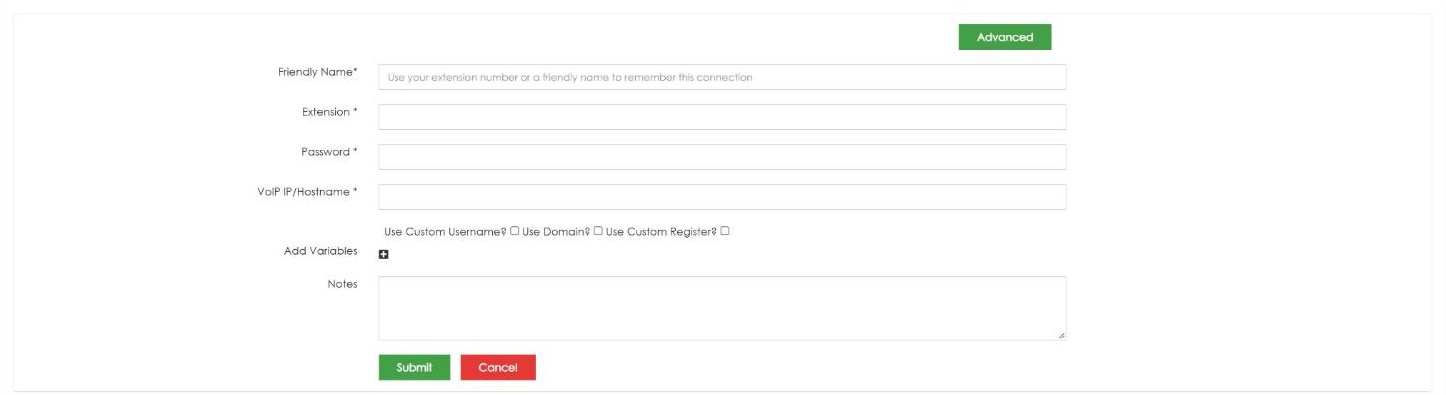
Add connection: Friendly Name, Extension, Password, VoIP IP/Hostname. Advanced (top right) opens the trunk options.
3️⃣ Decide what happens when someone dials EPIC
- Interactive menu (default): staff dial the EPIC extension, hear a dial tone or a voice prompt, then dial any classroom or zone extension to intercom or page.
- Paging shortcuts: click + to map a single digit to a zone (for example 1 = Entire School, 2 = First Grade).
- Notification shortcuts: map a code to an EPIC notification such as Lockdown. Use an obscure code (like 99) so nobody launches one by accident.
- One-button extensions: register more extensions the same way and set each call handler to page a zone or launch a notification as soon as it's dialed.
4️⃣ Ring a desk phone from classroom call buttons
- SIP › Ring Group, click Edit on the intercom group (extension 6000). Every classroom call button dials 6000.
- Click +, choose the phone connection, and enter the desk phone's extension.
- Ring All rings the EPIC console and the desk phone together. Hunt rolls over in order instead. Click Submit.

Ring Group: the intercom group, extension 6000, Ring All.
5️⃣ Check it and test
- Reload Phone Integration. The connection's status is green when it's registered, red if not. Use the Asterisk log tab or the phone system's logs to troubleshoot.
- From a desk phone: dial EPIC, intercom a room, page a zone. From a classroom: press the call button and answer on the desk phone.
Advanced trunks (when registration won't do)
Some systems (Cisco Call Manager, for example) need a peer-to-peer SIP trunk. Click Advanced on the Add screen. The key fields:
| Field | What to enter |
|---|---|
| Trunk/Remote IP · Incoming Host | The phone system's IP (usually the same for both) |
| Incoming User / Secret | Trunk name and secret. They must match on both ends; leave the secret blank if the other side doesn't authenticate. |
| Incoming Port | 5060 |
| Extension Pattern | Which dialed numbers EPIC sends out the trunk. X is a wildcard: 5XXXX sends 5-digit numbers starting with 5. |
| Outgoing User / Secret | Only if the other system needs EPIC to register (register string). Otherwise blank. |
Cisco Call Manager side (AE's example; have the CM administrator do it): create a SIP trunk to the EPIC server IP on port 5060; use a SIP Trunk Security Profile set to UDP (the default non-secure profile uses TCP, so copy it and select UDP); set the inbound calling search space so EPIC rooms can dial Cisco phones; add a route pattern (AE's example: *4 + 3 digits, strip *4 and prefix 1, so *4500 rings EPIC extension 1500) and make sure the phones' calling search space can use it. On the EPIC trunk, AE suggests an Extension Pattern like 8XXXXX so it doesn't overlap EPIC extensions. Check it with sip show peers in the Asterisk CLI (status OK), then test pages and room calls.
With a trunk you can use passthrough: staff dial a prefix plus the EPIC extension (for example *8 + 5000) and the page starts at once, no menu. Or keep the interactive menu on its own extension.
📚 Sources & credits
- Compiled by Brad Roy, VSC Director of Operations
- Audio Enhancement: Connect School VoIP Phones to EPIC System DC-40898.01 (registration, call handlers, shortcuts, ring group, advanced trunk fields, passthrough); EPIC Create Trunk DC-40695.02; Cisco Call Manager Trunk with EPIC DC-40764.02; EPIC & VIEWpath Network Guidelines DC-41095.0725 (RTP ports)
- AE's VoIP guides are undated; every menu and field above was re-checked on VSC's EPIC 3.2.5 demo server, 10/9/2026 (screenshots; nothing was saved).