Manage Bell Schedules in EPIC
Quick Reference QR-AE-022 · Audio Enhancement EPIC · Rev 1.1 · Oct 2026
Change one day's bells, ring a bell right now, build or copy a day type, and keep bells quiet during an emergency.
📄 View or download this guide as a PDF
Click the PDF icon below to open it right here in your browser. In the viewer, use Download (top right) to save a copy, or the printer icon to print it.
EPIC rings bells from day types. A day type (Normal, Half Day, Assembly, Exams…) is a list of bells with times, sounds and zones. The calendar says which day type each date uses. To change a day, you just give the date a different day type.
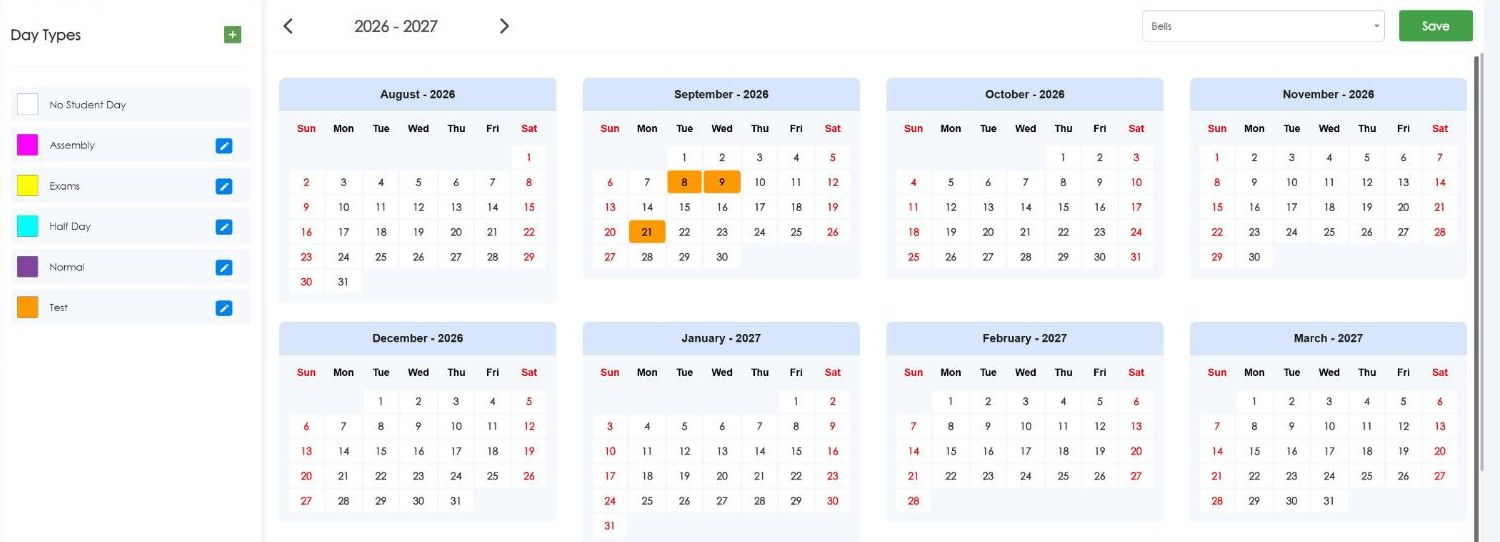
Schedule: day types on the left (color-coded, pencil to edit), the school-year calendar on the right, Save at top right.
1️⃣ Change the bells for one day
- Tap Schedule in the left menu.
- Tap the date you want to change. A box outlines it. Tap it again to unselect.
- Tap the day type you want (for example Assembly). The date takes that day type's color.
- Tap Save (top right).
2️⃣ Ring a bell right now
- Tap Notification and tap START on the bell notification, if your administrator has set one up. It rings everywhere it's programmed to, whatever the schedule says.
- To stop a bell or message that's playing, tap StopAll.
3️⃣ Edit or build a day type (admins)
- On Schedule, click the pencil next to a day type, or the green + to create one.
- Set the name and color. The list shows each bell's time, audio, event and zones.
- Add Bell: name, time (hour, minute, second), audio (bell chime, tone, etc.), and the zones (or Entire School). Optional: a visual message for displays and a Passing Period start/end. Click Save.
- Click Apply to keep the day type.
- Make a Copy is the fast way to build a variation, like a two-hour delay from Normal.
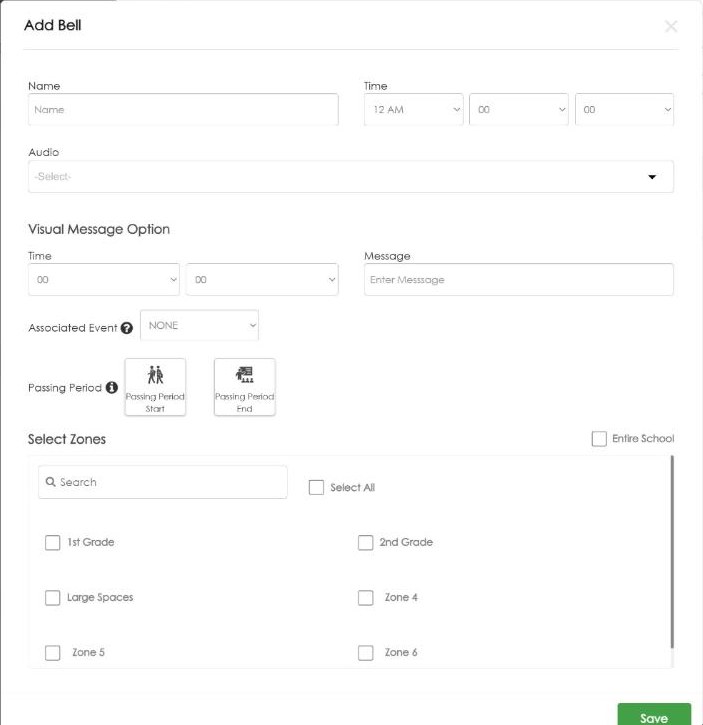
Add Bell: time, audio, visual message, associated event, passing period, zones.
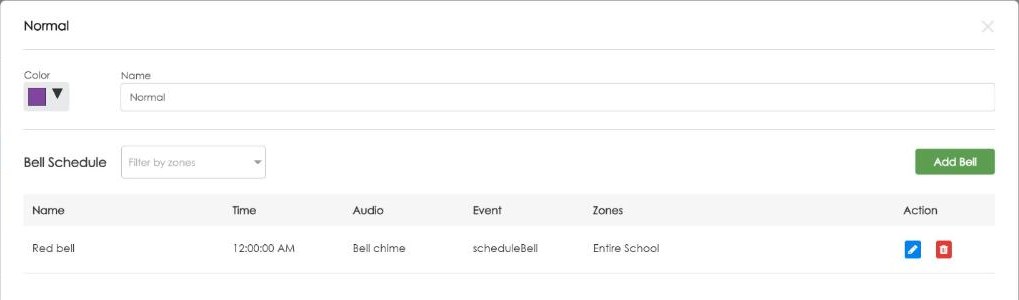
A day type's bell list with Add Bell, Make a Copy and Apply.
4️⃣ Keep bells quiet during an emergency (admins, EPIC 3.1+)
- Settings › Events › Advanced › Edit Events, pick the emergency event (Lockdown, for example).
- Add Action: Device/Class Type = System, Event Action = enableEmergencySuppress. Add stopAll too if the event should cut off anything already playing.
- On the event that ends the emergency (usually All Clear), add disableEmergencySuppress so bells come back.
- While suppression is on, EPIC shows a banner and most other events disappear and can't be started. Fire and All Clear always stay available. To keep another event available, uncheck Suppress During Emergency on that event (Advanced › Event Properties).
- Intercom and paging still work. Teacher mics, media and CLAUDIA background music are not muted by suppression; VSC has to set that up separately for the building, so ask your VSC Project Coordinator.
Field tips
- Bell rang at the wrong time? Check the date's day type on the calendar first, then the bell's time (AM/PM) in the day type.
- Bell late or drifting? EPIC's clock comes from NTP: the district's internal NTP server, or by default ntp.ubuntu.com and pool.ntp.org on UDP 123. Ask district IT to make sure the server can reach one (QR-AE-015).
- Bell missing in one area? Check the bell's zones, then in Settings › Map Setup › Zones click the zone and confirm the room is highlighted (QR-AE-010).
- Too loud or quiet? Bells have their own Bells and Notifications Volume in each device's Audio Settings (Settings › Configure for all devices of a type, or the Known Devices pencil for one) (QR-AE-011).
📚 Sources & credits
- Compiled by Brad Roy, VSC Director of Operations
- Audio Enhancement: Single Day Bell Change QSG DC-40666.02 and Immediate Bell QSG DC-40667.02 (older EPIC screens; steps re-checked on EPIC 3.2.5, which now has a Save button); Suppress Bells and Other Events During an Emergency Event DC-41226.1025
- Screenshots: VSC's EPIC 3.2.5 demo server (VSC High School), 10/9/2026; nothing was saved.