Install a Door Sense Switch for EPIC
Quick Reference QR-AE-024 · Audio Enhancement EPIC · Rev 1.1 · Oct 2026
Mount the AC-2152 magnetic door switch, wire it to an MSx device input, and let EPIC see when a door opens or is propped.
📄 View or download this guide as a PDF
Click the PDF icon below to open it right here in your browser. In the viewer, use Download (top right) to save a copy, or the printer icon to print it.
The Door Sense Switch is a heavy-duty, surface-mount magnetic switch. The switch goes on the door frame, the magnet goes on the door. While the door is shut the contact is closed. When the door opens, or is propped open, the contact opens, and the MSx device input it's wired to changes state. EPIC can then use that input change in an event (see step 5).
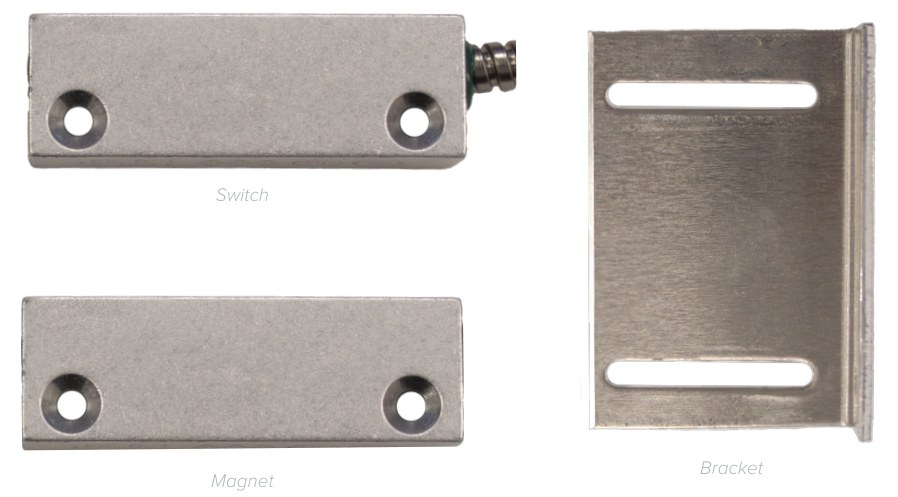
Switch with 6 ft armored cable (top), magnet (bottom) and the adjustable bracket. Audio Enhancement, DC-41025.0823.
| Spec | AC-2152 |
|---|---|
| Type | Magnetic reed, Form A, closed loop |
| Cable | 6 ft stainless steel armored, on the switch |
| Max. rating | 10 W · 200 V DC · 0.5 A |
| Kit | Switch, magnet, bracket, mounting hardware, splice connector, electrical box with cover, cable clamps, RJ45 breakout adapter |
1️⃣ Plan the input
| Device | Door inputs (breakout pins) | Notes |
|---|---|---|
| MS-700 | GPIO 3&4 port: Door 1 = Input 3 (pin 3), Door 2 = Input 4 (pin 6), GND pin 5 | AE's recommended setup. Inputs 1 and 2 stay with the wall plate (Call, SAFE). |
| MS-500 / MS-600 (older) | I/O port: Door 1 = In #1 (pin 3), Door 2 = In #2 (pin 6), GND pin 5 | An input used for a door can't also be a Call button or SAFE Alert button on a WPA plate. |
| Barionet 50 | Up to 4 doors: terminal J7 = Inputs 1 to 4, J8 = their ground | Not PoE. It needs its own 24 VDC power supply. |
MS-720 and MS-775 aren't covered by AE's door guide. Their only inputs are the WPA plate's Call and Emergency. Ask your VSC PM before planning door switches on them.
2️⃣ Mount the switch and magnet
- Mount the switch on the frame (the part that doesn't move) and the magnet on the door, below the switch. Use the bracket if you need it.
- Always mount on the inside of the door: the unlocked, egress side (inside the building or the classroom).
- Before you fasten the magnet, put a continuity tester or meter on the switch leads and move the magnet around. Set it so a small opening breaks the circuit. That's what catches a propped door.
- A "T" layout (magnet crosswise under the switch) lets you mount near the top of the door and still stay sensitive to a propped door.
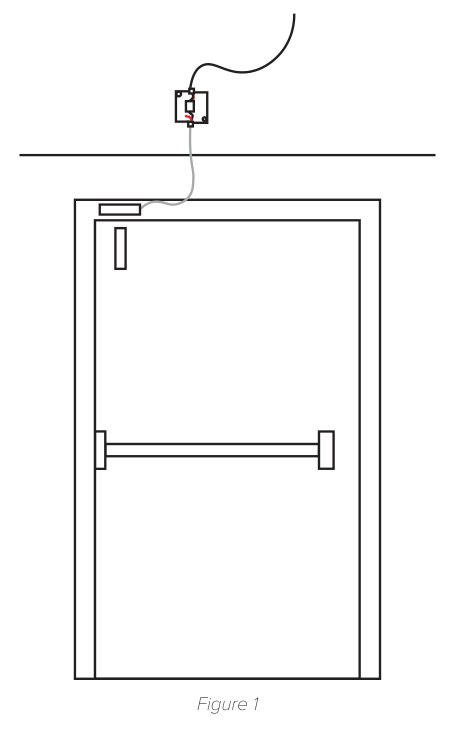
Switch on the frame, magnet on the door just below it, cable to the box above. Audio Enhancement, DC-41026.0324.
3️⃣ Wire the switch
- Black = common, white = normally open (closed while the door is shut). The red wire isn't used: cut off its bare copper.
- Run the armored lead to the electrical box and splice it to the cable going back to the MSx device with the supplied splice connector.
- Double doors: put a switch and magnet on each leaf and wire the two switches in series, so either door opening breaks the circuit. Splice them together in the box.
4️⃣ Connect to the MSx device
Land each door's pair on the RJ45 breakout adapter: one wire on the door's input pin, the other on GND (pin 5). Two doors can share pin 5. Then plug the adapter into the port with a CAT6 cable.
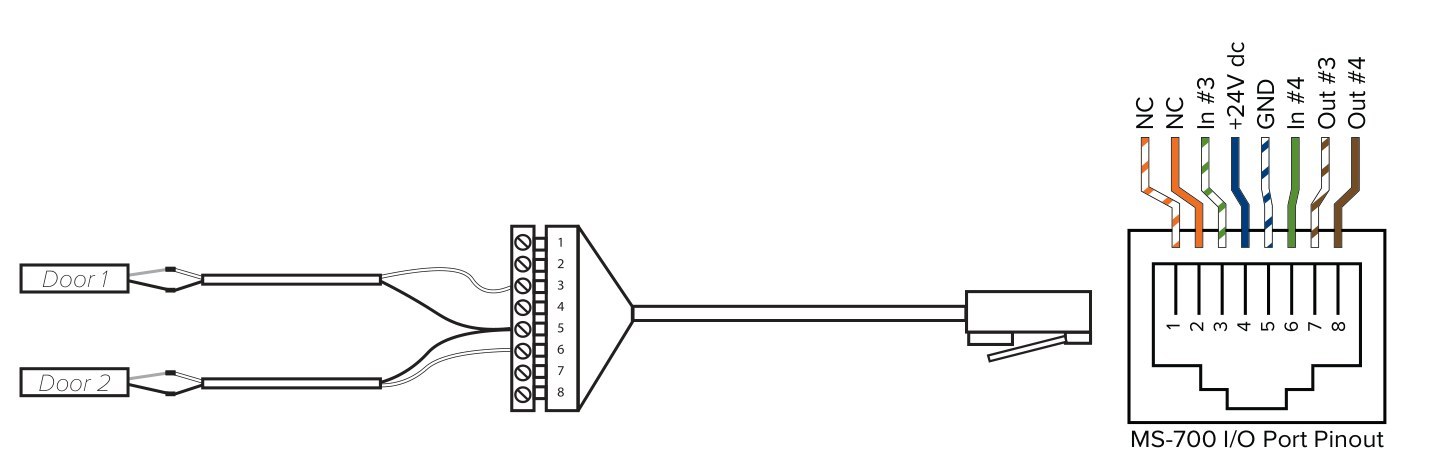
MS-700: Door 1 on pin 3 (Input 3), Door 2 on pin 6 (Input 4), both returns on pin 5 (GND). Older MS-500/MS-600 use the same pins for In #1 and In #2. Audio Enhancement, DC-41026.0324.
5️⃣ Add the door in EPIC
- Go to Settings › Map Setup, pick the map, and click Add Door. Drag the door icon to the right spot on the map (rotate and size it with the arrow buttons).
- Fill in the door panel:
- Door Name and Door Type (for example Exterior).
- Device and Input: the MSx device or Barionet and the input the switch is wired to.
- Enable Alerts on Door State, then a Warning Time and an Alert Time (hh:mm:ss): how long the door can stay open before it turns yellow, then red.
- Suppress Alerts During Passing Period so doors propped between classes don't alarm. Bypass takes a door out of alerting (for example during an event).
- Click Apply.
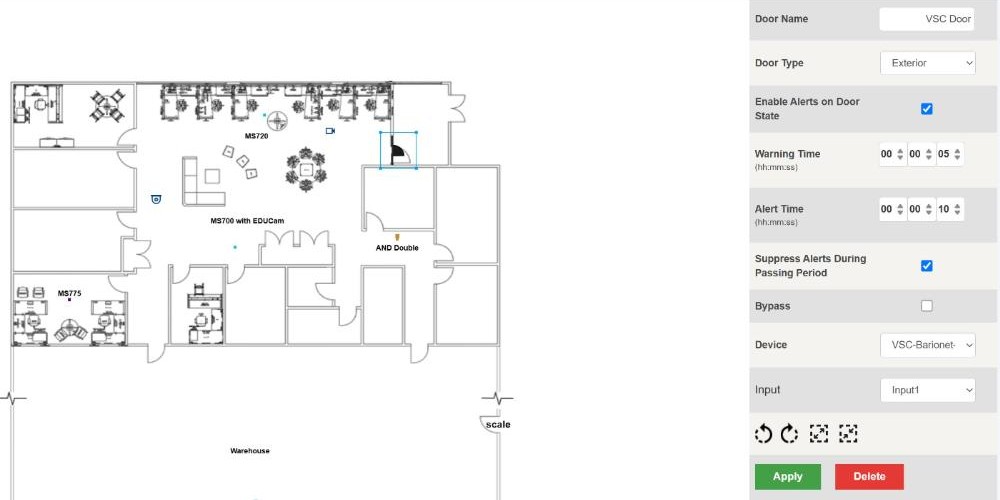
Map Setup › Doors: door on the map and its settings (VSC demo, EPIC 3.2.5).
On the Home screen, the Doors panel then shows counts of doors in Alert, Warning and Bypass, how many are closed, and each open door with how long it has been open. The Doors switch above the map shows or hides door icons; an open door shows red.
Door states: door shut = input Closed, door open or propped = input Open. To also have the door start an event (for example, notify the office): Settings › Events, open the event, and under When any of these happen choose Devices – A device detects a change. Click + Add Device, pick the device type, the device and the door's input with state Open (for example Input 3 Open), click Add Device, then Save (details in QR-AE-007).
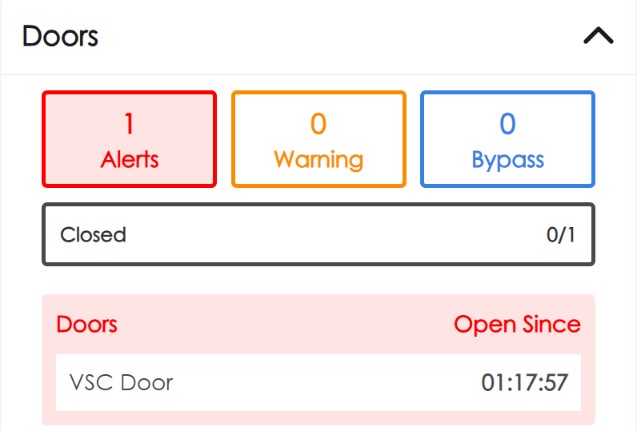
Home › Doors panel: one door open and in Alert.
6️⃣ Test it
- At the box: with a meter on the pair, the circuit reads closed with the door shut and open as soon as the door opens a little. Check each leaf of a double door.
- In EPIC: open the door and watch the Doors panel: it should list the door as open, go to Warning, then Alert at the times you set. Close it and confirm it clears.
Field tips
- Always reads open? Magnet too far from the switch, or the wrong wire landed (white and black are the pair, red is unused).
- Doesn't catch a propped door? Re-position the magnet (try the "T" layout) and re-test with the meter.
- Wall plate Call or SAFE button stopped working? On an MS-500/MS-600 the door took that input. Move the door to another device.
- Keep series runs and splices in the box, not in the frame, so they can be checked later.
📚 Sources & credits
- Compiled by Brad Roy, VSC Director of Operations
- Audio Enhancement: Door Position Sensor Installation Guide, kit AC-2152, DC-41026.0324 (kit contents, mounting, wiring, MS device and Barionet 50 connections); MS-700 Optimum System Pinout DC-41213.0925 (GPIO 3&4 port)
- Audio Enhancement: Magnetic Door Sense Switch Spec Sheet DC-41025.0823 (specifications). This is an older AE document (Aug 2023). EPIC door setup and Doors panel checked on VSC's EPIC 3.2.5 demo server, 10/9/2026 (nothing saved). Images: Audio Enhancement and VSC demo.