Add Third-Party IP Speakers to EPIC
Quick Reference QR-AE-025 · Audio Enhancement EPIC · Rev 1.1 · Oct 2026
Bring compatible SIP speakers (Algo, CyberData and others) into EPIC 3.3 for paging, intercom and announcements.
📄 View or download this guide as a PDF
Click the PDF icon below to open it right here in your browser. In the viewer, use Download (top right) to save a copy, or the printer icon to print it.
EPIC 3.3 adds a driver type called Third Party IP Speaker. It lets a district keep speakers it already owns and use them in EPIC. The difference from AE's own devices: a native EPIC speaker gets audio as an RTP stream, but a third-party speaker is treated as a SIP endpoint. For a page or announcement, EPIC calls the speaker into a conference bridge on its built-in phone server (Asterisk).
1️⃣ Check that the speaker is compatible
A speaker works only if all of these are true:
- It's a SIP-capable speaker that can register as a SIP extension against EPIC.
- It supports audio in G.711 or G.722. Those are the only codecs EPIC supports for these speakers.
- The EPIC server can reach it on the network, with SIP signaling and RTP audio ports open both ways: no firewall or NAT in between blocking them.
2️⃣ Set up the extension and the speaker
- Pick a SIP extension number for each speaker, outside the EPIC room and zone ranges, and set it up so it's ready for the speaker to register with EPIC.
- On the speaker's own web page, point its SIP registration at the EPIC server using that extension. Set the codec to G.711 or G.722.
- Give the speaker an IP address that won't change. You'll type its IP into EPIC in the next step.
- Have the network team allow SIP and RTP both ways between the speaker VLAN and EPIC: EPIC uses UDP 5060 for SIP signaling and UDP 10000–20000 for RTP audio (full EPIC port list in QR-AE-015).
3️⃣ Add the speaker in EPIC
- Go to Settings › Devices › Add Device.
- Set Driver Type to Third Party IP Speaker.
- Fill in:
Field What to enter Device Name Letters, numbers, -and_only. No spaces. For exampleGym-Horn-1.IP Address The speaker's IPv4 address. Extension The SIP extension the speaker registers with. - Click Submit.
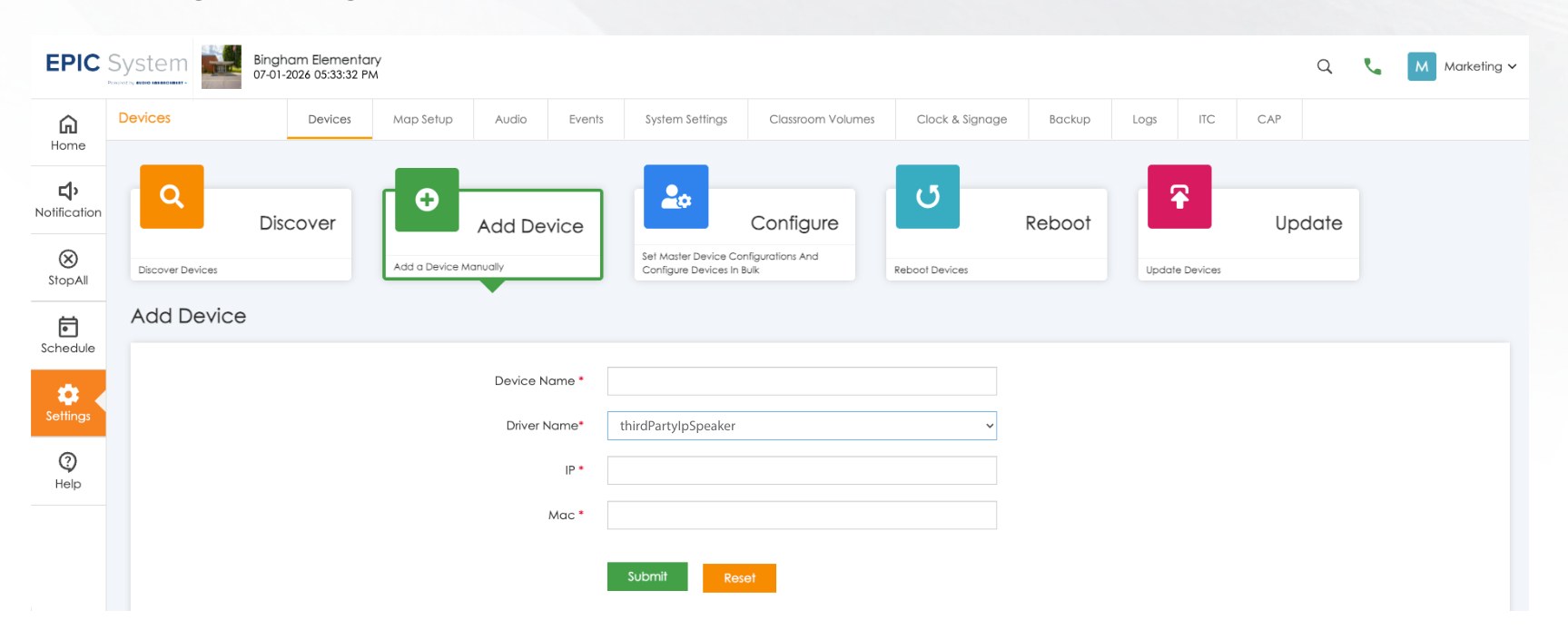
Settings › Devices › Add Device with the Third Party IP Speaker driver selected. Audio Enhancement, DC-41284.0726.
4️⃣ Put it in rooms and zones, then test
- Place the speaker in its room in Settings › Map Setup, like any other device.
- Add that room to each zone it should play in: in Settings › Map Setup, expand Zones, click the zone, tick the room (it turns blue on the map) and click Apply (details in QR-AE-010).
- Check its status on the device list: red means EPIC can't reach it.
- Page its zone and run a test announcement. Then try an intercom call to its room.
Troubleshooting
| What you see | Most likely cause |
|---|---|
| Device shows offline (red) | EPIC can't reach the speaker's IP, the speaker is off, or the IP in EPIC is wrong. |
| Online, but no audio on a page | The speaker isn't registered to EPIC with its extension, or a firewall/NAT is blocking SIP or RTP. |
| Audio garbled or silent | The speaker doesn't support the codec EPIC sent. Set it to G.711 or G.722. |
AE's own IP speaker options
When a district is replacing speakers anyway, AE now makes its own PoE IP speakers for EPIC. These are AE devices, not third-party speakers.

Left to right: SP-1102 ceiling tile, SP-1103 wall speaker, SP-1105 outdoor horn, EP-0067 IP Speaker Clock. Audio Enhancement.
| Model | Power | Good to know |
|---|---|---|
| SP-1102 2×2 lay-in ceiling tile | PoE or PoE+ | Drops into a 2×2 grid. 6.5 in. woofer and 1 in. tweeter. Jacks for a wall call button and a secondary 8-ohm speaker. |
| SP-1103 wall speaker | PoE+ | Surface mount, 8 in. speaker. Call-button input and a companion 8-ohm speaker output. |
| SP-1105 outdoor horn | PoE+ | 25 W re-entrant horn for outdoor, noisy or semi-exposed areas. 3-year warranty. |
| EP-0067 (black) / EP-0068 (white) IP Speaker Clock | PoE+ | HD clock display, 8 in. speaker, intercom mic and RGB alert bar in one wall unit. Needs EPIC 3.3.0 or later. |
Field tips
- Keep a list of each speaker's IP, extension and room. EPIC can't discover them, so this list is how you'll find them later.
- Update EPIC to 3.3 or later first. The driver doesn't exist on earlier versions. The version shows at the bottom right of Settings › System Settings. To upgrade: export a backup (Import/Export › Export Configuration/Backup), then System Upgrade, upload AE's .tar.gz.dat file and click Upgrade; the server reboots (details in QR-AE-002).
📚 Sources & credits
- Compiled by Brad Roy, VSC Director of Operations
- Audio Enhancement: Third-Party IP Speaker QSG DC-41284.0726 (how it works, compatibility, Add Device fields, limitations, troubleshooting); Third-Party Speaker Integration DC-41282.0726; EPIC 3.3 Release Notes DC-41285.0726 and Technical Release Note DC-41286.0726 (rooms, intercom and paging; vendor lock-in warning)
- Audio Enhancement spec sheets: SP-1102 DC-41301.0826, SP-1103 DC-41303.0926, SP-1105 DC-41321.0926, IP Speaker Clock DC-41290.0926. Images: Audio Enhancement.