Add an Algo 8138 Strobe Light to EPIC
Quick Reference QR-AE-026 · Audio Enhancement EPIC · Rev 1.1 · Oct 2026
Mount the Algo 8138 color strobe (AE part AC-2102) on PoE, add it to EPIC as an ALGO8138 device, build its color and flash settings, and start and stop it from events.
📄 View or download this guide as a PDF
Click the PDF icon below to open it right here in your browser. In the viewer, use Download (top right) to save a copy, or the printer icon to print it.
The Algo 8138 is a stand-alone PoE network strobe with red, green, amber and blue LEDs. EPIC has a built-in ALGO8138 device type: events turn the strobe on in the color and pattern you pick, and turn it off again. It doesn't wire to an MSx device. (For white light only, Algo makes the 8128.)
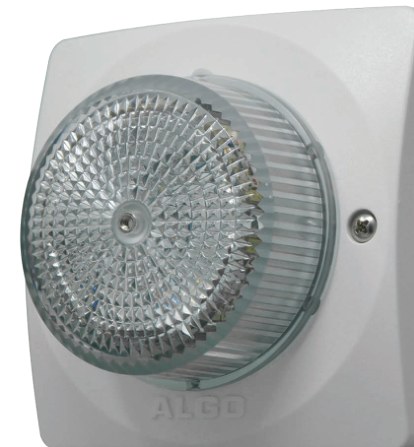
Algo 8138, 4.8 × 4.8 × 3.0 in. Algo Communication Products, via AE's knowledge base.
| Spec | Algo 8138 |
|---|---|
| Power | PoE 802.3af, 12.95 W max |
| Triggers | SIP ring (up to 50 extensions), multicast (50 zones), RESTful API |
| Setup | Its own web page (HTTP/HTTPS) or a provisioning server |
| Light | 64 LEDs, 4 colors, 20 configurable flash patterns, 3 intensity levels, or steady on |
| I/O | Relay output (dry contact, 50 mA 30 V max) and a relay input for a call button |
| Rating | −40 to +123 °F; IP66 outdoors when installed with the supplied gaskets |
1️⃣ Mount it and connect PoE
- The plastic bracket fits single- or double-gang electrical boxes and low-voltage brackets. It works on a wall or ceiling, in any orientation: the LEDs are visible all the way around.
- Outdoors or in wet areas, use the supplied gaskets on a smooth surface or an electrical box.
- Run one CAT6 to a PoE (802.3af) switch port on the network VLAN the district uses for EPIC devices.
2️⃣ Prepare the strobe
- Find the strobe's IP (DHCP) and open its web page. Change the default admin password right away and record it in the project's Odoo record.
- Give it an IP that won't change (static, or a DHCP reservation). EPIC finds it by IP and MAC address.
- Set its time server (NTP) to the same one EPIC uses.
Colors and flash patterns are set in EPIC (step 4), not on the strobe.
3️⃣ Add it to EPIC
- Settings › Devices. If the strobe shows under Unknown Devices after Discover, click the green + on its row. Otherwise click Add Device and pick Device Type ALGO8138.
- Fill in Device Name (for example
GYM-ALGO-8138), IP Address and MAC Address (on the strobe's label and web page). Click Save. - The strobe shows in Known Devices as type ALGO8138 with a green status dot.
4️⃣ Build the strobe settings (color and pattern)
- Settings › System Settings › Algo Strobe Settings, click Create ALGO Strobe Settings.
- Display Name: what it's for, for example Lock down.
- Pattern (1-15), Brightness (1-255), Color-1 and Color-2 (from the table). Click Submit.
- Make one setting per kind of alert the district wants to tell apart.
| Choices in EPIC |
|---|
| Patterns: Rotate Fast · Rotate Slow · Multicolor Spin · Multi-strobe Fast · Multi-strobe Fast Two-color · Multi-strobe Slow · Multi-strobe Slow Two-color · Rotating Strobe · Steady · Steady Two-color · Side to Side · Flashing · Classic Strobe Fast · Classic Strobe Medium · Classic Strobe Slow |
| Colors: white · red · blue · green · amber (or None for Color-2) |
| Brightness: 1 to 255 (255 = full) |

The demo's "Lock down" setting: Multi-strobe Fast Two-color, brightness 255, red and red. VSC EPIC 3.2.5 demo.

Settings List with two settings (Main, Lock down). Edit with the pencil.
5️⃣ Turn it on and off from events
- Settings › Events, open the event (for example Lock Down).
- Under Then these actions will happen, add Devices - Send actions/commands to devices.
- Action = algoStrobeStart, Device Type = ALGO8138, Algo Setting = the setting from step 4.
- Click to select devices and tick the strobe (or Entire School for every 8138). Leave timing at Start with previous. Click Save.
- In the event that ends the emergency (usually All Clear), add the same action with Action = algoStrobeStop for the same strobes.
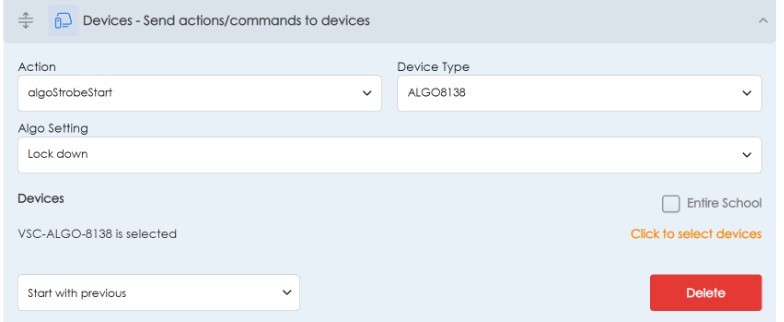
Lock Down event on the demo: algoStrobeStart, ALGO8138, Algo Setting "Lock down", VSC-ALGO-8138 selected.
6️⃣ Test it
- The device shows a green status dot in Known Devices (red means EPIC can't reach it).
- With the district's OK, start the event. The strobe lights in the pattern and colors of its setting.
- Run All Clear (or your stop event). The strobe turns off. If it keeps flashing, the stop event is missing the algoStrobeStop action.
- Doesn't light at all? Check the IP and MAC in EPIC match the strobe, and that the strobe is on the EPIC device VLAN.
Good to know
- Flashing and photosensitivity: Algo rates its flash patterns medium risk for photosensitive seizures and steady-on low risk. Consider steady-on or low intensity in classrooms and special-ed spaces.
- One strobe can lead others: an 8138 that gets a SIP ring can send a multicast stream that fires and syncs other 8138s.
- The relay input takes a normally open or normally closed dry contact (Algo 1202/1203 call buttons are compatible).
- The relay output is a normally open dry contact rated 50 mA, 30 V max. What triggers it is set on the strobe.
📚 Sources & credits
- Compiled by Brad Roy, VSC Director of Operations
- Algo Communication Products: 8138 IP Color Visual Alerter datasheet DC8138BR3, 2020-06-10, as posted on AE's knowledge base under AC-2102 (features, specifications, mounting, safety). This is an older document from 2020, with no EPIC steps.
- EPIC steps and screenshots: VSC's EPIC 3.2.5 demo server (VSC High School) with a working Algo 8138, 10/12/2026 (viewed only, nothing changed). EPIC support since about version 1.8: VSC field experience. Product images: Algo Communication Products.