Deploy Desktop Announcer to Staff Computers
Quick Reference QR-AE-028 · Audio Enhancement EPIC · Rev 1.1 · Oct 2026
Push the InfoView Desktop Announcer app to district computers so EPIC emergency signs and alert messages pop up on their screens.
📄 View or download this guide as a PDF
Click the PDF icon below to open it right here in your browser. In the viewer, use Download (top right) to save a copy, or the printer icon to print it.
Desktop Announcer turns a staff or lab computer into an InfoView screen. When EPIC runs an emergency event, the computer shows the matching emergency sign, the same way InfoView clocks and signs do. EPIC can also send desktop alert messages to everyone running it. This guide is for the district's technology department: the district installs and manages the app on its own computers. VSC and Audio Enhancement don't manage end-user devices.
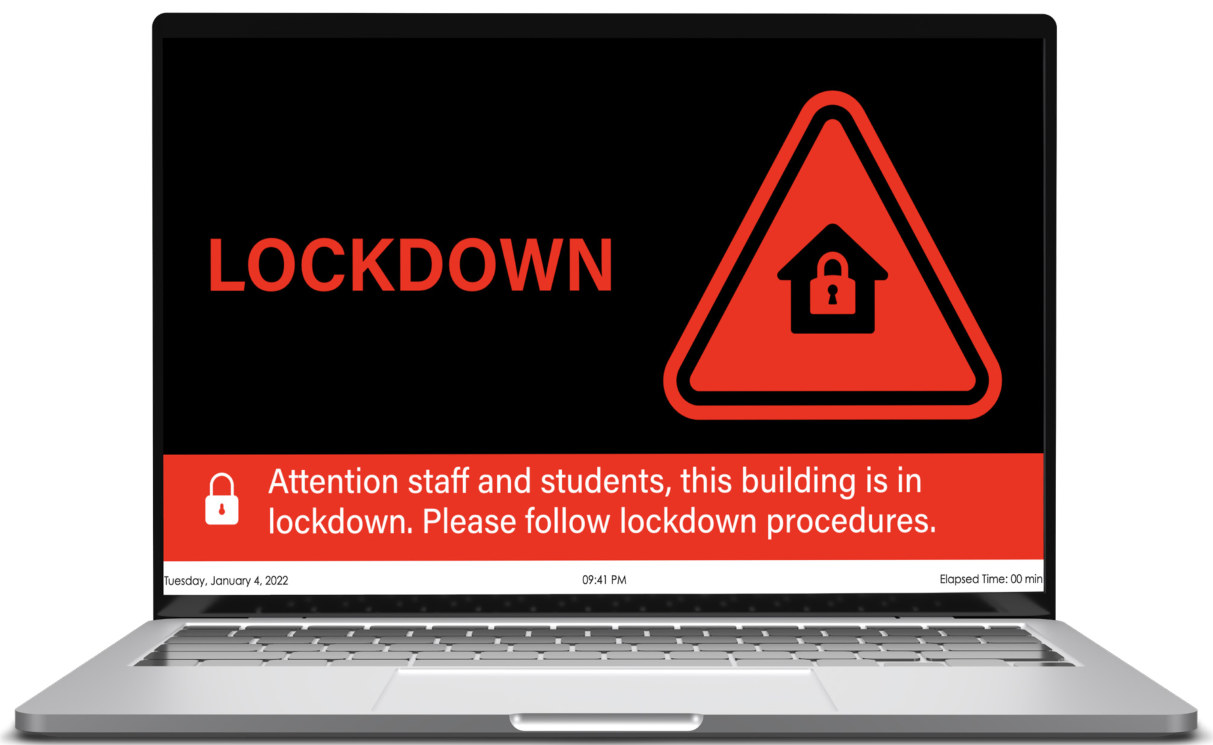
What staff see: a full-screen emergency sign with the event message, plus the date, time and elapsed time along the bottom.
| Requirement | Details |
|---|---|
| District-owned computer | The app installs on district devices. AE's deployment package is a Windows MSI. AE's flyer also lists Mac computers, but the deployment guide covers Windows only. |
| EPIC address | The IP address or hostname of the school's EPIC server, set in the MSI's EPICSERVER property at install time. |
| Network path to EPIC | Each computer must be able to reach the EPIC server through the district network on port 8010. Open it in any firewall or VLAN rule between staff networks and EPIC. |
| EPIC set up to send | EPIC has to be configured to send alerts to Desktop Announcer (step 4). |
1️⃣ Get the installer and the EPIC address
- Get the current Infoview Desktop Announcer.msi from Audio Enhancement or your VSC PM.
- Confirm the EPIC server's IP or hostname. If the district uses a hostname, make sure it resolves on every network the computers use.
2️⃣ Option A: silent install from the command line
Pass EPICSERVER on the msiexec line. /qn makes it silent, so the same line works in a script or any deployment tool that runs install commands:
msiexec /i "Infoview Desktop Announcer.msi" EPICSERVER=epic.yourdistrict.org /qn
Replace epic.yourdistrict.org with your EPIC server's hostname or IP address.
3️⃣ Option B: Group Policy with a transform (MST)
A Group Policy software install can't take a command-line property, so you bake EPICSERVER into a transform file with Microsoft's Orca tool. AE doesn't publish the GPO steps themselves: assign the MSI with the MST applied, the same way the district deploys any MSI package with a transform.
- Install Orca. It comes with the Windows SDK: install the SDK (the Windows SDK Tools are enough), then run
Orca-x86_en-us.msiorOrca-x64_en-us.msifrom the SDK folder (usuallyC:\Program Files (x86)\Windows Kits\10\bin\x86 or x64). - Open the MSI. Start Orca, then File › Open and pick the Desktop Announcer MSI.
- Start a transform. Transform › New Transform. Your edits now go into an MST, not the original MSI.
- Set the server. Click the Property table on the left, find EPICSERVER and change its value to your EPIC server.
- Save the MST. Transform › Generate Transform and save the file. Use it with the MSI in your GPO.
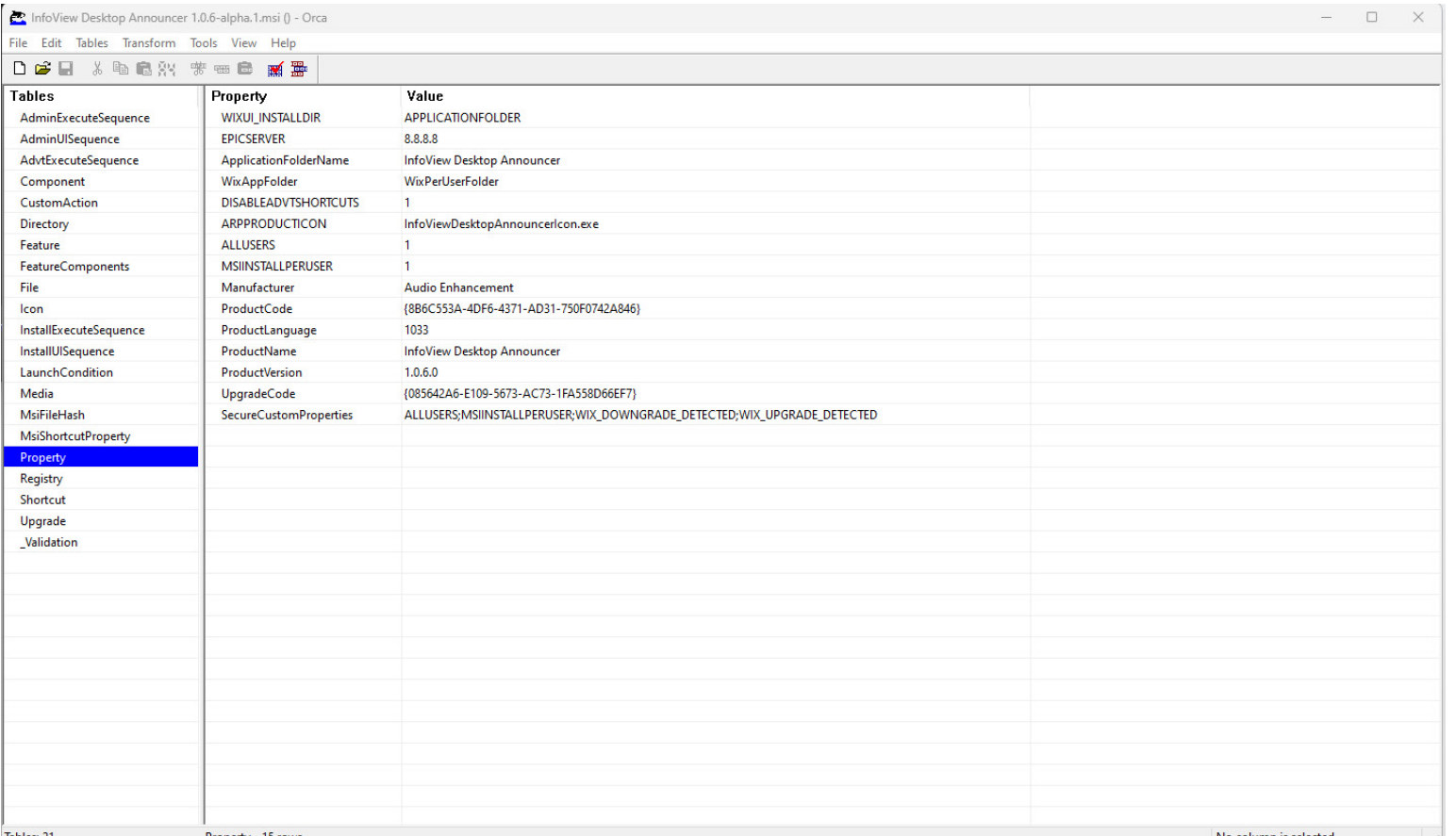
Orca with the Property table open. EPICSERVER is near the top of the list.
4️⃣ Connect it to EPIC
- EPIC must be set up to send to Desktop Announcer, including which events show a sign and what the sign says. This is done in EPIC by an EPIC administrator.
- AE's deployment guide doesn't list the EPIC menus for this. Ask your VSC PM and VSC will help set up or check the EPIC side.
- Emergency sign wording can be edited in EPIC to give your school's own response steps (the same signs InfoView displays use).
5️⃣ Test before and after rollout
- Install on a pilot computer on each staff network or VLAN first.
- With the building office told first, run a test event in EPIC (or ask VSC to). The pilot computer should show the emergency sign.
- End it with All Clear or Stop All and check the sign goes away.
- Roll out to the rest, then test regularly. AE puts regular testing on the district.
Field tips
- Nothing pops up? First check that port 8010 to the EPIC server is open from that computer's network.
- Works on one VLAN, not another? Check the firewall rules and DNS for the EPIC hostname on the network that fails.
- Re-imaging? Add the MSI (with EPICSERVER) to the image or task sequence so new machines get it.
- EPIC server address changes? Redeploy with the new EPICSERVER value.
📚 Sources & credits
- Compiled by Brad Roy, VSC Director of Operations
- Audio Enhancement: InfoView Desktop Announcer Deployment Quick Start Guide DC-41063.0624 (MSI, EPICSERVER, command line, Orca transform, port 8010, responsibilities); Desktop Announcer Flyer DC-41059.1225
- Images: Audio Enhancement (DC-41063.0624).