District View: Manage Every School's EPIC from One Screen
Quick Reference QR-AE-032 · Audio Enhancement EPIC · Rev 1.2 · Oct 2026
What District View does, what the district network needs, how schools connect, and how to page, launch notifications and respond to alerts across the district.
📄 View or download this guide as a PDF
Click the PDF icon below to open it right here in your browser. In the viewer, use Download (top right) to save a copy, or the printer icon to print it.
District View is a central hub for all the EPIC systems in a district. Every school shows up as a pin on a district map. From the district office you can see each school's status, page one school or many, launch a notification (like Lockdown) at selected schools, see every SAFE alert as it happens, and log straight into any school's EPIC. It's web-based: use the touchscreen EPIC Kiosk in the district office, or any computer on the same network.
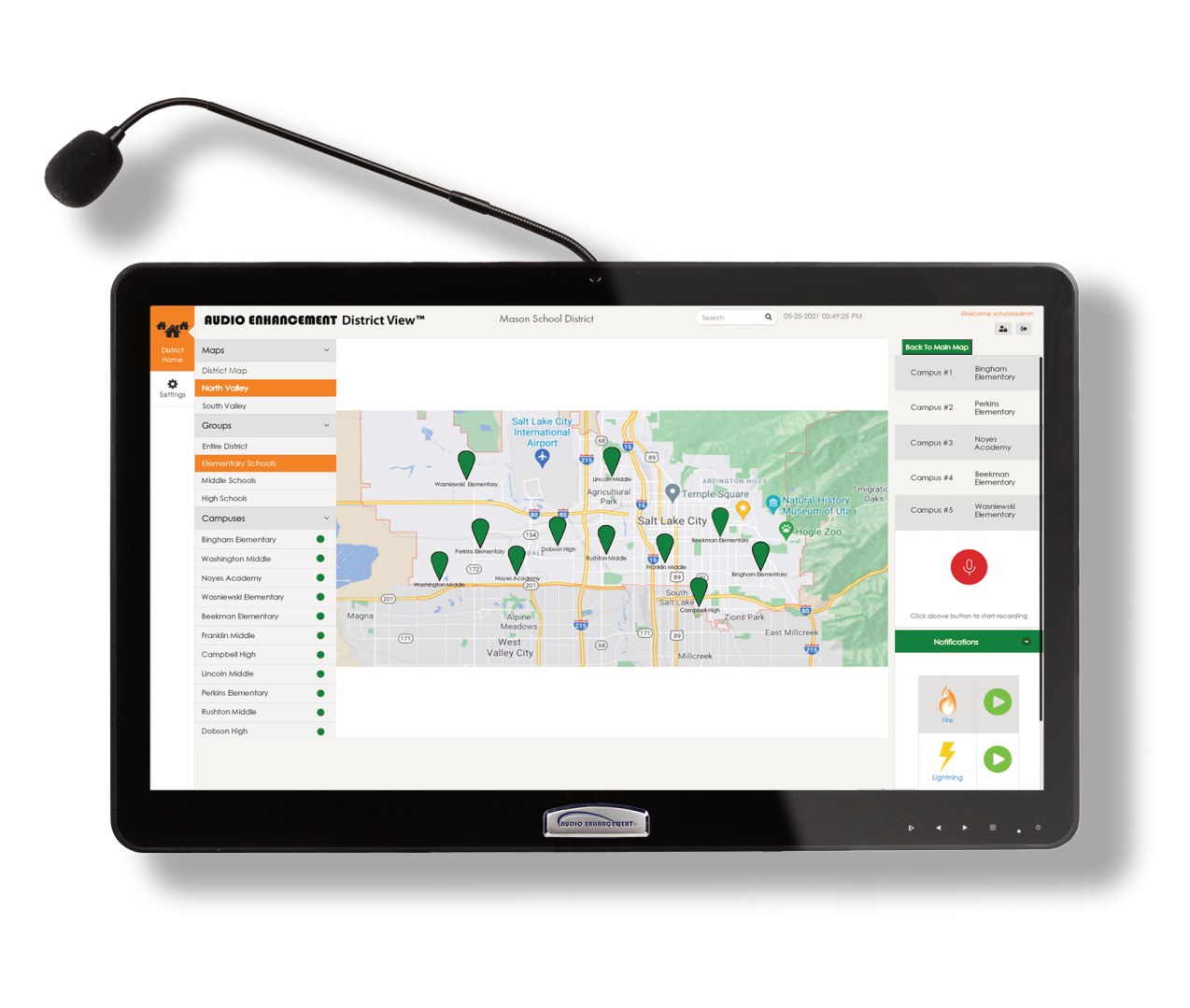
District View on an EPIC Kiosk: map of schools in the center, campus list on the left, paging and notifications on the right. Audio Enhancement.
1️⃣ Get the district ready (district IT)
| ✓ | Item | Notes |
|---|---|---|
| ☐ | District View server | AE's District View Head End Server is a 1U rack server (about 17.3 in wide, 19.6 in deep, 22.7 lb) with two network ports plus a management port. Plan rack space and power in the district office or data center. |
| ☐ | Static IP | Give the District View server a static IP address. Every school's EPIC server must be able to route to it across the district WAN. |
| ☐ | SSL certificates | District View needs a valid SSL certificate on the District View server and on each school's EPIC server. For each server: pick a hostname and add an internal DNS A record for it; get a certificate for that name (existing wildcard or SAN cert, a public CA, or an internal CA trusted on staff devices) as .crt, unencrypted .key and .ca-bundle. On EPIC, import it at Settings › System Settings › Network › Import SSL Certificate in a maintenance window (EPIC restarts). |
| ☐ | Internet (outbound) | Not needed for core functions: alerts still reach the district if the internet is down, as long as the district network is up. Email and text alerts and upgrades do need it, so AE recommends outbound internet access for the server. |
| ☐ | Maps (PNG files) | (1) A clean district overview map, (2) the same map with each section outlined, (3) a clean map of each section, (4) each section map marked with where every school goes. |
2️⃣ Connect each school's EPIC to District View
Each school's EPIC server has a field for the District View server's address. Repeat this at every school:
- Log into the school's EPIC as an admin and go to Settings › System Settings › School.
- Enter the District View server's address in District IP.
- Click Connect to District.
- On District View, check that the school's pin and campus-list dot turn green.
3️⃣ Find your way around the map
- The home page is the District Map. Click a section to zoom in to that part of the district. Click Back to Main Map or District Home to go back.
- The Campuses list on the left shows a status dot for each school. Green: everything is working. Yellow: the school may have lost contact with the district, or some devices have a problem. Hover over the dot for details (for example Active Devices: 0/1).
- To log into a school, click its pin, then the Campus link in the panel on the right. You're in that school's EPIC as a district user and can make intercom calls, page, change bells or settings. Click District Home or the red X to return to the map.
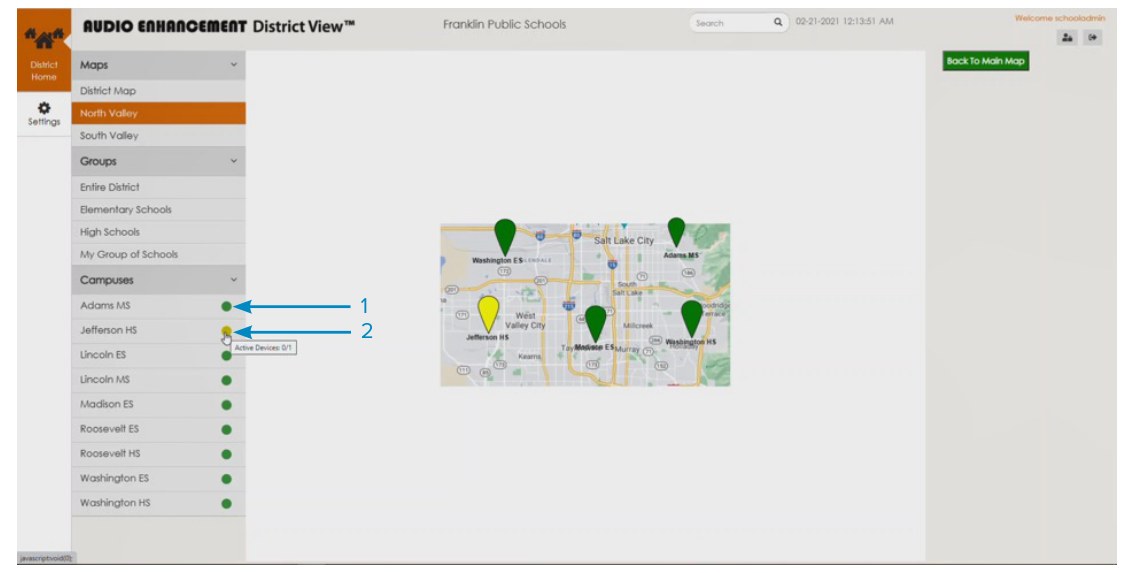
Section map with the Campuses list: Adams MS is green (1); Jefferson HS is yellow (2), and hovering shows Active Devices 0/1. Audio Enhancement.
4️⃣ Page one school, a group, or the whole district
- Pick who hears it: click a school, or a group under Groups (set up by your admin). For a one-off group, hold CTRL and click each school.
- Click the red Paging button and speak. This is not live: it records your message. Click it again to stop.
- Click Play to hear it back (only on your computer). Not happy? Click Record and try again.
- Click Send. A status window shows the message going out and playing. Play Again sends it again.
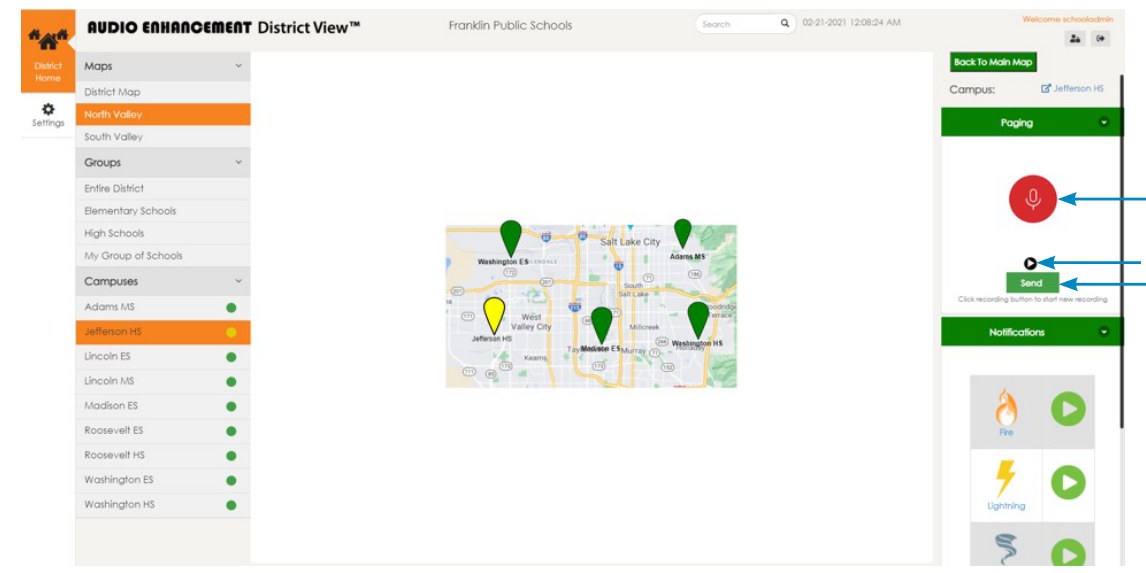
Paging panel: record (top arrow), play back, then Send. Notifications are below it. Audio Enhancement.
5️⃣ Launch a notification at selected schools
- Select a school or group (as in step 4).
- Click a notification (Lockdown, Evacuate, All Clear…) and confirm in the pop-up.
- Each school runs its own event with the same name, just as if someone started it at that school. The school's console shows that the district launched it.
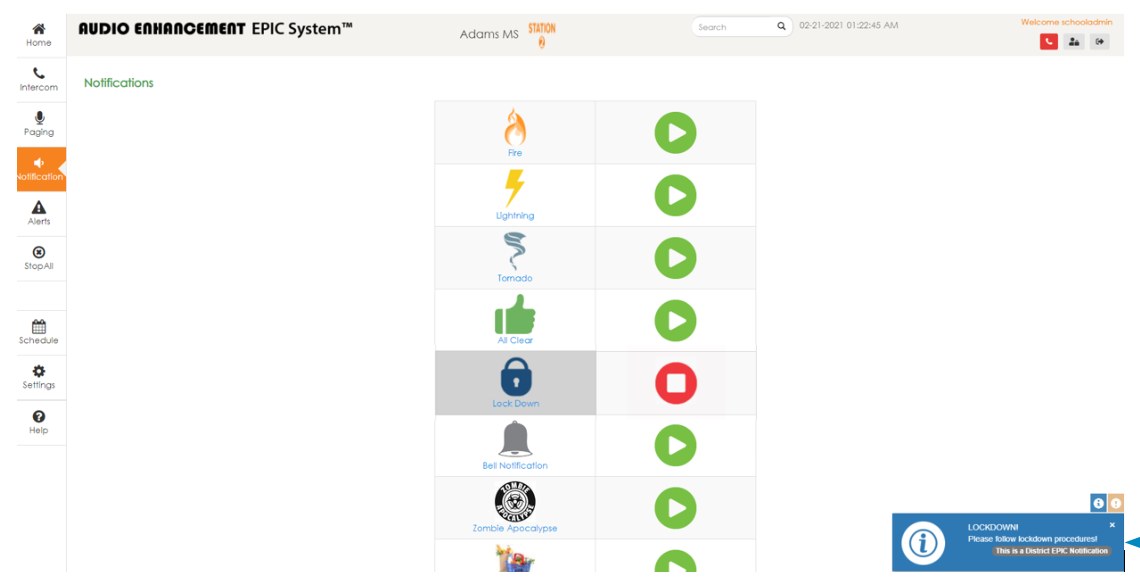
At the school: Lock Down is running and the pop-up says "This is a District EPIC Notification." Audio Enhancement.
6️⃣ When a school has an alert
A SAFE alert comes from the alert button on a teacher's mic, a red alert button on the classroom wall, or the alert button on the EPIC Teacher Interface. District View also receives a school's notifications, like a lockdown.
- District View plays a sound and highlights the section of the map with the alert. The school also shows in the pop-up at the bottom right.
- Click the section, then the school's pin or link. You're logged into that school as if you were at its console, and can view or end the SAFE alert (if your role allows).
- To silence the sound for other notifications, click the sound icon next to the school in the campus list.
| What can happen | Setup | Notes |
|---|---|---|
| Pop-up on District View | On by default | For SAFE alerts it can be turned off, or set to appear only when the alert is escalated. |
| Pop-up at associated schools | On by default | Their EPIC consoles show which school had the alert or event. Same SAFE options as above. |
| Email / text messages | Optional | Sent from the District View server to the distribution groups you choose. Needs internet. |
| Start an event at associated schools | Optional | Example: Washington ES goes into lockdown, so Jefferson JH across the street goes into lockdown (or lockout) automatically. |
| Access control and other systems | Optional | EPIC can take a signal from (or send one to) systems like access control. Needs a compatibility review and the other system's vendor, and may cost extra. |
7️⃣ District users
- District staff log into District View with their own accounts. What each person can do (for example, end a SAFE alert at a school) depends on their role.
- District View has its own users and LDAP settings, and admins can add many users at once from a CSV file.
- Tell your VSC Project Coordinator who needs access and what they should be allowed to do.
What's new in District View 2.0.2
- The server now runs on Ubuntu 24.04 LTS (was 20.04): newer security patches and long-term support.
- EPIC servers stay connected after a District View upgrade.
- District admins can page from inside a school's page in District View again.
- Multi-user CSV uploads work, and duplicate users are blocked.
- LDAP settings save properly and show an error if something's wrong.
- Import/export now includes SSH keys, time zone, NTP, DNS and HTTPS certificates, like EPIC.
Field tips
- School stuck yellow? Hover the dot, then log into the school and check Known Devices. If the whole school is unreachable, check its route to the District View server and its SSL certificate.
- District notification didn't start at one school? Compare event names at that school.
- District page didn't play in a room? Check whether a live page was running at the school. Then, in that school's EPIC, check the room is in the zone (Settings › Map Setup › Zones, click the zone: its rooms show blue) and the room amp's Intercom and Paging Volume (Known Devices › pencil › Audio Settings).
- Alerts show on the map but no emails or texts? Check the District View server's internet access.
📚 Sources & credits
- Compiled by Brad Roy, VSC Director of Operations
- Audio Enhancement: District View 2.0.2 Technical Release Note DC-41246.0226 (what's new); District View Flyer DC-40969.1025; District View Manual DC-40866.0324 (map, paging, notifications, alerts, status, alert options)
- Older AE documents, used where newer ones don't cover the topic: District View Implementation FAQ DC-40942.0923 (static IP, WAN, SSL, internet, maps, same-name events); District View Quick Start Guide DC-40866.01 (undated, version 1.0); District View Head End Server Spec Sheet DC-40990.01 (undated)
- "District IP" and "Connect to District" seen on VSC's EPIC 3.2.5 demo server (Settings › System Settings › School), 10/9/2026. Screenshots: Audio Enhancement, from the District View manual; current screens may look different.
- Audio Enhancement: EPIC Hostnames and SSL Certificates DC-40854.01 (2022, older AE document; SSL certificate files and import path)