Show EPIC Alerts on SMART Boards (CAP)
Quick Reference QR-AE-035 · Audio Enhancement EPIC · Rev 1.1 · Oct 2026
Push EPIC emergency alerts (Lockdown, Shelter, Hold) onto SMART Boards with CAP, and have EPIC react to weather alerts. Written so district IT can do it themselves.
📄 View or download this guide as a PDF
Click the PDF icon below to open it right here in your browser. In the viewer, use Download (top right) to save a copy, or the printer icon to print it.
CAP (Common Alerting Protocol) is a standard XML format systems use to share alerts. EPIC works with CAP in both directions:
| Direction | What it does | Typical use |
|---|---|---|
| Inbound (EPIC listens) | EPIC subscribes to a CAP or ATOM feed, or accepts CAP posted to it, and an EPIC event acts on matching items. | National Weather Service feed starts a Lightning or Severe Weather event. |
| Outbound (EPIC is the source) | An EPIC event publishes a CAP message, either served from EPIC or posted to a remote system. | Lockdown, Shelter or Hold shows on SMART Boards or digital signage. |
1️⃣ Make EPIC listen to a feed (inbound)
- Settings › CAP, click New Feed.
- Name it clearly, for example "NWS - Oakland County".
- Enter the feed URL (usually ends in .xml or .atom). EPIC runs a validator when you save: that's the best way to check the URL.
- Refresh Interval in seconds is optional. Blank = every 10 minutes.
- Reprocess Old Item As New (with its own interval) lets EPIC act again on an alert that stays active a long time.
- Leave Enabled checked and save.
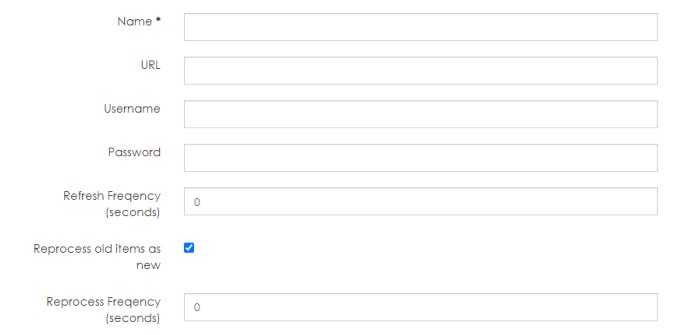
New Feed: name, URL, login, refresh and reprocess settings.
- The incoming feeds list shows last update, active items and sync status. Sync Now pulls the feed right away.
- Click an Item Title to see all of that alert's data. Note the words in the Title and Summary and fields like cap:event and cap:urgency: you'll filter on them in step 2.
- Exclude from Processing stops an item from ever starting an event. Use it on "No Active Alerts" style items.
- CAP posted to EPIC instead: New Feed, name it, and fill in Allow Incoming Items via POST Request with a username and password for the other system. EPIC uses basic authentication and shows the POST URL after you save (it has the form https://<EPIC host>/cap/inFeed/postItem?feed=<number>).
2️⃣ Have an event act on the feed
- Open the event (AE's example: Lightning).
- On the When side, choose CAP and click Add Filter.
- Pick the Feed, the Field to watch (or Any), the Comparator and the Value. Example: title contains "Lightning".
- Click Add Filter, then add the event's actions (visual message, recorded audio, strobes, notifications to staff) and save.
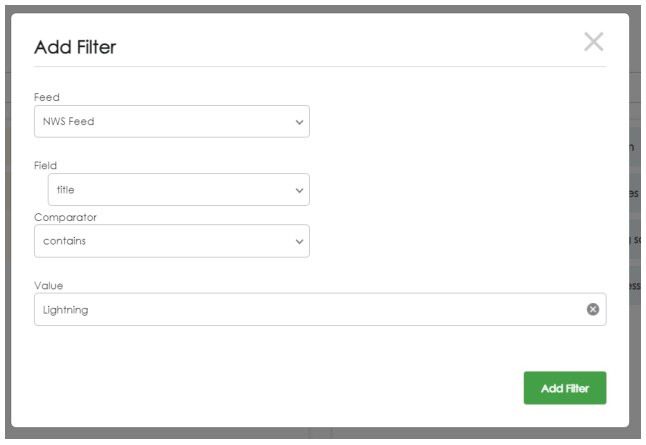
Add Filter: NWS Feed, title contains Lightning.
3️⃣ Get the SMART Control credentials (district side)
Before EPIC can push to SMART Boards, the district's SMART admin does this in the SMART Control portal:
- Enroll the SMART Boards in SMART Control.
- Put the boards that should get the same alerts into a device group.
- Enable the CAP alert connection for that group. SMART Control then generates three values:
| Value | What it is |
|---|---|
| URL | SMART's CAP endpoint that routes alerts to that group of boards. |
| ID | The username for that URL. |
| Password | The password for that URL. |
4️⃣ Create the outgoing feed in EPIC
- Settings › CAP › Outgoing CAP Feeds, click New Feed.
- Name it, for example "SMART Board CAP Alerts".
- Check POST New Items to Remote Server. Paste the SMART URL as the Remote URL, the ID as Username, and the Password.
- Check Enabled (AE's SMART guide calls it "Enabled Alert") and save.
For a system that will subscribe to EPIC instead of being posted to, leave Serve Feed From EPIC Server checked. A username and password are optional, and EPIC shows the Local URL after you save. Give that to the other system.
5️⃣ Add the CAP action to each emergency event
- Open the event in Events (Lockdown, Shelter in Place, Hold and so on).
- Under Then these actions will happen (or Immediate Actions), add CAP - Post a message to a CAP feed.
- Move the SMART feed from the list on the left to the right (double-click or the arrow).
- Leave Copy incoming CAP message and Remove if original CAP message is removed unchecked for SMART. They're for passing an inbound alert on to another system.
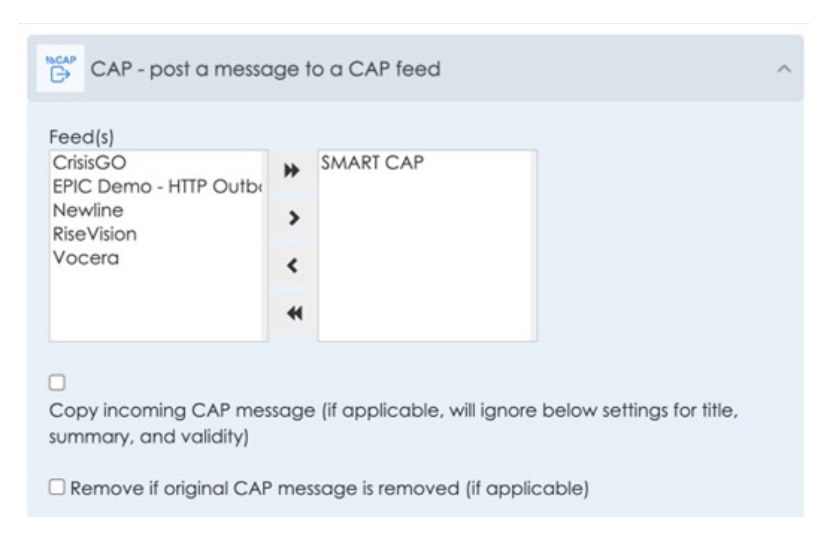
CAP action: available feeds on the left, the SMART CAP feed selected on the right.
6️⃣ Set the alert text and attributes
- Enter a Title and Summary for the event.
- Set Validity. The SMART Board closes the alert on its own when it runs out: 3 minutes from 12:00 closes it at 12:03.
- Click Add under Custom Attributes and add each row in the table, then save.
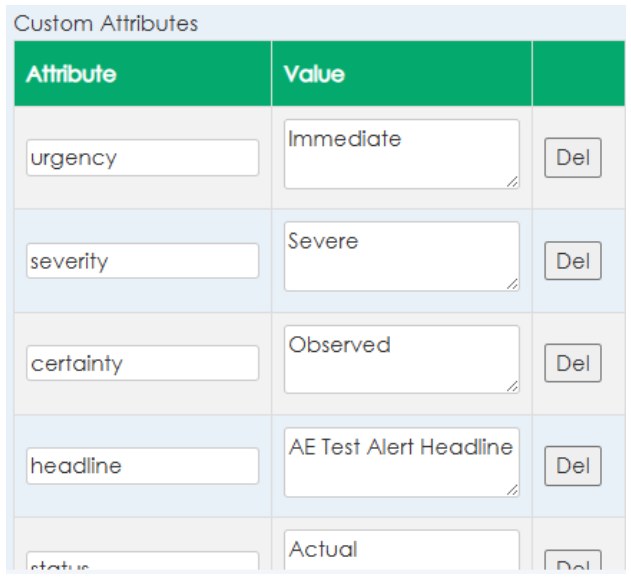
Custom Attributes, one row per attribute.
| Attribute | AE's value for SMART | Attribute | AE's value for SMART |
|---|---|---|---|
| status | Actual | urgency | Immediate |
| msgType | Alert | severity | Extreme |
| scope | Actual | certainty | Observed |
| category | Safety | headline | The big text, e.g. LOCKDOWN |
| description | The instructions under it | ||
Only headline and description show on the board. For a non-SMART display or signage system, use the title, summary and attributes that system expects; get them from its vendor.
7️⃣ Test it
| Check | How |
|---|---|
| Outbound | With the district's OK, run a test event. The alert shows on a SMART Board in the group with the right headline and description. |
| Auto-close | The board clears it when Validity runs out. |
| Repost | Outgoing CAP Feeds › Actions › Reprocess Active Items reposts an active item: handy when tuning. |
| Inbound | Sync the feed, then use Clear Processed Status on a real item to see the event start. |
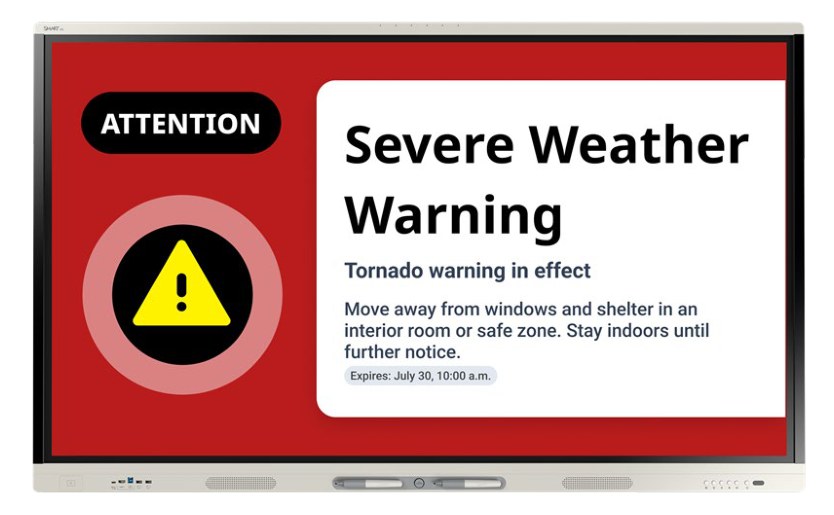
A CAP alert on a SMART Board: the headline and description come from EPIC.
Field tips
- Nothing on the boards? Check the SSL certificate first, then the SMART credentials, then that the boards are in the group the connection belongs to.
- Weather event keeps firing? Tighten the filter (cap:event instead of Any) and exclude "No Active Alerts" items.
- Alert stays up too long or too short? Change Validity on the event's CAP action.
- Other displays: Newline displays: see QR-AE-036. InfoView displays take EPIC emergency signs directly, no CAP needed (QR-AE-027).
📚 Sources & credits
- Compiled by Brad Roy, VSC Director of Operations
- Audio Enhancement: CAP Integration: Initiate Events and Notifications with EPIC System DC-41115.0426 (overview, weather use); CAP Configuration in EPIC DC-41180.0525 (inbound and outbound feeds, filters, CAP action, SSL); EPIC System CAP Integration SMART DC-41259.0426 (SMART Control credentials, outgoing feed, attributes, test)
- Screenshots: Audio Enhancement (DC-41180.0525, DC-41259.0426). Settings › CAP tab confirmed on VSC's EPIC 3.2.5 demo server.
- Audio Enhancement: EPIC Hostnames and SSL Certificates DC-40854.01 (2022, older AE document; SSL certificate files and import path)