Show EPIC Alerts on Newline Displays (Newline Secure)
Quick Reference QR-AE-036 · Audio Enhancement EPIC · Rev 1.1 · Oct 2026
Push EPIC emergency alerts (Lockdown, Shelter, Hold) onto Newline interactive displays with Newline Secure and CAP, and clear them with All Clear. Written so district IT can do it themselves.
📄 View or download this guide as a PDF
Click the PDF icon below to open it right here in your browser. In the viewer, use Download (top right) to save a copy, or the printer icon to print it.
Newline Secure is Newline's alert software for its interactive displays. When an EPIC event runs, EPIC posts a CAP (Common Alerting Protocol) message to Newline Secure, and the displays in that group show the alert full screen. A second EPIC event (All Clear) takes it down.
1️⃣ Make a group in Newline Secure
- On the Device tab, find the Groups sidebar (click Groups if it's hidden).
- Click Add, type a name (for example one group per building), and click the check mark.
One group = one set of displays that get the same alerts. Each group gets its own CAP endpoint in step 4, so a building-by-building group means one EPIC feed per building.
2️⃣ Register the displays
| Method | How |
|---|---|
| One at a time | Device tab › Add. Enter the display's serial number and a name. |
| Many at once | Device tab › Bulk Add. Download the template, fill it in, save as .xlsx, upload and confirm. |
| From the display | Open the Newline Secure app on the display, tap Account Binding, sign in, name the display and pick at least one group. |
Name displays by room number so the district can tell at a glance which ones took the alert.
3️⃣ Set the alert look (optional)
On the Alert Settings tab, set the alert background image and audio level. These settings apply to every group and display.
4️⃣ Get the CAP endpoint for the group
- In the group list, click CAP on the group. Leave the window open.
- Check that Security Platform is set to Audio Enhancement.
- Copy the Webhook URL and the Body [Alert] and Body [Clear] payloads into the password manager.
5️⃣ Create the outgoing CAP feed in EPIC
- Settings › CAP › Outgoing CAP Feeds, click New Feed.
- Name it, for example "Newline - Main Building".
- Check POST new items to remote server.
- Paste the Newline Webhook URL in Remote URL.
- Check Enabled and click Save.
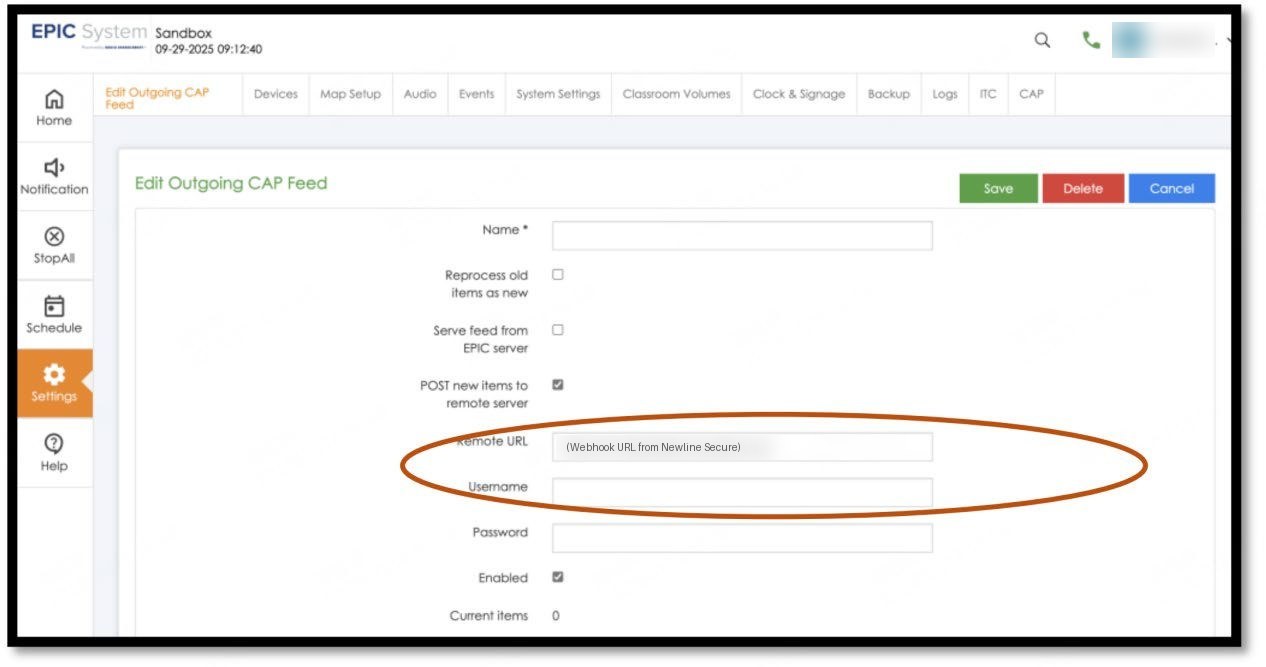
Outgoing CAP feed: POST new items to remote server, Remote URL from Newline Secure, Enabled.
6️⃣ Add the CAP action to each emergency event
- Settings › Events, open the event (Lockdown, Shelter, Hold, Secure and so on).
- Under Then these actions will happen (or Immediate Actions), pick CAP - post a message to a CAP feed.
- The feeds are listed on the left. Double-click the Newline feed so it moves to the box on the right.
- Leave Copy incoming CAP message unchecked unless this event is started by an incoming CAP feed: when it's checked, EPIC can ignore the Title, Summary and Validity you set below.
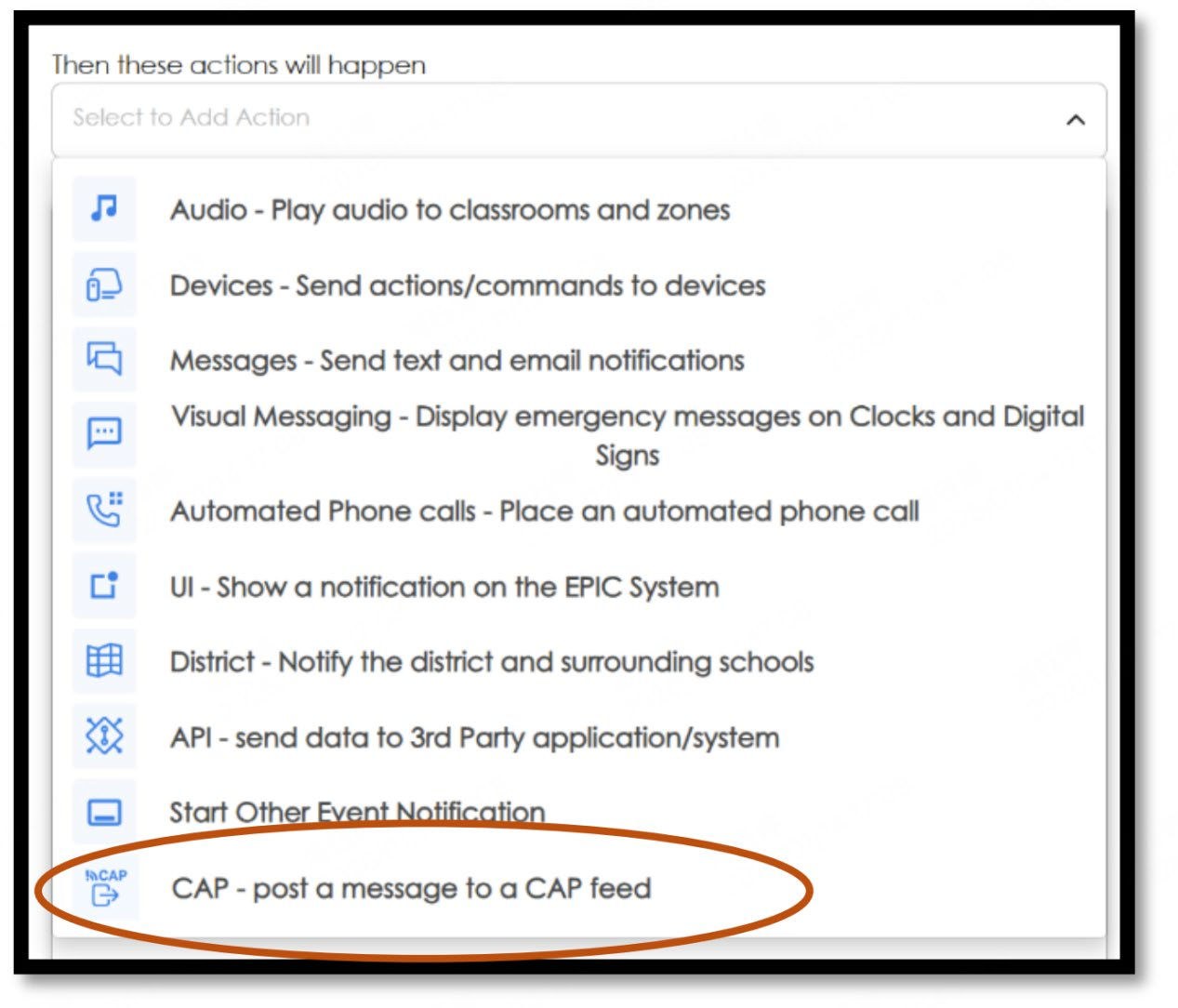
Action list: CAP - post a message to a CAP feed.
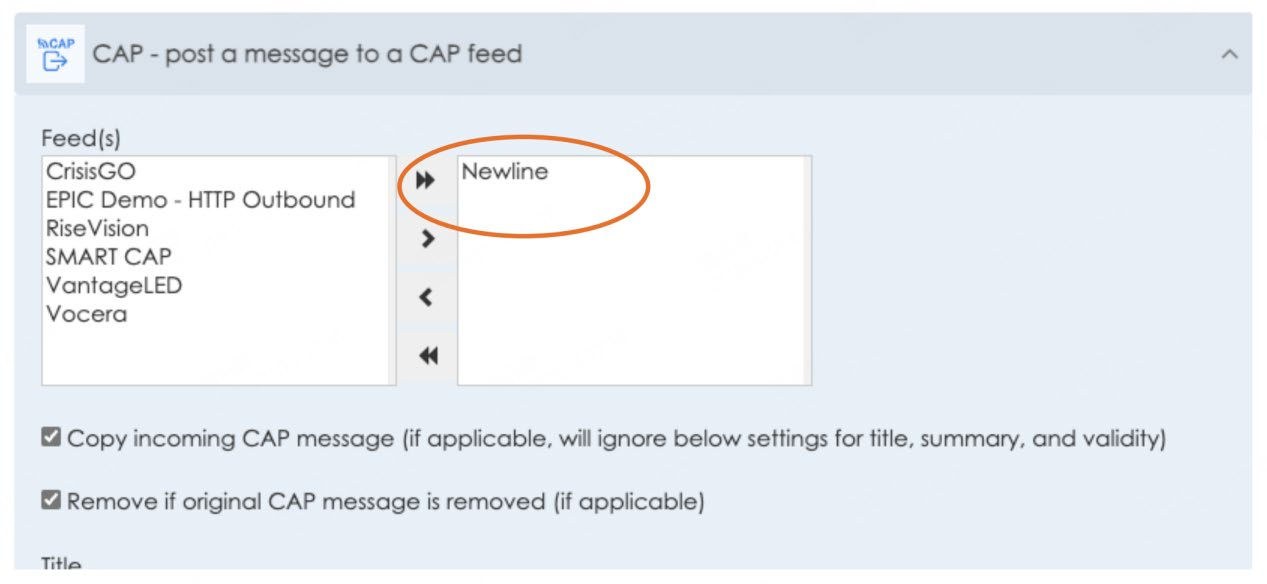
The Newline feed moved to the right-hand box (selected for this event).
7️⃣ Set the message and attributes
- Title: the big headline on the display (LOCKDOWN). A headline attribute overrides it.
- Summary: the instructions under it. A description attribute overrides it.
- Validity: how long the alert posts. Newline's example is 3 minutes; use what fits the event.
- Under Custom Attributes, click Add once per row and enter each Key/Value from the Newline Body [Alert]. Save the event.
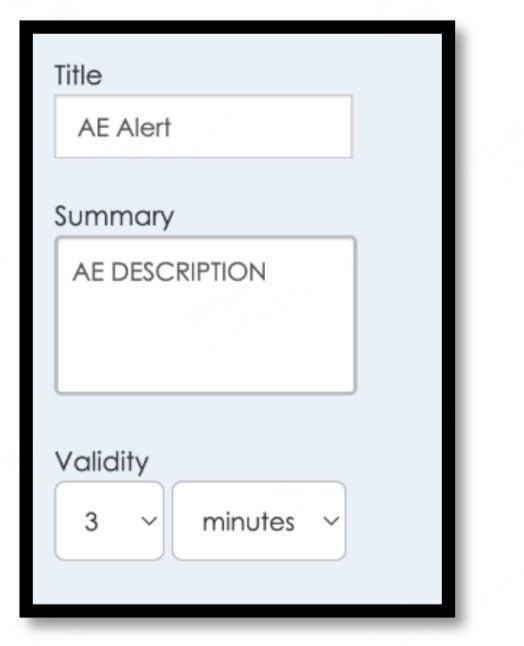
Title, Summary and Validity on the CAP action.
| Attribute | Newline's example value | Attribute | Newline's example value |
|---|---|---|---|
| urgency | Immediate | status | Actual |
| severity | Extreme | scope | Actual |
| certainty | Observed | category | Safety |
| msgType | Alert | headline | The big text, e.g. LOCKDOWN |
| description | The instructions under it | ||
Use the exact Keys and Values your Newline Secure portal shows for the group: they win over this example. Only the headline and description show on the display.
8️⃣ Clear the alert with All Clear
Newline alerts are cleared by a separate EPIC event. Open the All Clear event (or make a cancel event), add the same CAP action and Newline feed (step 6), and enter the Keys and Values from the Newline Body [Clear] payload instead of Body [Alert].
9️⃣ Test it
| Check | How |
|---|---|
| Alert | With the district's OK, run the event. Every display in the group shows the headline and description. |
| Clear | Run All Clear. The alert comes off every display. |
| Repost | Outgoing CAP Feeds › Actions › Reprocess Active Items reposts an active item while you're tuning. |
Field tips
- Nothing on the displays? Check EPIC's SSL certificate, the Remote URL, then that the displays are in the group the webhook belongs to.
- Wrong or blank text? Check the headline and description attributes: they override Title and Summary.
- Alert won't go away? All Clear is missing the Body [Clear] attributes, or it points at a different feed.
- SMART Boards too? Add a second feed for SMART (QR-AE-035). One event can post to both.
📚 Sources & credits
- Compiled by Brad Roy, VSC Director of Operations
- Newline: Audio Enhancement Integration Guide, Integrating Newline Secure with Audio Enhancement Platform (March 2026): groups, registration, alert settings, CAP endpoint, EPIC feed, event action, attributes, clear
- Audio Enhancement: CAP Configuration in EPIC DC-41180.0525 (outgoing feeds, CAP action, SSL)
- Screenshots: Newline's integration guide (EPIC screens; feed URL and user name blurred). Menus confirmed on VSC's EPIC 3.2.5 demo server.
- Audio Enhancement: EPIC Hostnames and SSL Certificates DC-40854.01 (2022, older AE document; SSL certificate files and import path)