Lower a SMART Board's HDMI 1 Input to 1080p
Quick Reference QR-SM-001 · SMART Board · Rev 1.1 · Oct 2026
No picture, or a picture that flickers or drops out, on HDMI 1? Cap that input at Full HD (1920 × 1080) so sources that can't handle 4K show up reliably.
📄 View or download this guide as a PDF
Click the PDF icon below to open it right here in your browser. In the viewer, use Download (top right) to save a copy, or the printer icon to print it.
Why: the SMART Board's HDMI 1 input accepts up to 4K (3840 × 2160, 60 Hz) by default. Some sources and the cabling between them, such as wall plates, HDMI extenders and HDBaseT runs, long cables and older laptops, don't handle 4K well. The board then shows no picture, flickers or drops out. Setting HDMI 1's maximum input resolution to FHD (1920 × 1080, 60 Hz) makes the source send 1080p, which those paths carry reliably.
1️⃣ Open the apps screen
Turn on the SMART Board. On the home screen, tap the 9-dot (apps) icon in the bottom toolbar.
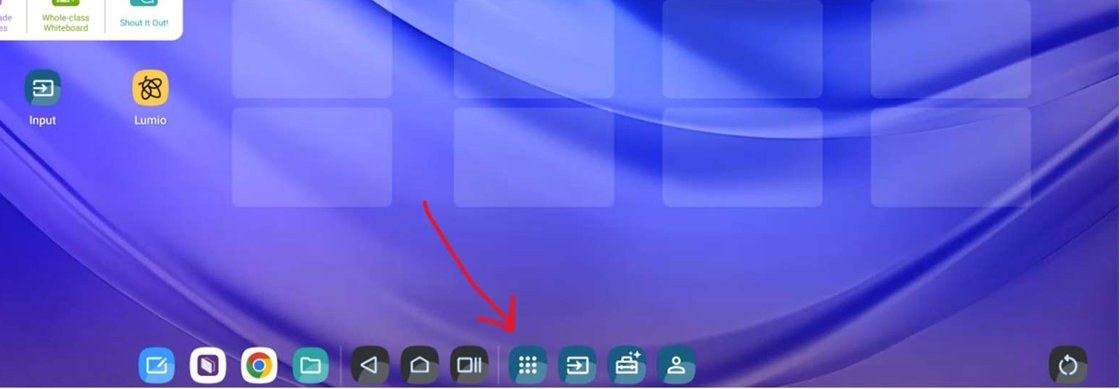
Home screen: the 9-dot apps icon in the bottom toolbar.
2️⃣ Open Settings
In the list of apps, tap Settings (the gear icon).
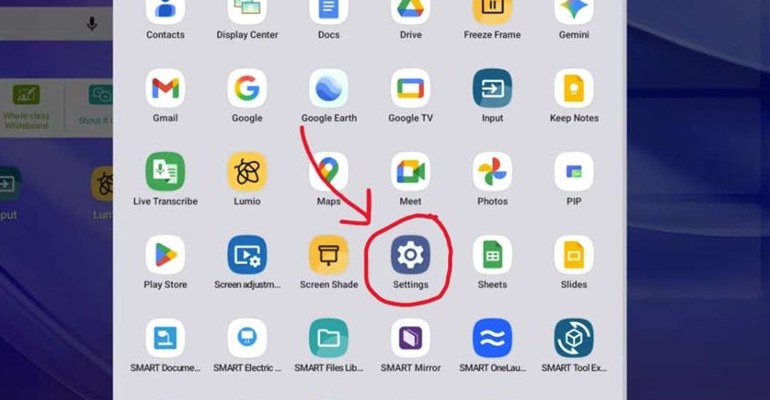
All apps: Settings.
3️⃣ Go to Display
In the menu on the left, scroll down and tap Display.
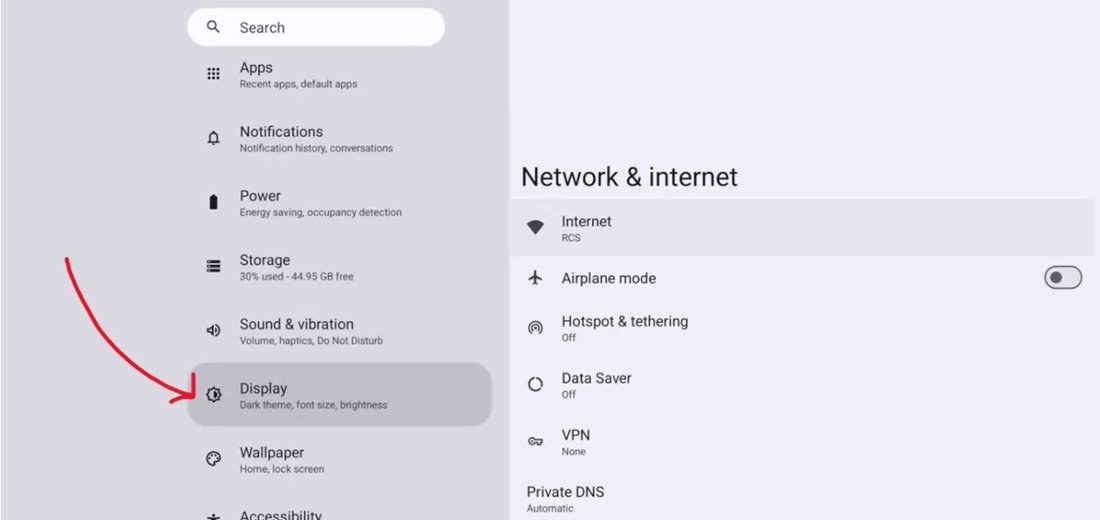
Settings: Display in the left menu.
4️⃣ Open HDMI input
On the Display page, scroll down and tap HDMI input ("Settings that control HDMI features like CEC and EDID"). A new page opens.
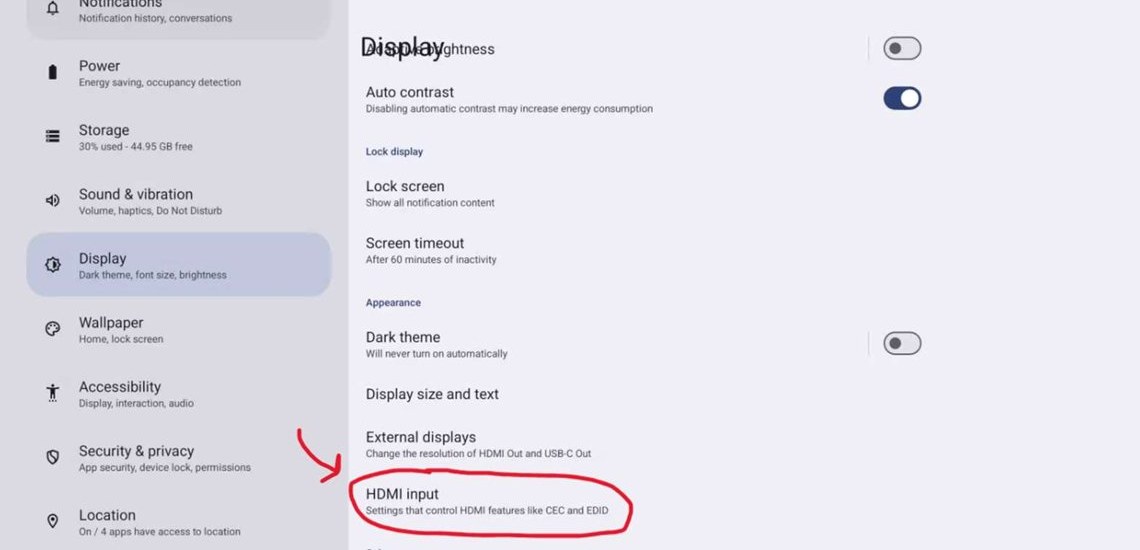
Display: HDMI input, under External displays.
5️⃣ Open Video input maximum resolution
Tap Video input maximum resolution. Leave HDMI-CEC and the other settings as they are.
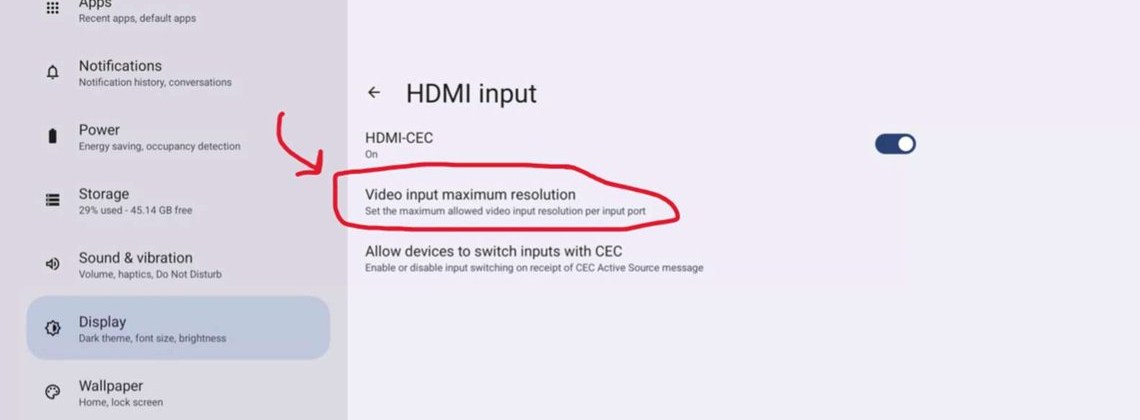
HDMI input: Video input maximum resolution.
6️⃣ Pick HDMI 1
The page lists each input and its current maximum. Tap HDMI 1 (it shows 4K (3840x2160p60) by default). A small menu opens.
The other inputs (HDMI 2 / HDMI 4 / OPS, HDMI 3 / USB-C 1, USB-C 2) are set the same way if a source on one of them has the same problem.
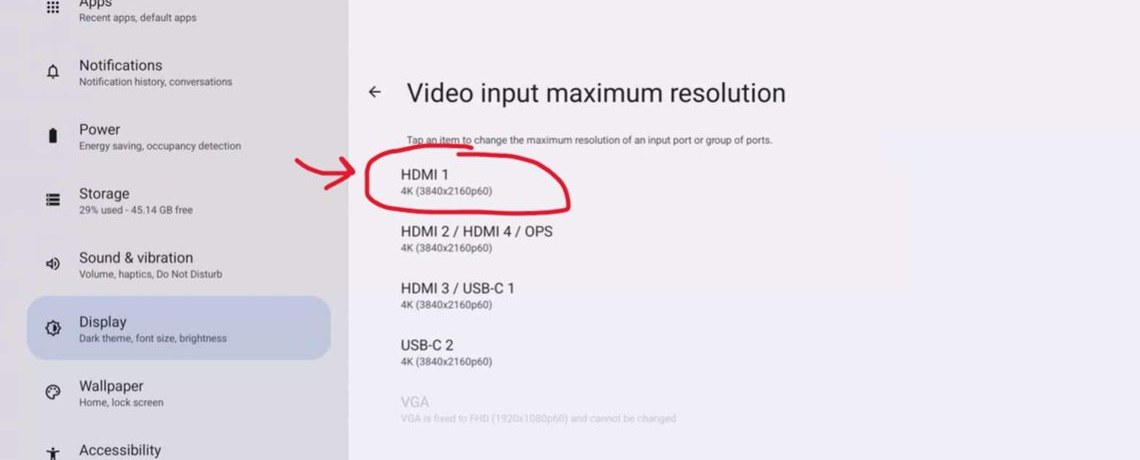
Video input maximum resolution: HDMI 1 at 4K (3840x2160p60).
7️⃣ Choose FHD (1920x1080)
Tap FHD (1920x1080p60). The other choices are 4K (3840x2160p60), the default, and 4K30 (3840x2160p30).
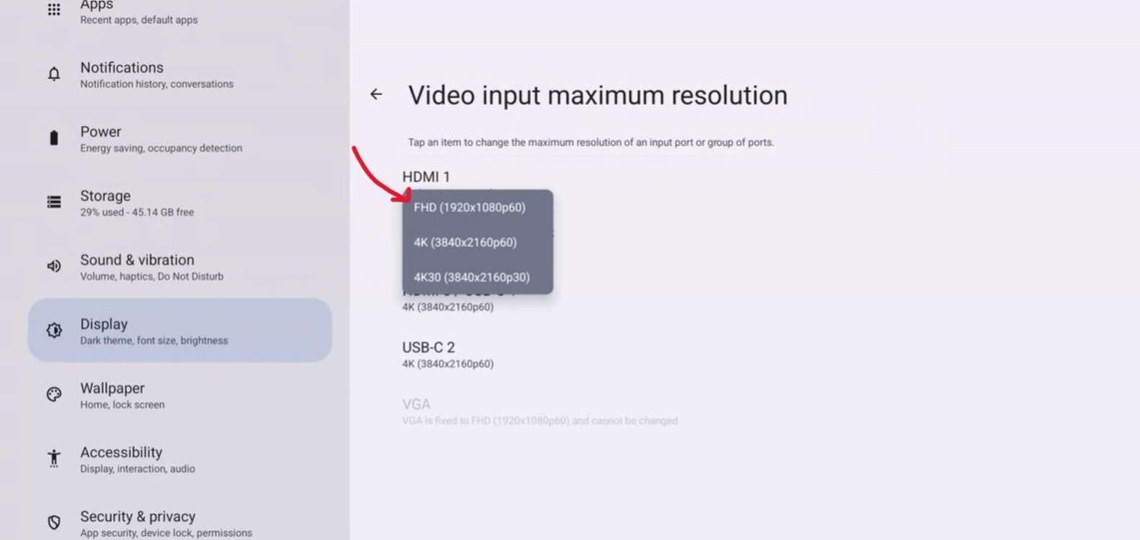
HDMI 1 menu: FHD (1920x1080p60).
8️⃣ Reboot
HDMI 1 now shows FHD (1920x1080p60), and a Reboot now item appears at the bottom ("Reboot required for changes to take effect"). Tap Reboot now.
When the board comes back, switch to HDMI 1 and check the picture. You're all set.
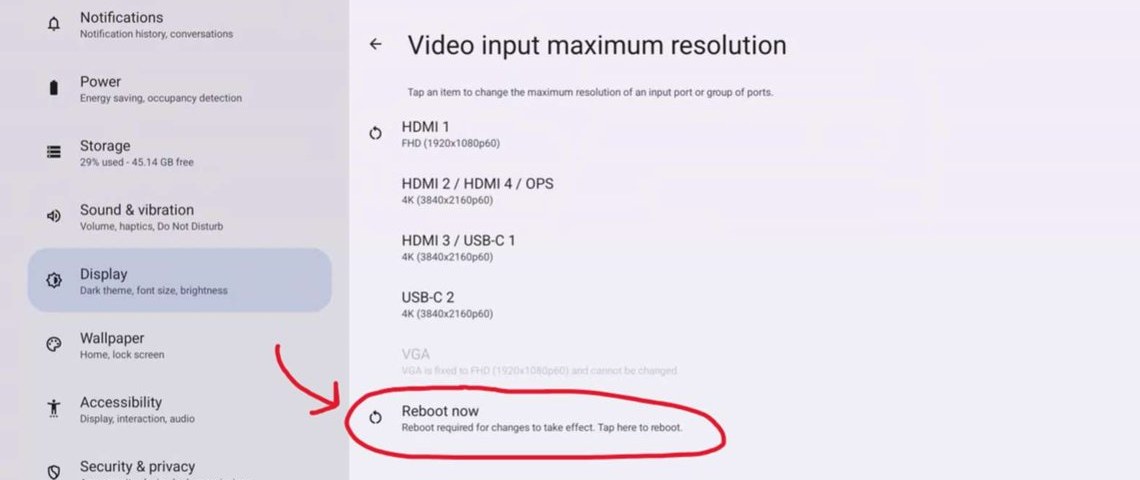
HDMI 1 set to FHD. Tap Reboot now.
Field tips
- Still no picture after the reboot? Check the source is on, the cable is seated at both ends, and the board is switched to HDMI 1. Try the source with a short HDMI cable straight into the board.
- Laptop picture now looks soft? That's expected: the input is now 1080p, not 4K.
- Need 4K back? Same steps, pick 4K (3840x2160p60) and reboot.
- Different menus? Older SMART Boards with a different home screen or settings layout put input settings in other places. These steps match the Android-based SMART home screen shown here.
📚 Sources & credits
- Steps and on-screen photos: Massimo Pelle, VSC Senior Project Manager, "Down Scale SMART Panel" (10/12/2026). Written up by Brad Roy, VSC Director of Operations.
- Menu names and resolution choices are as shown on the board in Massimo's photos.