Install and Set Up a SMART AM60 iQ Appliance
Quick Reference QR-SM-004 · SMART · Rev 1.0 · Oct 2026
Bring an older SMART Board up to the same iQ software as the RX and MX (V5): check the board fits, slide the AM60 into the accessory slot, cable it, run the setup wizard, and update it before you leave.
📄 View or download this guide as a PDF
Click the PDF icon below to open it right here in your browser. In the viewer, use Download (top right) to save a copy, or the printer icon to print it.
What the AM60 does: it is a small module that slides into the board's accessory slot and adds iQ 4 (SMART's Android platform, licensed by Google under EDLA, with the Play Store, SMART apps and SMART Remote Management). An older board with an AM60 gets the same iQ software as a new RX or MX (V5), which have iQ built in and never need one.
1️⃣ Check the board takes an AM60 (before the visit)
Get the exact model and series of every board from the district or the project record before you go. SMART's compatibility table:
| SMART says | Board series |
|---|---|
| Compatible: AM60 fits | MX (V4), MX (V3), MX (V2) and original MX (and their Pro versions) · 7000R, 7000-V2 and 7000 (and Pro) · 6000S (V3), 6000S (C) and 6000S (and Pro) · 6000, 6000 Pro and 8000i-G5 · QX Pro · T Pro · SMART Board Mini interactive podium |
| Not needed: iQ built in | RX (RX275, RX286...) and MX (V5) / MX (V5) Pro (MX275-V5, MX286-V5...). SMART lists these as not compatible: they already run iQ. |
| Not compatible | QX (V2) Pro · NX · all GX models · 6065 HD · 4000 |
- MX vs MX (V5): an MX (V4) takes an AM60; an MX (V5) doesn't. Confirm the "V" number, not just "MX".
- SMART says "support for the AM60 appliance may vary by display series", so if a board isn't on either list, check with VSC before ordering.
2️⃣ Check the box and record the serial
| In the box | Used for |
|---|---|
| AM60 appliance (UGK-AM60) | The iQ module that goes in the accessory slot |
| 2 antennas | Wi-Fi and Bluetooth on the appliance |
| 6 ft (1.8 m) USB-C cable | A laptop to the appliance's USB-C input: picture, sound and touch on one cable |
| Printed installation instructions (SMART doc 171908) | The board-specific install steps. Keep it with you while you install. |
| Software (no media) | SMART Remote Management (one subscription for the warranty period) and SMART Control |
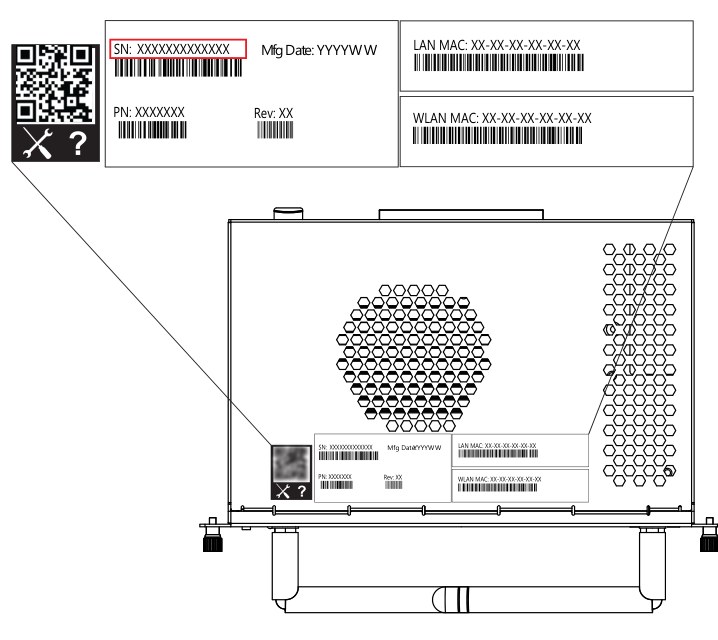
Top of the AM60: the label sits near the front corner. SN (boxed) is the serial.
3️⃣ Install the appliance in the board
- Turn the board off with its power button (on an MX it's on the front), then put the power switch in the OFF (O) position. On most boards the switch is on the back, beside the AC power inlet; SMART notes its position varies by model.
- Wait at least 30 seconds for the internal power supplies to discharge, and up to 5 minutes if the board has been running, so it can cool. Can't reach the power switch? Put the board in Standby and unplug it.
- Remove the accessory slot cover and keep it: it goes back on if the AM60 ever comes out.
- Slide the AM60 into the accessory slot until it seats, and secure it with the screws through its two anchor points (usually captive screws, already in the module; SMART's drawings show one at each end of the connector panel). SMART warns that an appliance that isn't secured can damage the unit.
- Attach the 2 antennas to the two antenna jacks on the connector panel (one beside the status lights and Reset, one between the USB 3.0 ports and AUDIO IN; see the panel in step 4), standing straight up. For anything specific to your board, follow the printed install sheet in the box.
- Put the power switch back to ON, turn on the board, and wait for the Home screen.
- Open the board's input menu and select the appliance input. The iQ setup wizard (step 5) starts on that input.
4️⃣ Cable it
- The board's own HDMI and USB inputs still work as before. The AM60 adds its own inputs (HDMI IN, USB-C IN): a computer plugged into those shows on the AM60's input, and its touch USB goes to the AM60's TOUCH port. Set computers to 3840 × 2160 at 60 Hz if they support it.
- Network: wired only from the board. If the board is on Ethernet, the AM60 shares that wired connection by default. The board's Wi-Fi is not shared with the AM60. Ethernet in the AM60's own RJ45 port, or Wi-Fi joined on the AM60, overrides the board's connection; SMART recommends giving the AM60 its own connection.
- Cables: SMART supports only direct cables or AC-powered extenders. Keep USB-C under 6 ft 6 in (2 m), USB 3.0 cables under 9 ft (3 m) and HDMI under 23 ft (7 m).
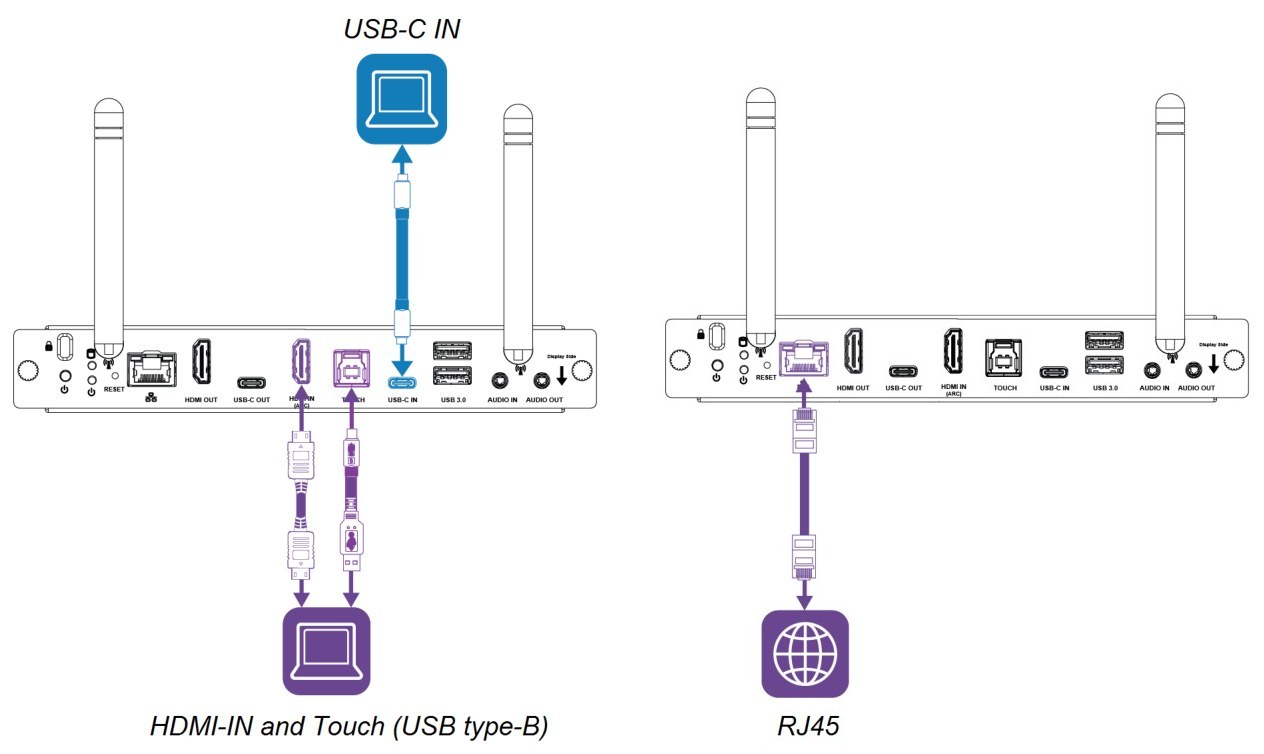
Left: a laptop on USB-C IN (one cable), or on HDMI IN plus TOUCH (USB Type-B). Right: wired network on the AM60's RJ45.
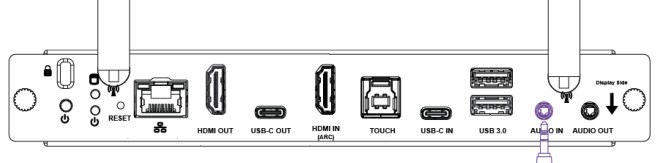
AM60 connector panel, left to right: security slot, power button, status lights, Reset, antenna jack, RJ45, HDMI OUT, USB-C OUT, HDMI IN (ARC), TOUCH (USB Type-B), USB-C IN, USB 3.0 (x2), antenna jack, AUDIO IN, AUDIO OUT. A thumbscrew sits at each end. (The highlighted AUDIO IN is from SMART's original drawing.)
What each port is for
| AM60 port (panel label) | Use |
|---|---|
| USB-C IN | Laptop: picture, sound and touch on one cable. The laptop's port must support DisplayPort Alt Mode; use a full-featured USB-IF certified cable, not charge-only. |
| HDMI IN + TOUCH (USB Type-B) | Laptop or room PC: HDMI for picture and sound, the TOUCH USB for touch |
| HDMI OUT | An external display. Use this, not the board's HDMI out. |
| USB 3.0 (x2) and USB-C OUT | Mouse, keyboard and other peripherals. The USB update drive goes in a USB 3.0 (Type-A) port. |
| RJ45 | Wired network for the appliance |
| AUDIO OUT / AUDIO IN (3.5 mm) | OUT: powered speakers or an amp (turns off the board's own speakers). IN: an audio source that plays through the board's speakers. |
5️⃣ Run the first-time setup wizard
On the appliance input, follow the on-screen setup. You can skip the Google account and the screen lock here and set them later in Settings.
| Wizard screen | What to pick |
|---|---|
| Language, country, region | The district's |
| Device name (iQ 4.1 and later) | A name that's unique on the network. Use the district's naming scheme (for example building and room). Check it later under Settings › About tablet › Device name. |
| Wi-Fi | Optional. Skip it if the board or appliance is on Ethernet. |
| Primary use | Classroom or collaborative. Avoid display-only unless asked: it turns off every iQ app, and the only way back is a factory reset and running the wizard again. |
| SMART Board mode | Shared Mode for a shared classroom. Classic Mode is for one person's private use; a forgotten PIN there means a factory reset. |
| Google account | SMART recommends skipping the copy-apps-and-data and personal sign-in screens on a shared board. A district can sign in with a shared default Google account; one is needed before anyone can install apps from Google Play. |
| Google services | Accept Google's terms; turn off services the district doesn't want. |
| PIN (screen lock) | SMART strongly recommends skipping the PIN on shared boards. |
6️⃣ Update the software before you leave
- Minimum: SMART says the AM60 should be on iQ 4.5.1 or higher. With a USB mouse attached, go to System › Update › Check for Updates (named Software update or System update on some iQ versions).
- Current release (Oct 2026): iQ 4.7.2 (July 28, 2026). The appliance must already be on iQ 4.6.0 or later to take 4.7.2, so an older unit may need two updates in a row. Once on 4.7, it can't go back to an earlier iQ.
- Automatic updates: set the window under Settings › System › Update (Start time, End time, Run on; at least 3 hours, outside class time). Update now installs an available update right away.
No internet, or slow? Update from a USB drive
- Download the AM60 BIN file from SMART's AM60 system software page (about 4.1 GB).
- Copy it, unchanged, to the root of a USB drive formatted exFAT, between 3 GB and 32 GB.
- With the board on, plug the drive into one of the AM60's USB Type-A ports.
- Tap Restart in the dialog. No dialog means the file isn't newer than what's installed.
- Don't unplug the drive or turn off the board until it finishes (several minutes).
7️⃣ Finish the district setup
- Enroll in SMART Remote Management. The district owns the account; you enter its account name (the domain SMART set up for the district). SMART's iQ 4 steps:
- On the AM60: Toolbar › All Apps › Settings › SMART › Board control & diagnostics › Remote management. Turn on Remote Management enabled and tap Launch Remote Management setting.
- Allow access to device data if asked. Type the domain in Account name (lowercase letters and numbers only). It isn't always the district's name: get the exact domain from the district.
- Tap I accept the terms and conditions, check the box, and tap Enroll. Enter the device-pairing password if the district set one.
- Turn off apps the district doesn't want under Settings › Apps.
- If the district wants teachers to sign in with a SMART Account, turn off the public profile.
Common problems
| Symptom | Check |
|---|---|
| "This OPS appliance is only for use with authorized SMART board displays." | SMART gives no fix. Check the board model against step 1 (an RX, MX (V5) or other non-compatible board shows this), then reseat the AM60 with the power switch OFF. |
| AM60 doesn't turn on, black screen, or stuck on "Connecting" | Press the AM60's own power button (SMART's fix on MX (V3/V4), 6000S and QX Pro; improved in iQ 4.6.2). Its LED should light when the AM60 is inserted and on. Still nothing: power switch OFF (not just the Power button), wait, reseat the module and its screws, power on. |
| No picture from a laptop | Check the board is on the input the laptop is plugged into (a board input, or the AM60's input for the AM60's HDMI IN / USB-C IN). On USB-C: DisplayPort Alt Mode and a full-featured cable. Flicker or drop-outs: test with a short direct cable; use only AC-powered extenders. |
| Picture but no touch from an HDMI laptop | The touch USB goes with the video: to the AM60's TOUCH port for the AM60's HDMI IN, or to the board's touch USB port for a board input. Take out any dock and plug straight in. |
| No touch on the AM60's HDMI input | Reboot the AM60 (a known iQ 4 issue), then update iQ: SMART fixed several touch and pen problems on 6000, 7000R and MX (V2) boards in iQ 4.6.1 to 4.7.2 SP1. |
| Home screen has no iQ (clock, Google search bar, Toolbar button; inputs Android, HDMI 1, USB-C IN) | It's an early AM60 on plain Android. Update it: Toolbar › All Apps › Settings › System, run Software update and System update › Check for update (it may restart several times). From USB: rename the BIN to update.zip (don't unzip), plug the drive into the AM60, turn off Wi-Fi and Ethernet in Settings › Network & internet, then System › System update › Update. Turn the network back on after. |
| No network | The board's connection must be wired (its Wi-Fi isn't shared). If the AM60 uses its own Ethernet or Wi-Fi, check Settings › Network & internet on the AM60. |
| Remote Management won't enroll | Update iQ first; check the account name spelling and any pairing password. Settings › Diagnostics › SMART Cloud Status should show operational. The district's firewall must allow SMART Remote Management (ask the district's IT for SMART's allowlist). |
| No sound from the board's speakers | Anything plugged into the AM60's AUDIO OUT turns off the board's speakers. Unplug it, or check the external speakers are on. Low or distorted: set the computer to about 80% volume, then adjust on the board. |
| 6000S stamps or cubes don't work | Expected: they don't work with iQ 4.0 or later. No fix; tell the teacher before you install. |
| Screen orientation wrong, or iQ acting up | Restart: tap the Power icon in the Home screen menu › Restart. |
Still not working?
Split the problem: if a laptop works on the board's own input but not the AM60's, the fault is on the appliance side. Reseat once with the power switch OFF before calling it a bad unit. Still stuck: SMART's guide says to contact the authorized SMART reseller that supplied the AM60, so call VSC if VSC supplied it, or contact SMART support (smarttech.com/contactsupport). Have the AM60 serial (and board serial) ready.
Field tips and tricks
- Bring: USB mouse and keyboard, an exFAT USB drive (3 to 32 GB) loaded with the current AM60 BIN (download the 4 GB file at the office), a known-good USB-C cable and laptop, and a screwdriver.
- Update first, then test. Load the newest iQ before chasing any odd behavior or Remote Management error.
- Touch fails only with a laptop? It's usually a dock: plug straight into the board or the AM60, try the supplied USB-C cable and a known-good laptop.
- PIN-locked or won't boot after setup? VSC gets a recovery file from SMART support, puts it on a USB drive, and flashes the unit. Follow the instructions SMART sends with the file.
- Enroll while you're there. Get the account name from the district's IT before the visit.
- Write in the ticket: board model and serial, AM60 serial, device name, iQ version after updating, network path, primary use and mode, Remote Management enrolled yes/no, and anything you couldn't finish.
📚 Sources & credits
- Compiled by Brad Roy, VSC Director of Operations (SMART Trusted Tech Certified), from SMART documentation (October 2026). Board models, Remote Management ownership, USB flash recovery, MX power button location and field tips: Brad Roy and general field practice.
- SMART AM60 appliance user guide, doc 171934 (March 18, 2026): installing, network and first start-up (p. 7 to 9), cables and ports (p. 10 to 21), 6000S note (p. 24), non-iQ screens and updates (p. 27, 68 to 79), serial label (p. 81).
- SMART: AM60 install, about, troubleshooting and software pages (iQ 4.7.2); compatibility; MX / MX (V2) OPS install guides (May 2024); iQ 4 setup, network, update and release notes (to 4.7.2 SP1); Remote Management enrollment; AM60 specs 171899 (Aug 2026); install sheet 171908.
- Images: SMART Technologies, AM60 appliance user guide (docfeedback 171934, 2026): p. 8, 11, 17, 81.