EPIC Releases & Device Firmware
Quick Reference QR-AE-002 · Audio Enhancement EPIC · Rev 2.0 · Oct 2026
The current EPIC server and device firmware versions, what changed, and how to check and update each one.
📄 View or download this guide as a PDF
Click the PDF icon below to open the guide right here in your browser. In the viewer, use Download (top right) to save a copy, or the printer icon to print it.
📋 Current versions
| Product | Current | Released | How it updates |
|---|---|---|---|
| EPIC System (server) | 3.2.5 | 9/16/2026 | Upload the .tar.gz.dat file in System Upgrade (steps 2–4) |
| MS-700 | 2.1.2 | 4/13/2026 | Load the firmware into EPIC; devices pull it daily or on reboot |
| MS-600 / MS-500A / MS-300B | 1.2.4 | 2/11/2025 | Load into EPIC; can't be pushed, devices pull it daily or on reboot |
| CZA-1300 / MS-775 / MS-720 | 1.0.12 | 7/8/2026 | Load into EPIC; devices pull it daily or on reboot |
| ITC2 | 219 | 9/12/2025 | Load into EPIC, then push to the devices |
| ITC1 | 219 | 2/9/2025 | Load into EPIC, then push to the devices |
| InfoView Desktop Announcer | 1.2.3 | 8/21/2026 | Install on each Windows/Mac PC. Needs EPIC 2.5.4.0+ and an InfoView license |
| VIEWpath Live | 1.1.1 | 2/14/2025 | Run the installer over the old version, then reboot the PC |
| District View | 1.2.0.2 | 9/12/2023 | Upgrade file from the AE District View release notes page |
Other EPIC server versions AE still lists: Major 3.0.0 (4/1/2025, contact AE Tech Support) and Minor 2.5.4.3 (6/6/2025, download). Release dates are as AE lists them.
🆕 What's new
| Release | Highlights (from AE's release notes) |
|---|---|
| EPIC 3.2.5 9/16/2026 | Added: Transporter logs in the downloadable logs; startup check of the AE1/AE+ connection (logged); AE+ connection resiliency (keeps valid credentials during an outage, retries with backoff). Fixed: microphones not resetting after a non-paired alert; SIP config conversion error; CSV import not assigning teachers to rooms; LDAP Base DN spaces and SSL setting; SSO CSV email handling; badge status polling; Barionet stop-all error. New: loose routing for SIP outbound proxies. |
| MS-700 2.1.2 | Fixed "screeching" in SIP audio; line-in audio now mutes when an HPN or SIP stream is active; fixed the up-to-4-second audio delay introduced in 2.1.1. |
| CZA-1300 / MS-775 / MS-720 1.0.12 | Fixed log file downloads, which failed on the previous firmware. |
| ITC 219 | Fixed random ITC shutdowns and phantom button presses / repeat alerts. |
| MS-600/500A/300B 1.2.4 | MS-300B now reports itself as MS300B (it answered as MS500A). From this version on the firmware can't be pushed from EPIC. |
1️⃣ Check the version a server is running
- Log into the EPIC server as an Administrator.
- Click Settings on the left, then the System Settings tab at the top.
- The EPIC version and serial number are in the bottom-right corner of the page (e.g.
v2.5.4.1 S/N: 20XX-XXXXXX).
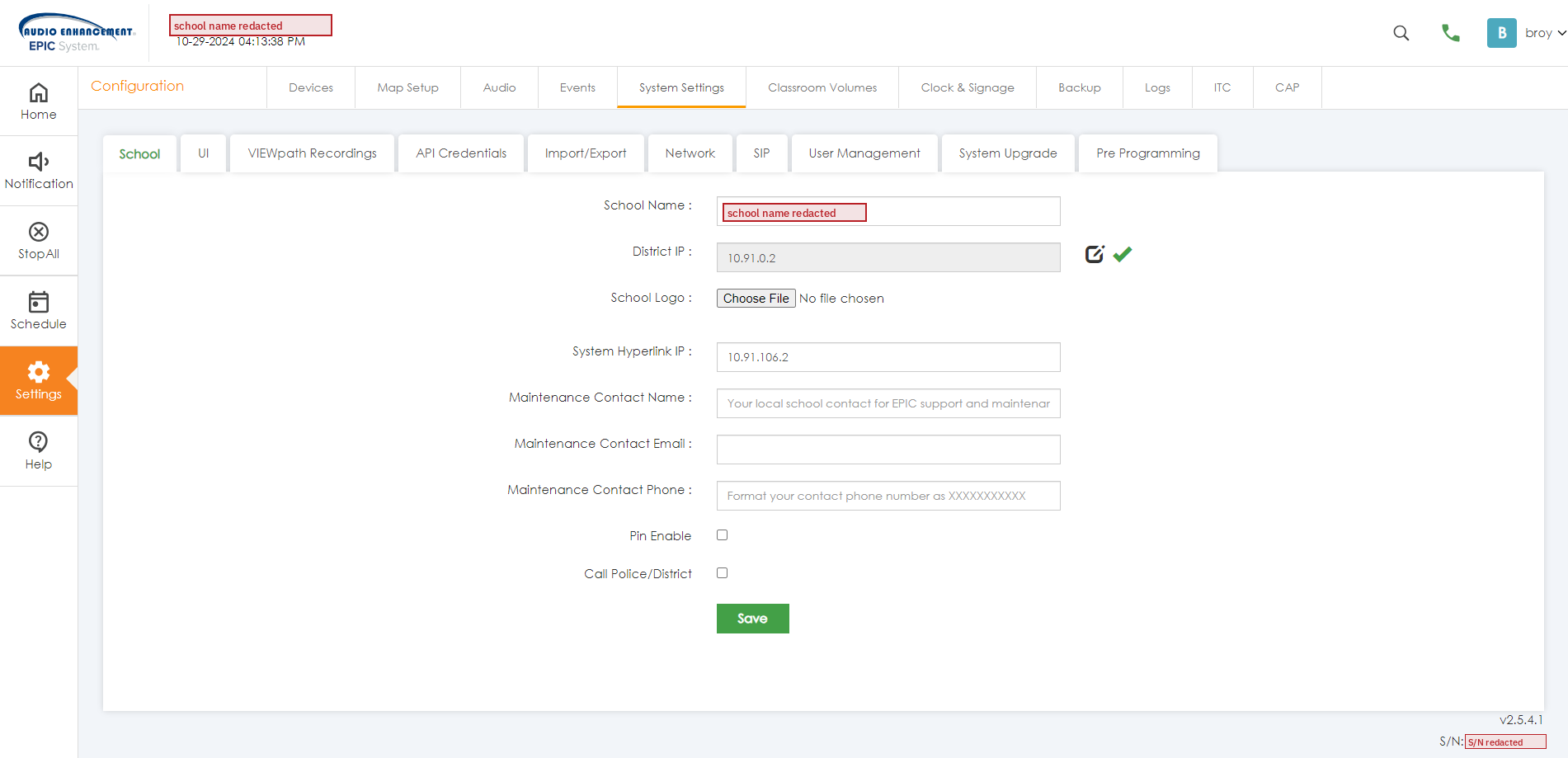
Settings › System Settings. The version and S/N are at the bottom right (EPIC 2.5.4; school name and S/N redacted).
2️⃣ Before you upgrade the server
- Take a backup first: Settings › System Settings › Import/Export › Export Configuration/Backup. AE recommends this before every update.
- Schedule it for a maintenance window, not during the school day.
- Internet access: the EPIC server needs outbound internet access during the upgrade.
- Download the file for the target version from the AE release notes page (
.tar.gz.dat).
3️⃣ Upgrade the server
- Log into the EPIC server as an Administrator.
- Click Settings, then the System Settings tab.
- On the sub-menu, click System Upgrade. It opens in a new tab.
- Upload the
.tar.gz.datfile. Wait for the upload to finish; the green Upgrade button becomes clickable. - Click Upgrade and wait for the green progress bar to fill again. The server reboots on its own (several minutes).
4️⃣ After the server upgrade
- Go back to Settings › System Settings and confirm the version changed. If it didn't, contact AE Support.
- Test everything: intercom, paging, bells, SAFE and any third-party integrations (AE's recommendation after every upgrade).
5️⃣ Update device firmware
EPIC holds a base firmware for each device type. Device firmware files come from the device's AE release notes page (e.g. MS700-FW-2.1.2.tar.gz.dat).
- Go to Settings › Update.
- Click Manage Current Firmware, browse to the file from AE, enter the version, and click Save. This makes it the new base firmware.
- MS-700, MS-x00 and CZA-1300 family: the devices check EPIC every day and on boot. To update right away, reboot the devices (Settings › Reboot). MS-600/500A/300B on 1.2.4+ can't be pushed.
- ITC1 / ITC2 and other pushable devices: pick the device-type tab, select the devices, and click Update Selected Devices. This can take a few minutes on a large site.
- Check each device type's tab afterwards. A firmware-update icon on a single device in the device list means it's still out of date.
🗒️ Guide update log
| Checked | What changed on AE's release notes |
|---|---|
| 10/9/2026 | Rebuilt as a release & firmware tracker (Rev 2.0). Since the 9/8/2026 check: EPIC 3.2.4 → 3.2.5; CZA-1300/MS-775/MS-720 1.0.11 → 1.0.12. No change to MS-700, MS-x00, ITC, InfoView, VIEWpath Live or District View. |
📚 Sources & credits
- Procedure and pro-tip: Brad Roy, VSC Director of Operations (VSC field experience)
- Audio Enhancement release notes wiki (viewed 10/9/2026): EPIC System, Release Notes 3.2.5, MS-700 (and 2.1.2 notes), MS-600/MS-500A/MS-300B (and 1.2.4 notes), CZA-1300/MS-775/MS-720 (and 1.0.12 notes), ITC1/ITC2 (and 219 notes), InfoView Desktop Announcer, VIEWpath Live, District View
- Audio Enhancement, EPIC 2.5 Admin Manual DC-40654.0924: Update module and Manage Current Firmware (p. 32–33), device action icons
- Screenshot: EPIC 2.5.4 at a client school; school name and serial number redacted