Adjust MS-x Device Volumes in EPIC
Quick Reference QR-AE-011 · Audio Enhancement EPIC · Rev 1.1 · Oct 2026
Three ways to change classroom volume, from every device at once down to one room, and which one to use.
📄 View or download this guide as a PDF
Click the PDF icon below to open the guide right here in your browser. In the viewer, use Download (top right) to save a copy, or the printer icon to print it.
A typical call: teachers say the office announcements are too quiet. If most rooms say the same thing, fix it for every device with Configure. If it's one room, use Classroom Volumes.
Where | Changes | Use it for | Survives a Configure push? |
1. Configure (device-type template) | All devices of one type | Building-wide complaints; setting the site baseline | It is the push |
2. Edit Device (pencil icon) | One device's template values | Rarely; see the warning | No, unless that device is unticked at push time |
3. Classroom Volumes | One device's live mixer (inputs, EQ, outputs) | One loud or quiet room; troubleshooting | Yes |
1️⃣ Configure all devices of a type
- Log into EPIC and click Settings, then the blue Configure tile.
- Pick the tab for the device type (MS-500, MS-500A, MS-700 …). An MS-600 uses the MS-500A tab.
- Under Audio Settings, set Include Audio to Yes so the volume sliders appear.
- Raise Main Volume and/or Intercom and Paging Volume (and check Bells and Notifications Volume further down).
- Click Save and Push settings. When EPIC asks whether to push, click Yes, tick the devices to update, and click Push Settings.
- Walk a few rooms and test a page, an intercom call and a bell.
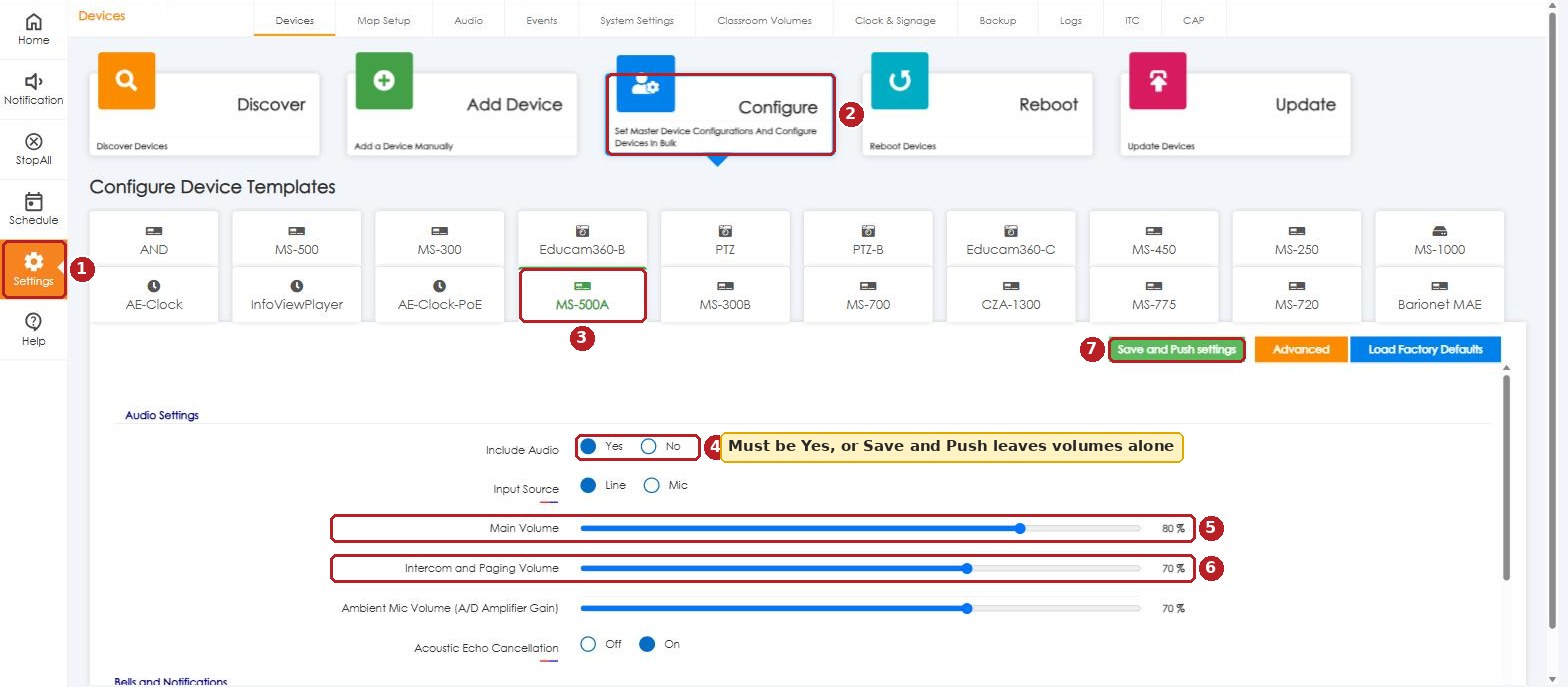
EPIC 3.2.5: Settings (1) › Configure (2) › device tab (3). Include Audio Yes (4), Main Volume (5), Intercom and Paging Volume (6), then Save and Push settings (7). Values shown weren't saved.
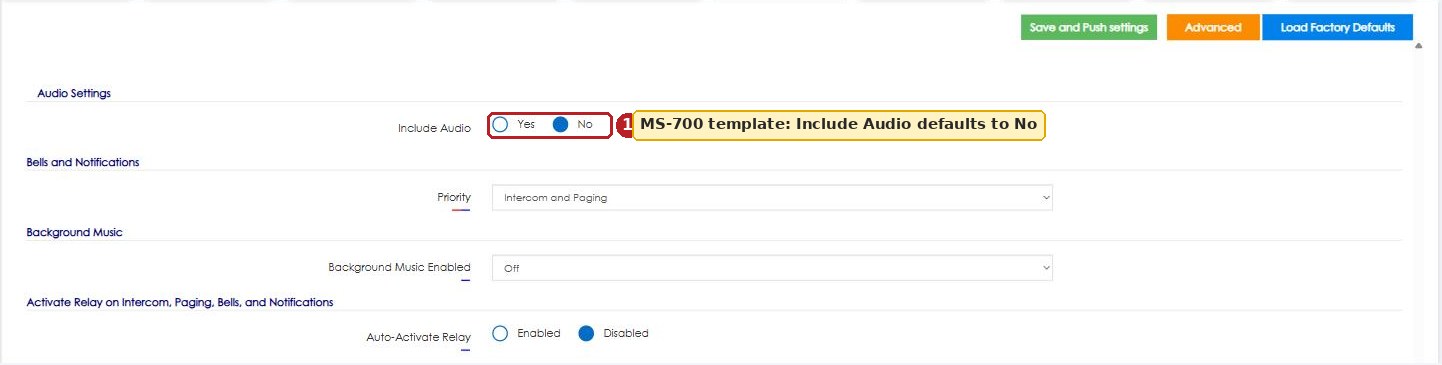
MS-700 template with Include Audio set to No: no volume sliders are shown.
2️⃣ What the settings do
Setting | What it controls | AE default |
Main Volume | Overall speaker output. VSC practice: keep it at or under 80% except in extreme cases. | Varies by model; 80% on the demo MS-500A template |
Intercom and Paging Volume | Live SIP audio: pages and intercom calls | 60% (0–100%) |
Bells and Notifications Volume | Bells and notifications such as Lockdown or Severe Weather | 60% (0–100%) |
Priority | Which wins in a conflict: Bells and Notifications, or Paging and Intercom | Bells and Notifications |
Microphone Gain / Ambient Mic Volume | How sensitive the classroom mic is. Higher helps the office hear the room. 3.x labels it Ambient Mic Volume (A/D Amplifier Gain) on some models. | 39 dB mic gain (2.5 manual) |
Background Music Volume | Music streamed from the office device (e.g. CLAUDIA). Set higher so the source controls the level. | 80% |
Background Music Buffer / IP / Port | Stream buffer, allowed source and port. EPIC 3.x shows IP and port as one address, e.g. | 600 ms · 0.0.0.0 (any source) · 5555 |
3️⃣ Edit one device (use sparingly)
- In Settings, find the device in Known Devices and click its blue pencil.
- Scroll to Audio Settings. The sliders are the same as the Configure template.
- Change the value and click Save.
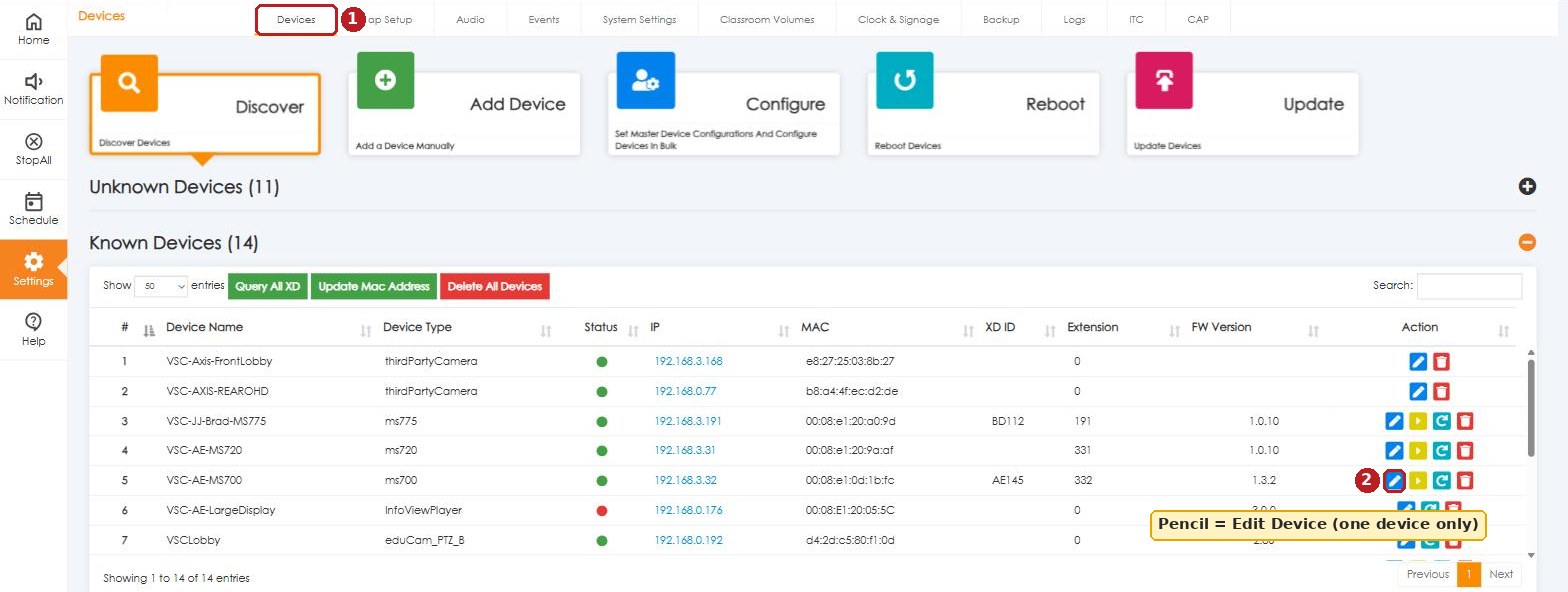
Known Devices: Devices tab (1); the pencil (2) opens that device's settings.
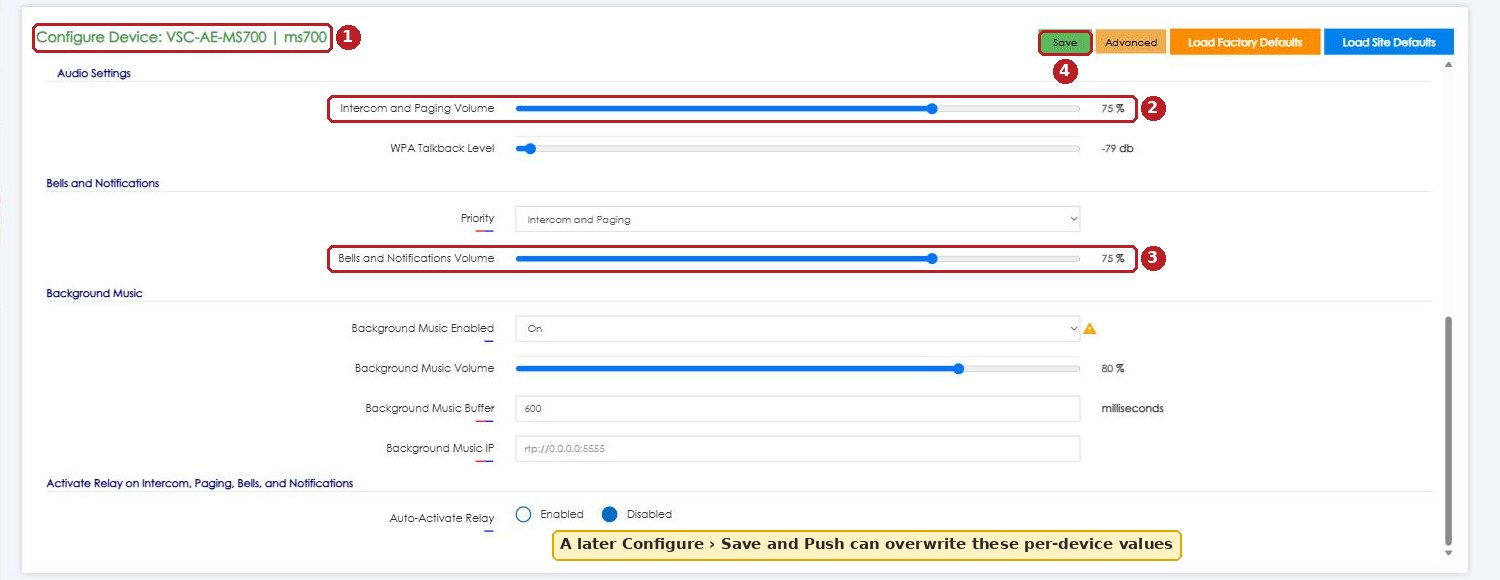
Configure Device for one MS-700 (1): Intercom and Paging Volume (2), Bells and Notifications Volume (3), Save (4). Nothing was saved.
4️⃣ Adjust one room live: Classroom Volumes
- Go to Settings › Classroom Volumes (the tab after System Settings).
- Pick the device from the drop-down. Only online devices are listed.
- Move the sliders. Changes apply live, and a Configure push doesn't undo them.
- Click a speaker icon to mute/unmute that input or output. Muting one input at a time is a quick way to find a noise source.
- Reset to Defaults returns this device's mixer to AE's defaults.
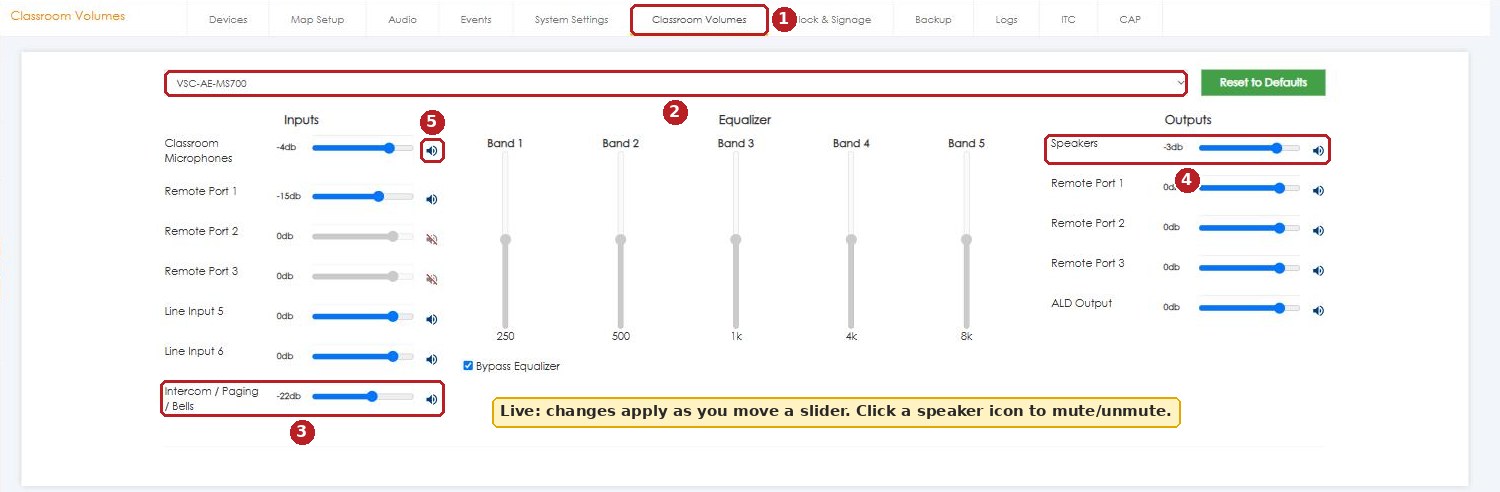
Classroom Volumes on an MS-700: tab (1), device (2), Intercom / Paging / Bells input (3), Speakers output (4), mute icon (5).
MS-700 control (EPIC 3.2.5) | What it is |
Classroom Microphones | The teacher/student mics into the room system |
Remote Port 1 / 2 / 3 | Accessories on the RMT CTRL 1–3 ports (on older devices, the phoenix connectors) |
Line Input 5 / 6 | The 3.5 mm aux inputs on the device |
Intercom / Paging / Bells | Everything EPIC sends to the room. AE's 2.5 manual calls this Input 6. |
Equalizer (5 bands) | 250 Hz–8 kHz. Bypass Equalizer is ticked by default. |
Speakers · Remote Port outs · ALD Output | Room speakers, accessory outputs, assistive listening |
Input names and counts differ by model. AE's 2.5 manual describes the older layout (Inputs 2–5 as aux, Input 6 as intercom/paging). Each input ranges from 0 dB (max) down to −72 dB.
📚 Sources & credits
- Write-up: Brad Roy, VSC Director of Operations (original VSC Knowledgebase article)
- Audio Enhancement, EPIC 2.5 Admin Manual DC-40654.0924: Configure, Save and Push Settings (pp. 28–30); Adjust Classroom Volumes (p. 103); Settings Definitions (pp. 111–114)
- Checked on VSC's EPIC 3.2.5 demo server (VSC High School), 10/1/2026. Nothing was saved or pushed for the screenshots.
- Items marked VSC practice are VSC field guidance, not AE statements.
- Reference files: SharePoint › Odoo › Quick Reference › AE Files
Source files: SharePoint › Odoo › Quick Reference › VSC Guides › Audio Enhancement › QR-AE-011.