Move Emergency Contacts from 1.8-Style Events to 2.5+ Contacts
Quick Reference QR-AE-005 · Audio Enhancement EPIC · Rev 1.0 · Sept 2026
After upgrading to EPIC 2.5 or later, move notification recipients out of the old event actions and into Contacts.
📄 View or download this guide as a PDF
Click the PDF icon below to open the guide right here in your browser. In the viewer, use Download (top right) to save a copy, or the printer icon to print it.
1️⃣ Remove the old recipients
- Log into EPIC. Go to Settings › Events › Advanced.
- Open the event drop-down and select your event. This example uses SAFE Alert.
- Find the action that holds recipients:
sendEmail(email) orsendSms(text). - Click the edit pencil, select all of the recipients and delete them.
- Click Update Action. Repeat for each event that sends email or text.
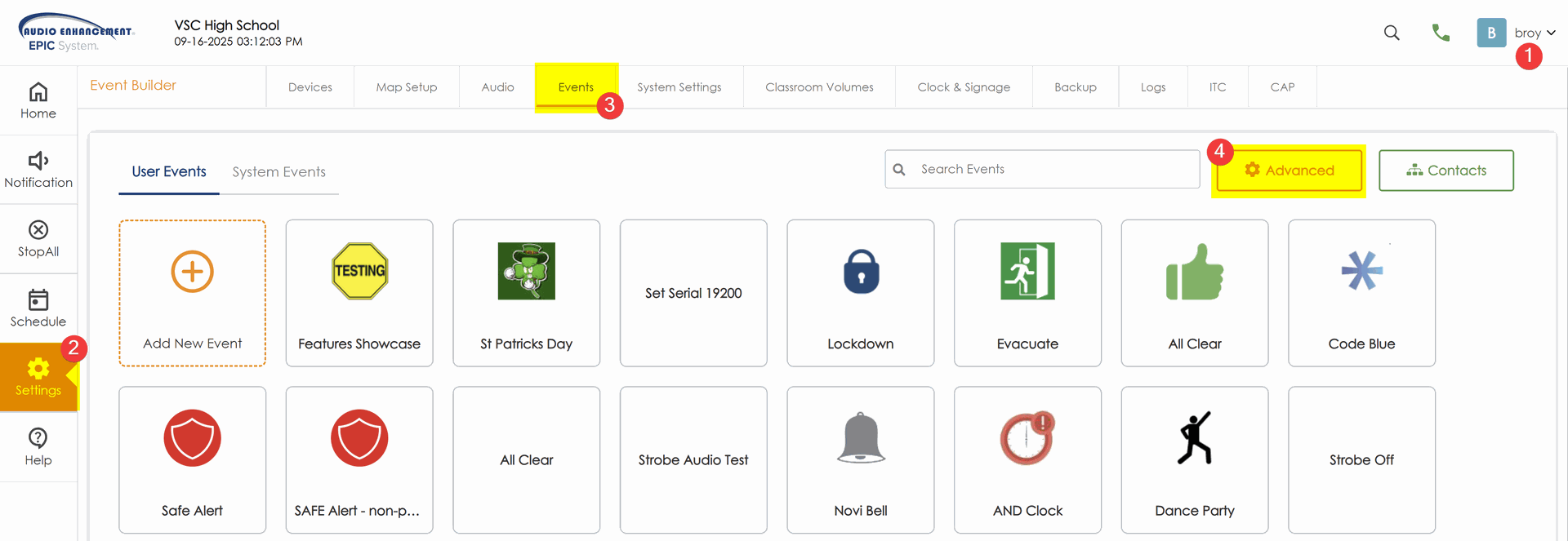
Settings › Events. The Advanced button is at the top right.
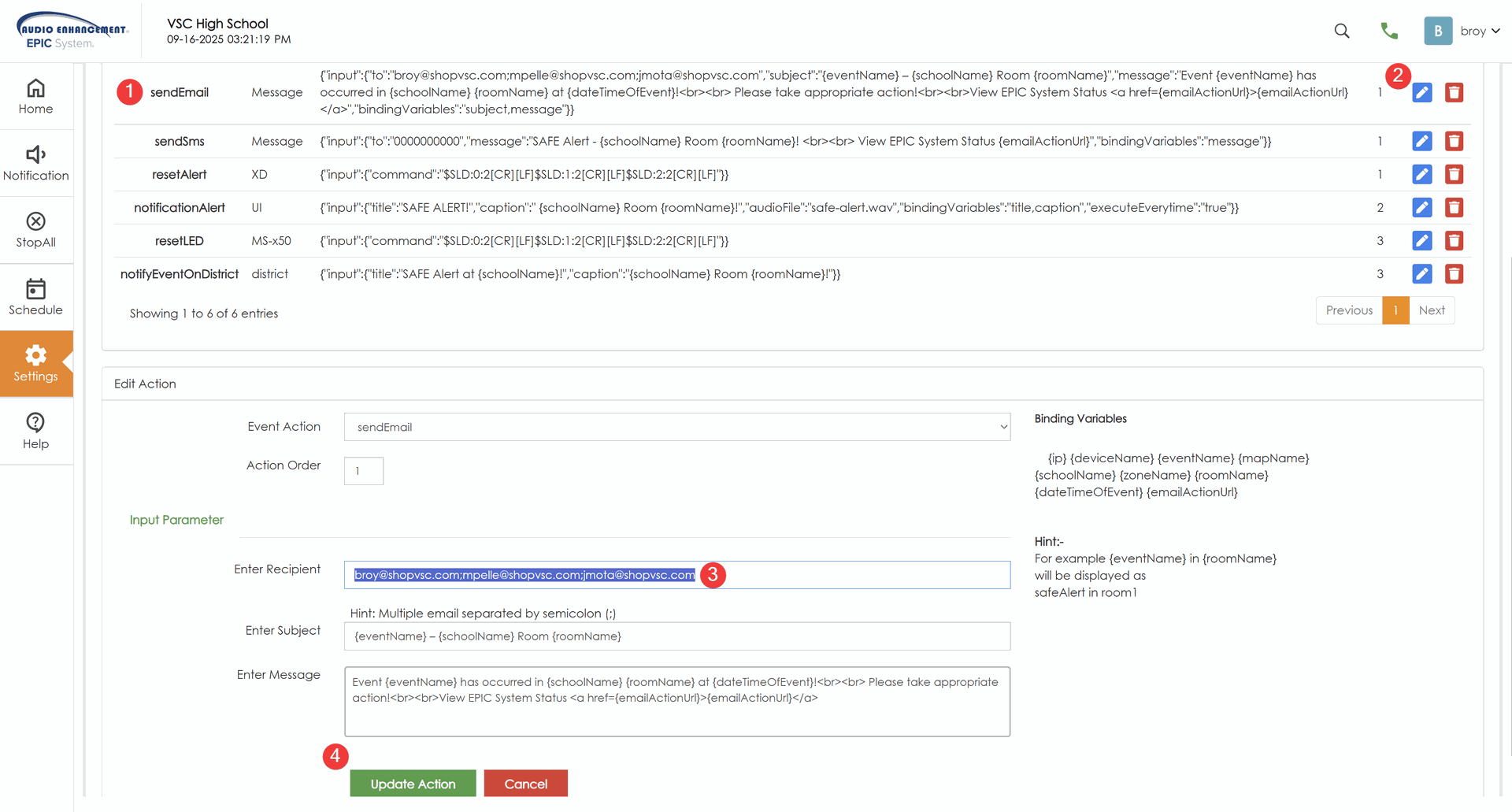
Advanced › the sendEmail action. Clear Enter Recipient, then click Update Action.
2️⃣ Create your contacts
- Go back to the regular Event Builder by clicking Events at the top, then click Contacts.
- Click Add Contact and fill in the name, email, mobile number and job title.
- Pick the Contact Group(s). The group decides which notifications a contact receives.
- Click Add Contact.
Contact group | Who belongs in it |
School | Principals and building-level administrators |
District | Neighboring building principals (if not using District View), SROs, superintendents, operations |
Support | People who know EPIC's back end. Typically used for system-monitoring events, like devices going offline. |
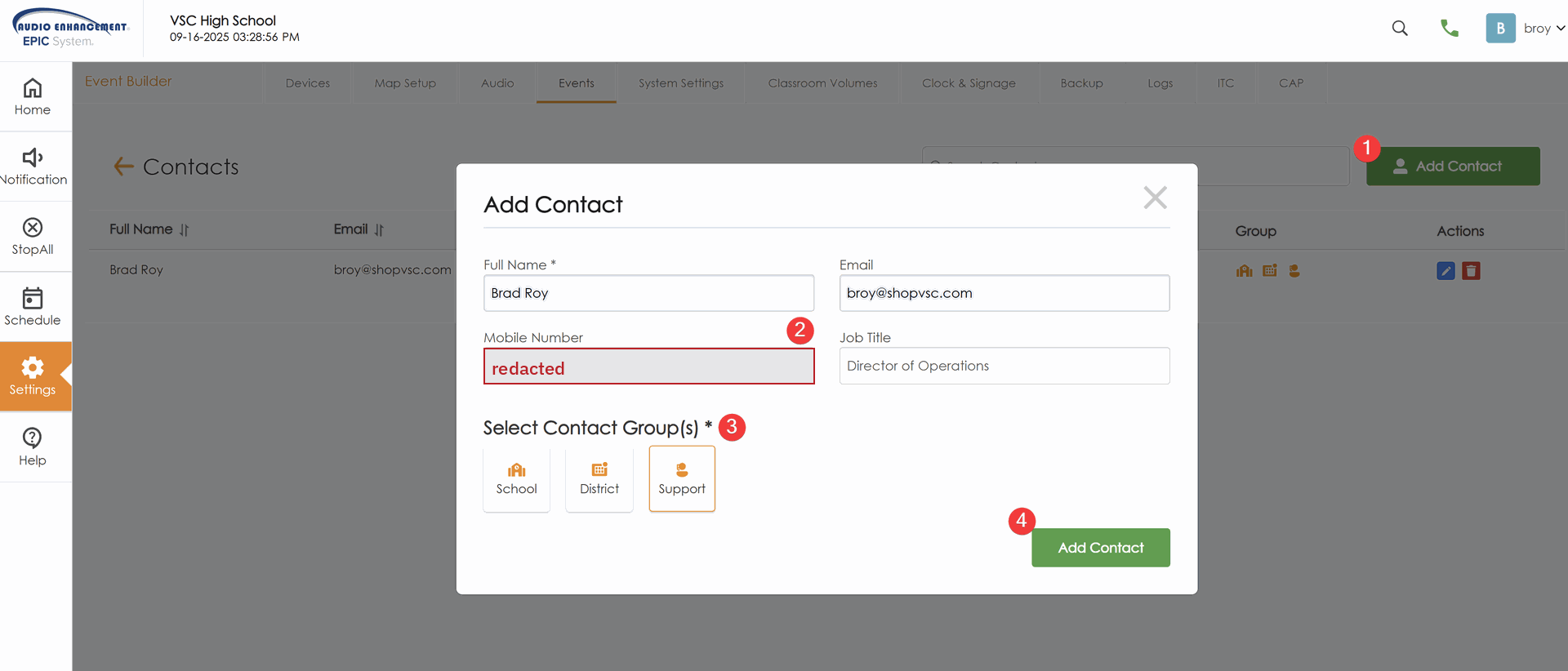
Events › Contacts › Add Contact. Pick the group(s) and click Add Contact. The mobile number is redacted.
3️⃣ Add a Messages action to each event
- Go back to the Event Builder (the arrow left of Contacts, or Events at the top).
- Click the event to notify on, e.g. SAFE Alert.
- Scroll down, open Immediate Actions (also labeled Then these actions will happen) and choose Messages – Send text and email notifications.
- Select the Contact Group(s) that should receive it.
- Edit the Email Subject and Message if you want. The defaults are good. Insert tags (variables) as needed.
- Set when it runs. Start with previous runs it at the same time as the action above.
- Scroll to the top and click the green Save button.
Event | What triggers it |
SAFE Alert | Paired alert: the person pressed both sides of their own microphone, or a SAFE button was pressed |
SAFE Alert – non-paired | Both sides of a microphone pressed outside its own room, or both sides of a badge. Starts triangulation on the front-office kiosk. |
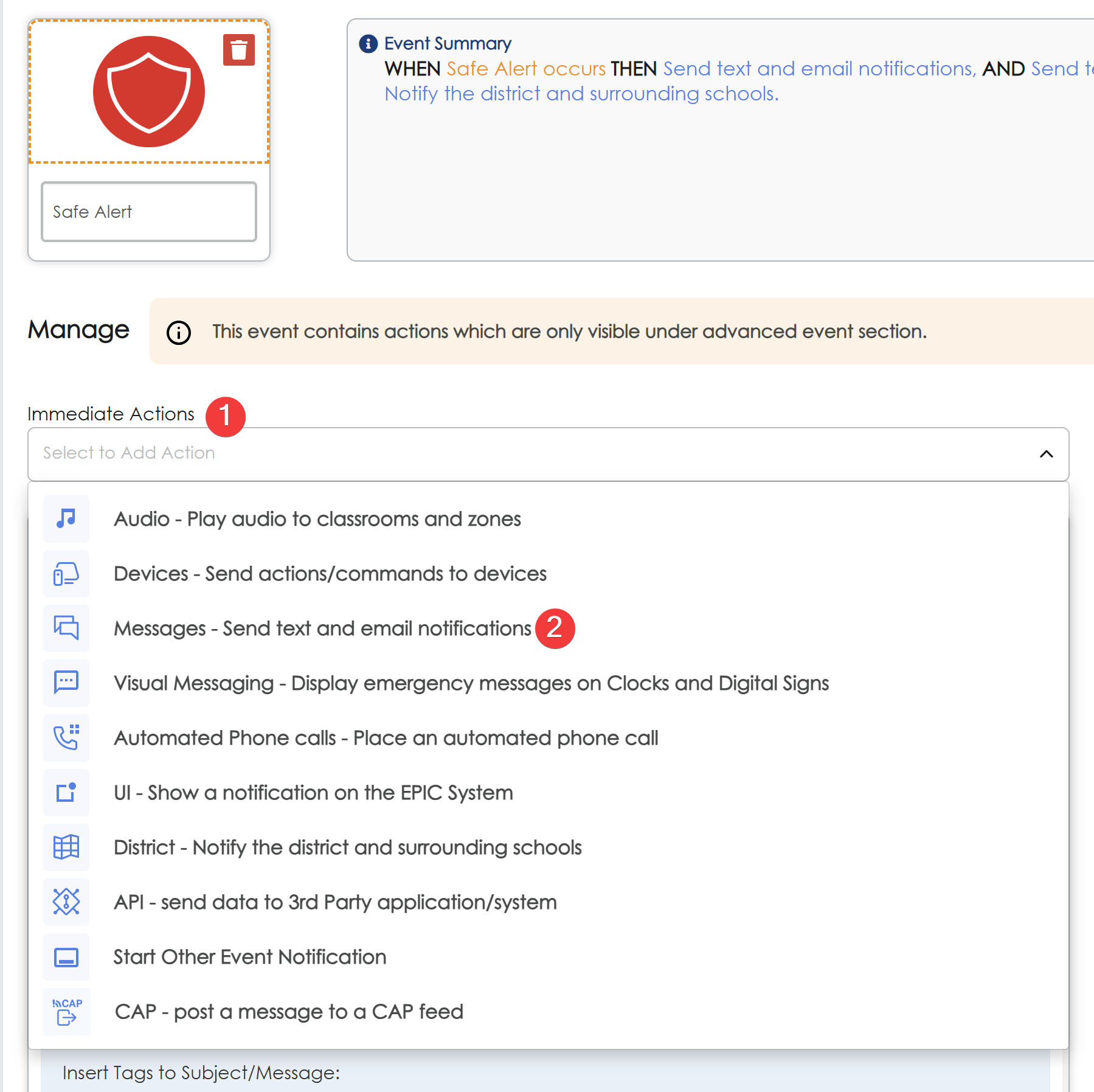
Immediate Actions › Messages – Send text and email notifications.
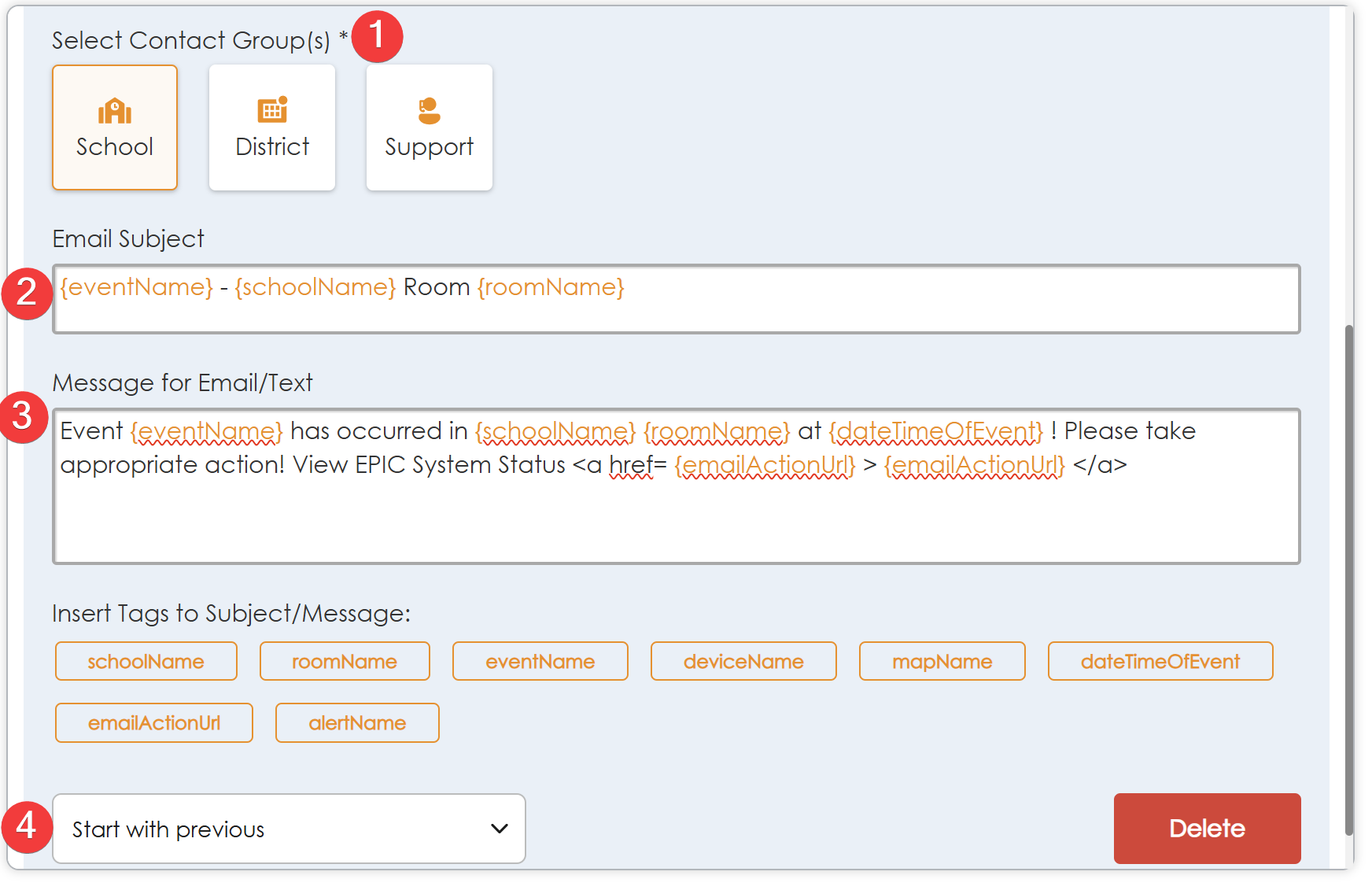
The Messages action: contact group, subject, message, insert tags, and Start with previous.
Message variables (insert tags)
Tag | What it inserts |
| School name (e.g. VSC High School) |
| The Room Name from Map Setup (not the Display Name) |
| Name of the event (e.g. SAFE Alert) |
| Device name set in Devices (e.g. VHS-105-MS700) |
| Map name: usually the building, or a floor or section |
| Zone name (listed in EPIC's binding variables) |
| Device IP address (listed in EPIC's binding variables) |
| Date and time the event was triggered |
| Link back to EPIC. For a SAFE Alert it can offer escalation to Lockdown (VSC understanding). |
| Alert name. Usually the same as {eventName} (VSC understanding). |
📚 Sources & credits
- Procedure and field notes: Brad Roy, VSC Director of Operations (demo: VSC High School)
- Audio Enhancement, EPIC Release Notes 2.5.4.2 through 3.2.5: pre-2.5 contact migration warning
- Audio Enhancement, EPIC 2.5 Admin Manual DC-40654.0824: Contacts and contact groups (p. 70), Messages action (p. 66)
- EPIC Advanced action editor, Binding Variables list (screenshot 9/16/2025)
Source files: SharePoint › Odoo › Quick Reference › VSC Guides › Audio Enhancement › QR-AE-005.