Change the EPIC Announcement Tone
Quick Reference QR-AE-003 · Audio Enhancement EPIC · Rev 1.0 · Sept 2026
Replace the default beep that plays before an announcement with your own audio file.
📄 View or download this guide as a PDF
Click the PDF icon below to open the guide right here in your browser. In the viewer, use Download (top right) to save a copy, or the printer icon to print it.
EPIC plays a short tone before an announcement. The default is a single monotone beep called beep.wav. There are three parts to changing it: upload the new file, select it as the SIP Tone, then set your devices to use the tone from EPIC.
1️⃣ Open the school's EPIC server
Browse to the school's EPIC server (usually an IP address) and log in as an Administrator.
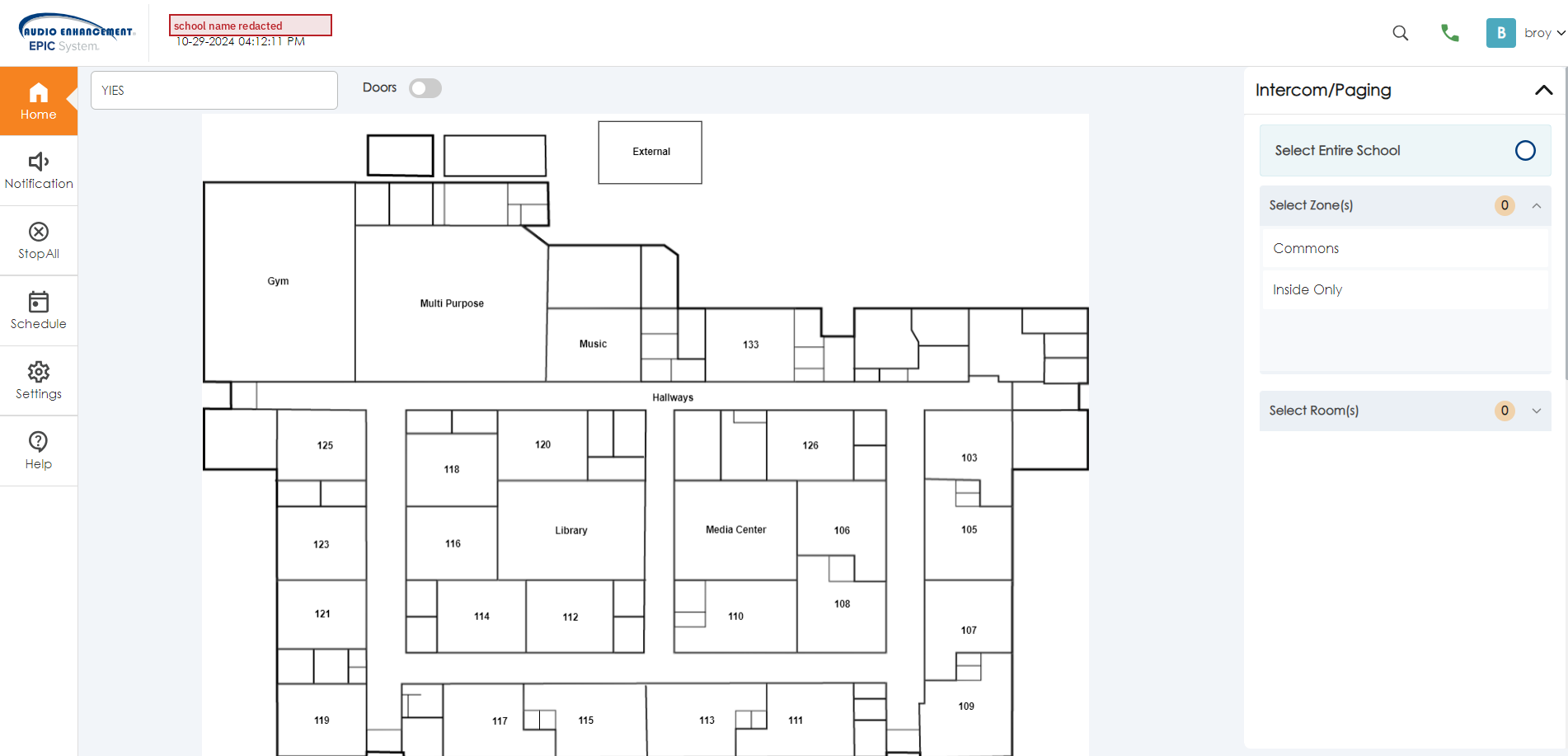
EPIC home screen with the building map.
2️⃣ Upload the new tone (Settings › Audio)
- Click Settings on the left, then the Audio tab at the top.
- Click Add in the top right.
- Name the file (e.g. new tone).
- Audio Source: choose File to upload from your computer. (Record lets you record live, which is more useful for bell notifications.)
- Choose the file. Use a
.wavfor the best sound. AE says EPIC accepts .wav or .mp3 and converts it automatically. - Audio Type: select Sip, then click Add.
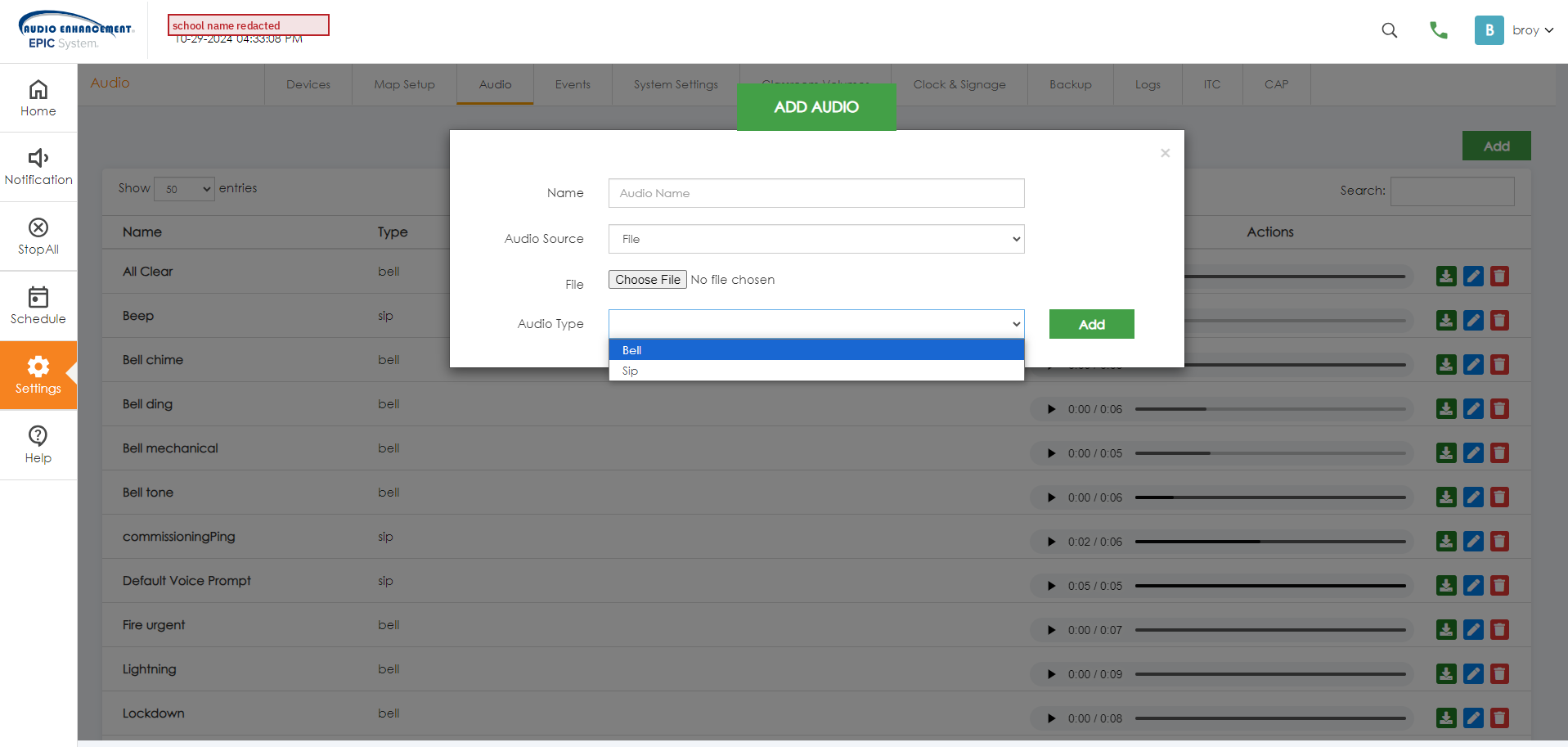
Settings › Audio › Add. Set Audio Source to File and Audio Type to Sip.
3️⃣ Select it as the SIP Tone
- Go to System Settings › SIP › Asterisk Basic.
- Change the SIP Tone drop-down to the file you just uploaded.
- Click Save. EPIC returns you to the Home screen with the building map.
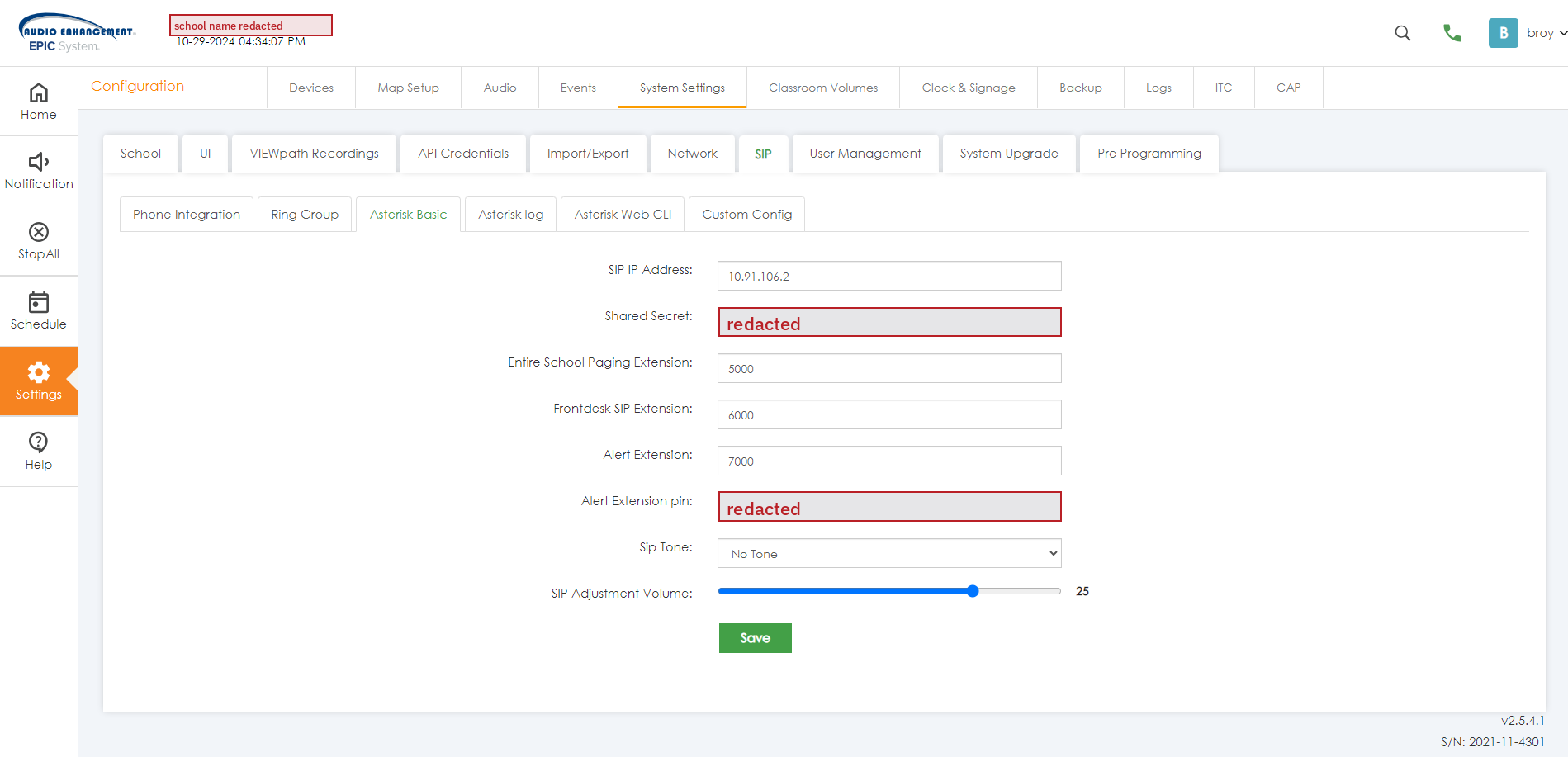
System Settings › SIP › Asterisk Basic, with the SIP Tone drop-down. Site-specific secrets are redacted.
4️⃣ Set devices to play the tone from EPIC
- Go back to Settings › Configure.
- Select a device type installed at the school (MS-700, MS-500, MS-300, etc.).
- Under Intercom and Paging, set Beep on Call Answer to From EPIC.
- Click Save and Push Settings to push to all devices of that type.
- Repeat for every device type at the school. Pushing MS-500 settings does not update MS-500A or MS-300 devices.
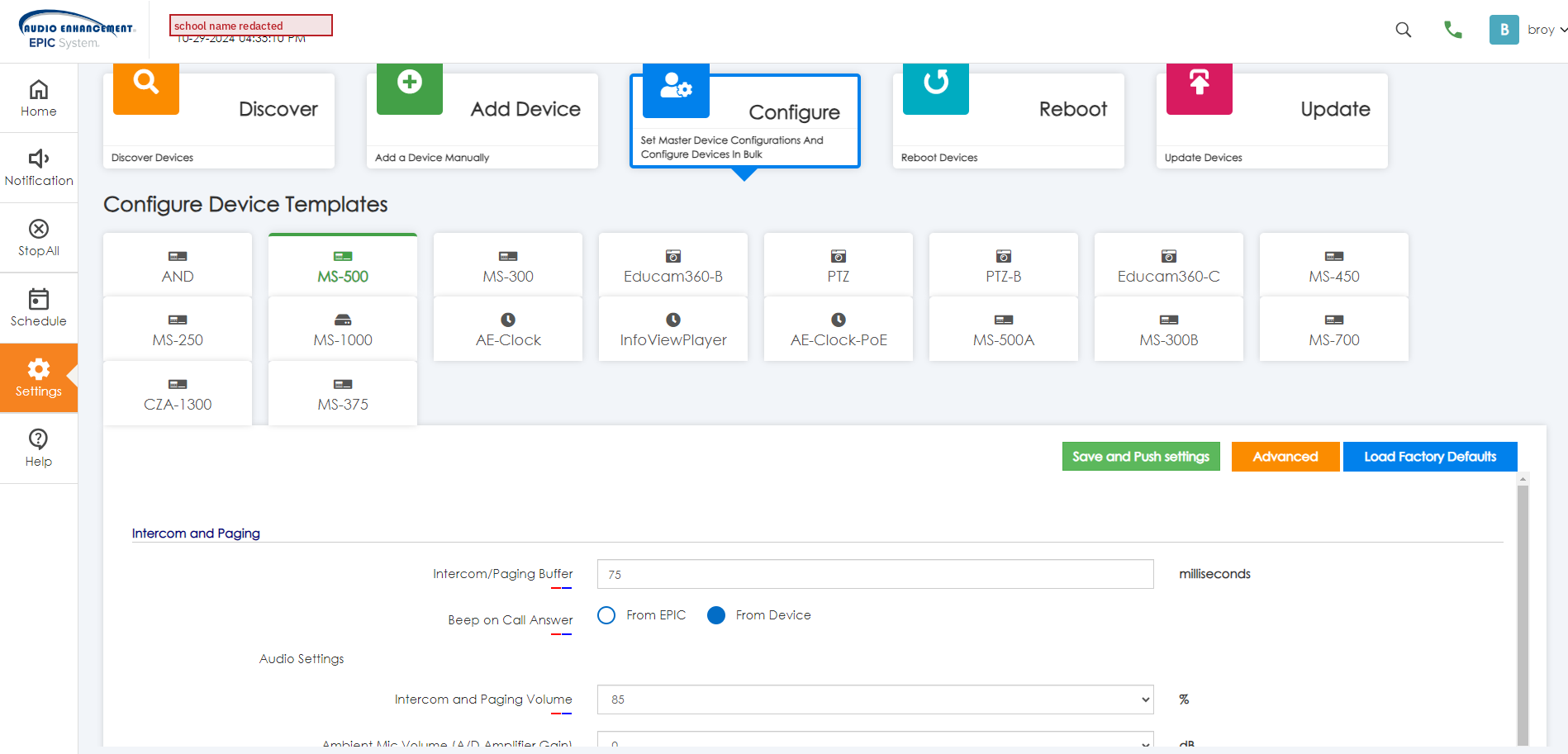
Settings › Configure. Pick the device template, then set Beep on Call Answer.
📚 Sources & credits
- Procedure: Brad Roy, VSC Director of Operations
- Audio Enhancement, EPIC 2.5 Admin Manual DC-40654.0824: Audio file upload (p. 54–55), Beep on Call Answer (p. 10), Configure templates and Save and Push (p. 29–30)
- Audio Enhancement, EPIC 3.2.2 Release Notes: SIP Tone configuration fix and the No Tone note
- Screenshots: EPIC 2.5.4 at a client school. The school name, SIP shared secret and alert PIN are redacted.
Source files: SharePoint › Odoo › Quick Reference › VSC Guides › Audio Enhancement › QR-AE-003.