Log into an MS-x Device's Web Page
Quick Reference QR-AE-004 · Audio Enhancement EPIC · Rev 1.0 · Sept 2026
Get a device's password from EPIC and open its built-in web interface.
📄 View or download this guide as a PDF
Click the PDF icon below to open the guide right here in your browser. In the viewer, use Download (top right) to save a copy, or the printer icon to print it.
1️⃣ Find the device in EPIC
Log into EPIC as an Administrator and click Settings on the left. The page shows the Known Devices list. Search by name, MAC or IP address, or sort by any column.

Settings › Devices › Known Devices.
2️⃣ Copy the device password
- Click the blue pencil icon to edit the device.
- Highlight and copy the Device Password. You can copy it without entering edit mode.
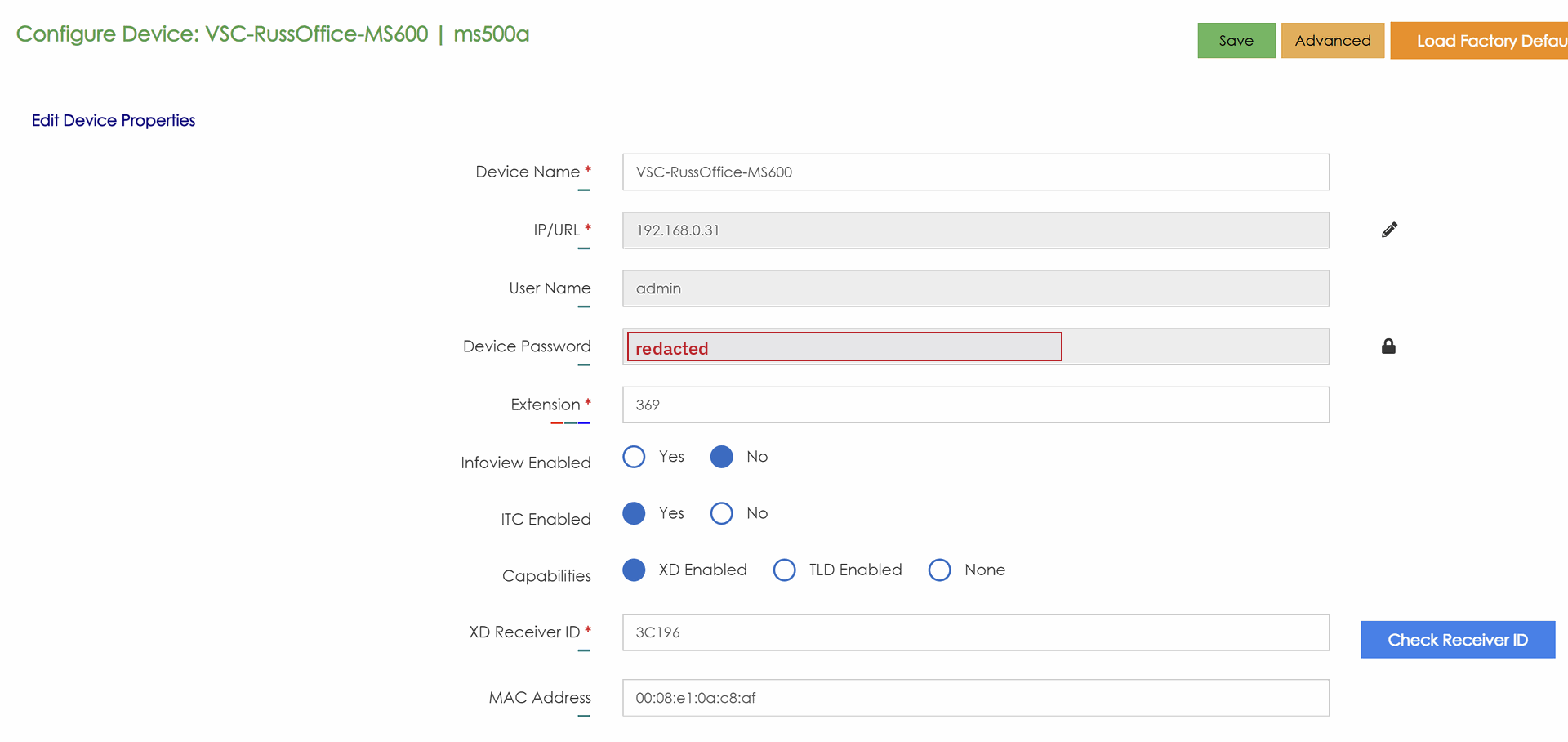
Configure Device screen. The Device Password field is redacted here. The lock icon next to it changes the password.
3️⃣ Open the device's web page
- With the password on your clipboard, right-click the device's IP address and choose Open in new tab.
- If the browser warns that the connection isn't private, that's expected. The device uses plain HTTP on the local network.
- Enter admin as the username, paste the password, and click Login.
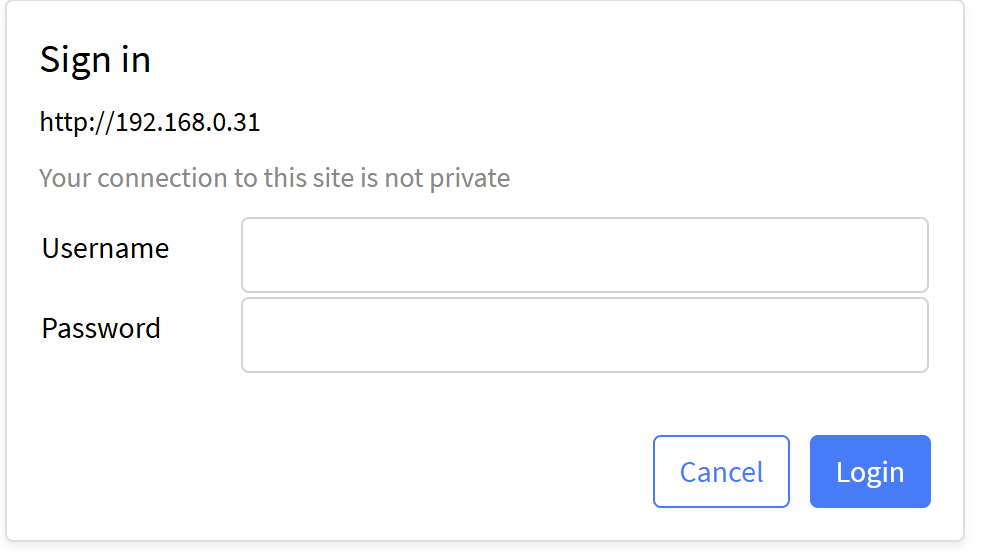
Browser sign-in prompt for the device (Chrome on Windows; other browsers look different).

Logged in: the device's Application Status home page.
📚 Sources & credits
- Procedure: Brad Roy, VSC Director of Operations (Chrome on Windows)
- Audio Enhancement, EPIC 2.5 Admin Manual DC-40654.0824: Known Devices (p. 22), changing device credentials (p. 28)
- Screenshots: VSC office demo units. The device password is redacted.
Source files: SharePoint › Odoo › Quick Reference › VSC Guides › Audio Enhancement › QR-AE-004.