Troubleshoot an MSx Classroom Device
Quick Reference QR-AE-038 · Audio Enhancement · Rev 1.1 · Oct 2026
Device offline, no paging or intercom in the room, or no talkback from the room. Work the system one piece at a time and prove each piece good or bad.
📄 View or download this guide as a PDF
Click the PDF icon below to open it right here in your browser. In the viewer, use Download (top right) to save a copy, or the printer icon to print it.
🧰 Discover.jar (AE device discovery tool)
Finds and sets up AE devices off the network, including MS-700s and CZA-1300s. It's a Java program: the laptop needs Java. Get the current version from AE's downloads page or AE's direct download, or use VSC's copy here.
How VSC troubleshoots: a dead classroom is never one big problem. It's a chain of small pieces, and usually only one of them is broken. Cut the problem into those pieces, test each one on its own, and don't move on until you've proven it good or bad. Change one thing at a time. Prove a piece by rerouting or swapping it with a known-good one: patch cable, switch port, speaker, wiring run, wall plate or the whole unit. Start in EPIC and work out toward the room.
| # | Piece | What "good" looks like |
|---|---|---|
| 1 | EPIC | Device is green in Known Devices, right type and firmware, volumes set (including WPA Talkback Level), in the right zones |
| 2 | SIP | Device web page shows SIP Registration Status Registered, code 200 OK |
| 3 | LEDs | Booted (green), not stuck red; MS-700 LCD shows an IP and no PoE+ warning |
| 4 | Network and PoE | PoE+ port on the correct VLAN, an address inside the EPIC range |
| 5 | Paging and intercom audio | Audio heard on headphones at the line out, speakers and wiring prove good |
| 6 | Talkback | Talkback level up, wall plate cable good, call button works, mic linked and charged |
| 7 | The unit itself | Reboot, then factory reset, then swap with a known-good unit |
Know the model
Every value below is from AE's documents. "Not documented" means AE doesn't publish it; don't guess.
| Model | PoE | Reboot / reset button | Status LEDs (rear) | XD mics | Wall plate port |
|---|---|---|---|---|---|
| MS-700 classroom amp, 30 W | PoE+, 802.3at required | Reboot/Factory Default pinhole next to the Service USB | Power and Status (panel print: Ready, Activity) | Built in | WPA-70x |
| MS-700-S classroom amp, 30 W | PoE+, 802.3at required | Same as MS-700 | Power and Status | External XD Receiver on the XD Receiver port | WPA-70x |
| MS-720 network interface, 1 W, small rooms | PoE+ | Reboot/Factory Default button beside the RmtCtrl and WPA-70x jacks | Ready, Activity, GPIO 1 to 4 | Not documented (no receiver listed) | WPA-70x (also the ITC2 port) |
| MS-775 network interface, 1 W, SAFE Alert Extender | PoE+ | Same as MS-720 | Ready, Activity, GPIO 1 to 4 | Takes non-paired alerts from the XD Teacher Mic and badges; no mic receiver listed | WPA-70x (also the ITC2 port) |
| MS-500 (older) classroom amp, 30 W | PoE+ 802.3af/at | IP Reset (network settings to factory) and Audio Reset (volume levels to factory defaults) | Power Status, Network Status; colors not documented | External XD Receiver on the XD Receiver port | WPA-50x |
| MS-600 (older) classroom amp, 30 W | PoE+ 802.3af/at | IP Reset (network settings to factory) and Audio Reset (volume levels to factory defaults) | Power/Status, Network Status; colors not documented | Built in | WPA-70x (pinout sheet says WPA-60x) |
MS-500 and MS-600 use different pinouts from the MS-700. An MS-720 or MS-775 that EPIC lists as an MS-700 needs a fix from VSC: call us before you replace it.
1️⃣ Check the device in EPIC
- Log into EPIC as an Administrator › Settings › Devices › Known Devices. Search by name, MAC or IP.
- Check the status dot, and hover the mouse over it to see the reason:
Dot Meaning and where to go Green Online and connected. Keep going down this list. Yellow Online, but something isn't connected. The hover text says which: SIP not connected (go to step 2), TCP not connected (EPIC sees the device but its TCP link is down: check the network path in step 4, then reboot in step 7), or Serial not connected (the RS-232 link to the XD receiver; only shows when XD is enabled for SAFE alerts: go to step 6). Red Offline: EPIC can't reach it. Go to steps 3 and 4. - Check the device type matches the unit on the wall and the firmware is current. MS-700s pull firmware from EPIC daily and on reboot.
- Click the blue pencil › Audio Settings. Check Intercom and Paging Volume and Bells and Notifications Volume aren't at or near 0, and that WPA Talkback Level isn't all the way down (MS-700, MS-720 and MS-775; the MS-720 / MS-775 also have Remote Port 1 Talkback Level and Ambient Mic Volume). A later Configure › Save and Push can overwrite per-device values, so a level that keeps coming back usually means a push.
- Check the device is in the zones being paged and belled. A device left out of a zone gets nothing from that zone.

Known Devices: green = online, yellow = partly connected (hover for the reason), red = offline. The pencil opens the device; right-click the IP to open its web page.
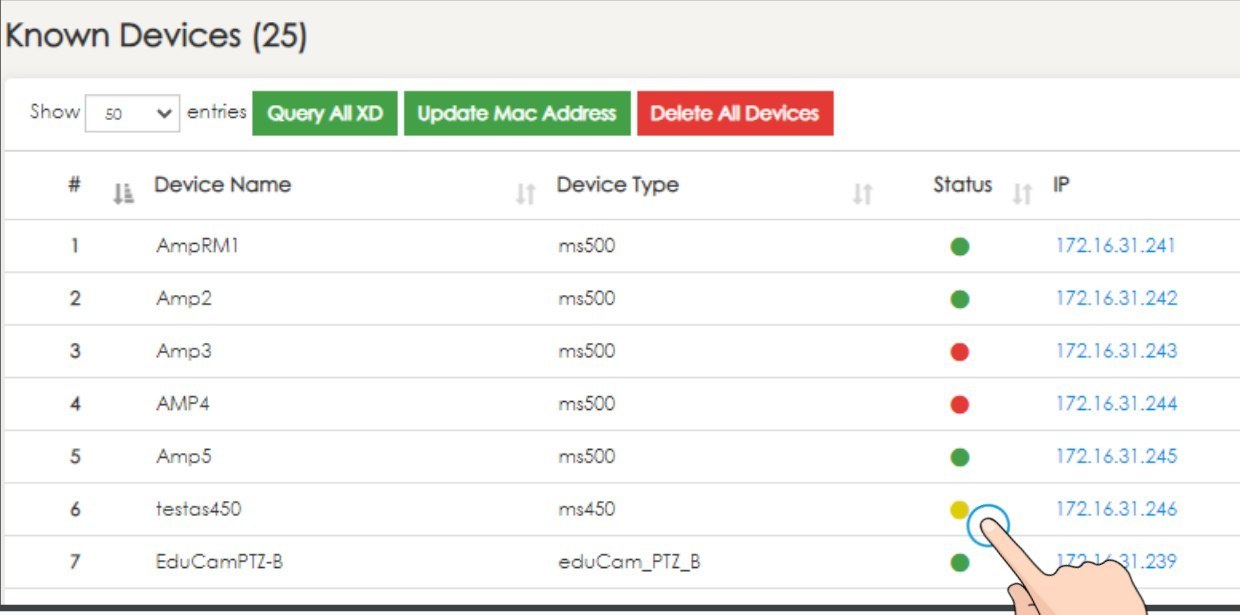
AE training screen (EPIC 2.5 UI, lab IPs): a yellow dot on row 6 and two red dots. Hover the yellow dot to read why. AE: most likely the XD receiver isn't responding (only pick XD when the receiver is connected to that device); SIP not connected is the other common one.
2️⃣ Check SIP registration on the device
Paging and intercom ride on SIP. A device can be green and still get no pages if SIP isn't registered.
- Open the device's web page: copy the Device Password from the pencil (never write it down or put it in a ticket), right-click the device's IP › Open in new tab (a "not private" warning is expected) and sign in as admin.
- On Home › Application Status (the page looks the same on every model, CZA-1300 included), the SIP box should show SIP Registration Status Registered and SIP Registration Code 200 OK.
- Not registered? Push SIP settings again from the Configure tab in EPIC. Pushing from the Devices list does not send SIP settings. Recheck the status.
- Still not registered? AE's causes are the SIP extension not registered to the EPIC PBX, or SIP / RTP ports blocked by a firewall or NAT. Give district IT AE's ports: EPIC to devices TCP 80, 554, 12302, 12303, UDP 4444, 5004, 5060; devices to EPIC TCP 2786, 8020, 8081, UDP 123, 5004, 5060; RTP 10000 to 20000.
- Compare with a working device: open a working device's web page next to this one and compare subnet, gateway and DNS, and check the PBX / SIP server address is the EPIC server's address. Then push settings to the problem device only, from the Configure tab.
- Did the page or call reach it? In EPIC: Settings › System Settings › SIP › Asterisk Logs. A page lists every extension it called and whether each answered; a room call goes to ring group 6000. This device's extension missing or not answered = the SIP side. Answered but the room heard nothing = the audio side (speakers, wiring, volumes).
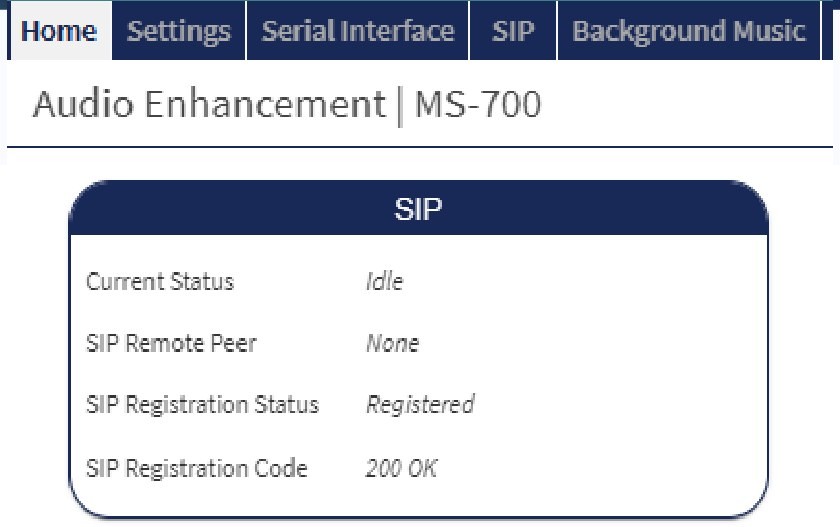
MS-700 web page, Home › Application Status, SIP box (AE training; the General, Notification and Background Music boxes above it are cropped out). Compare: SIP Registration Status Registered and Code 200 OK = good.
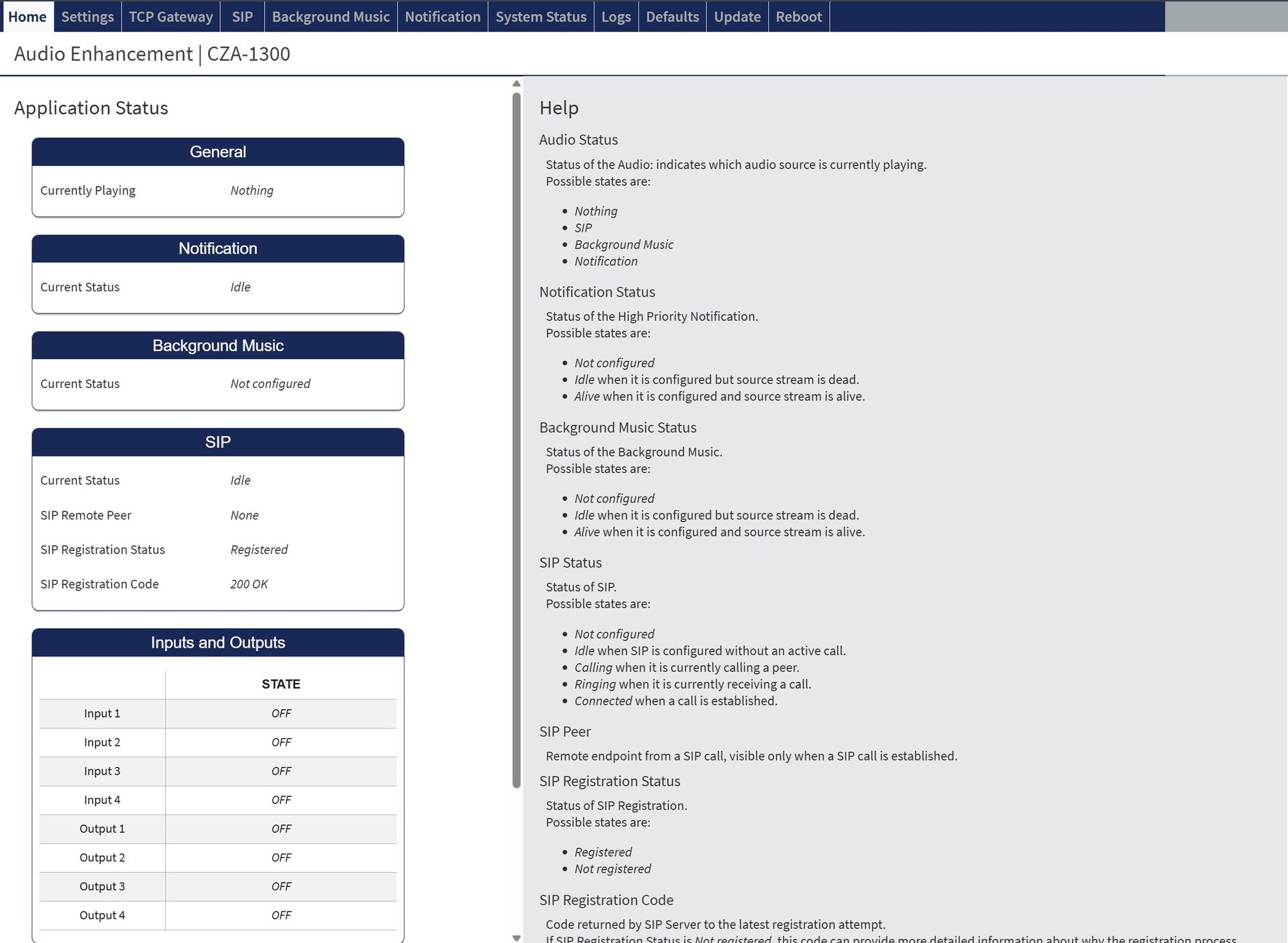
The whole Application Status page (VSC demo system, shown on a CZA-1300; the MSx pages look the same). Compare the SIP box (Registered, 200 OK), Current Status (Idle with no call; Calling, Ringing or Connected during one) and Inputs and Outputs: press the call button and watch Input 1 change. The Help panel at right explains every state. MAC address blanked.
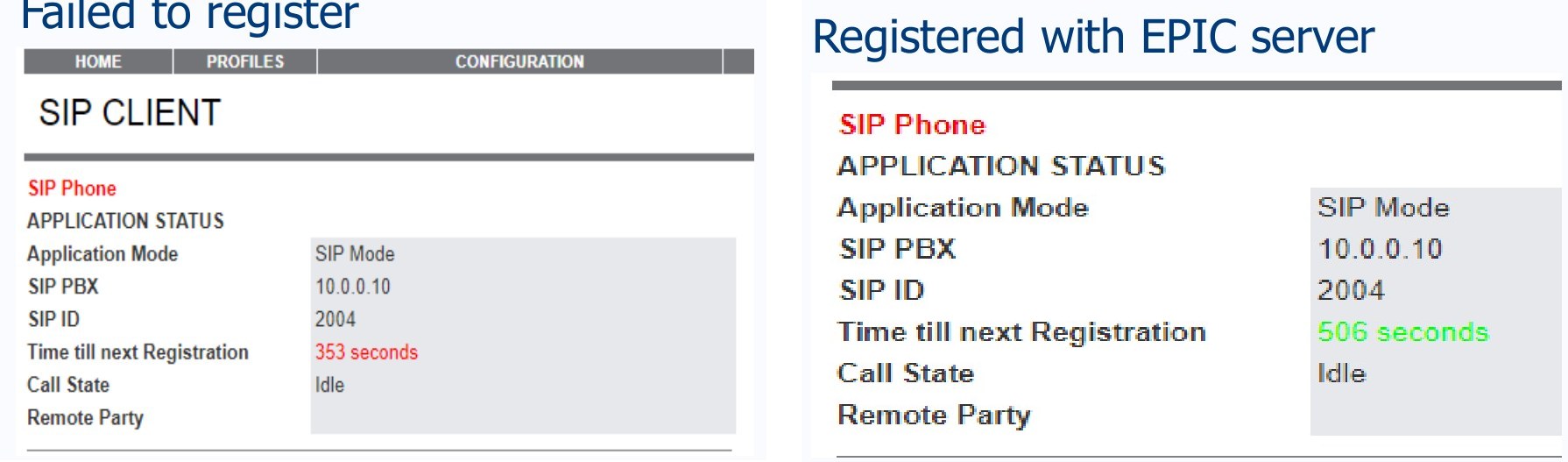
Compare: older MS-500 web page (AE training). Left: failed to register, Time till next Registration in red (AE: wrong SIP server, extension or password). Right: registered, the same field in green. SIP PBX should be the EPIC server's address.
3️⃣ Read the LEDs
| Model | LED | What it tells you |
|---|---|---|
| MS-700, MS-700-S | Power (rear) | Red while booting, green when running. |
| Status (rear) | Red while booting and getting an IP address; blinks green when running with network activity. Stuck red = no address or no network (step 4). | |
| LCD | Shows the IP address, firmware version and a PoE+ warning. A warning means the port isn't giving full PoE+. | |
| Front (MS-700) | System Power green = on. Mic 1 / Mic 2 green = that mic is connected. Link blinking yellow = linking; solid yellow = media channel linked. | |
| MS-720, MS-775 | Ready | Red = booting, green = powered on and running. |
| Activity | Off = no active event, red = an event is active. | |
| GPIO 1 to 4 | Yellow = input active, blue = output active, white = both. A clue when testing the wall plate call button (step 6). | |
| MS-500, MS-600 | Power, Network Status | AE doesn't publish the colors. Compare with a working unit in the next room. |
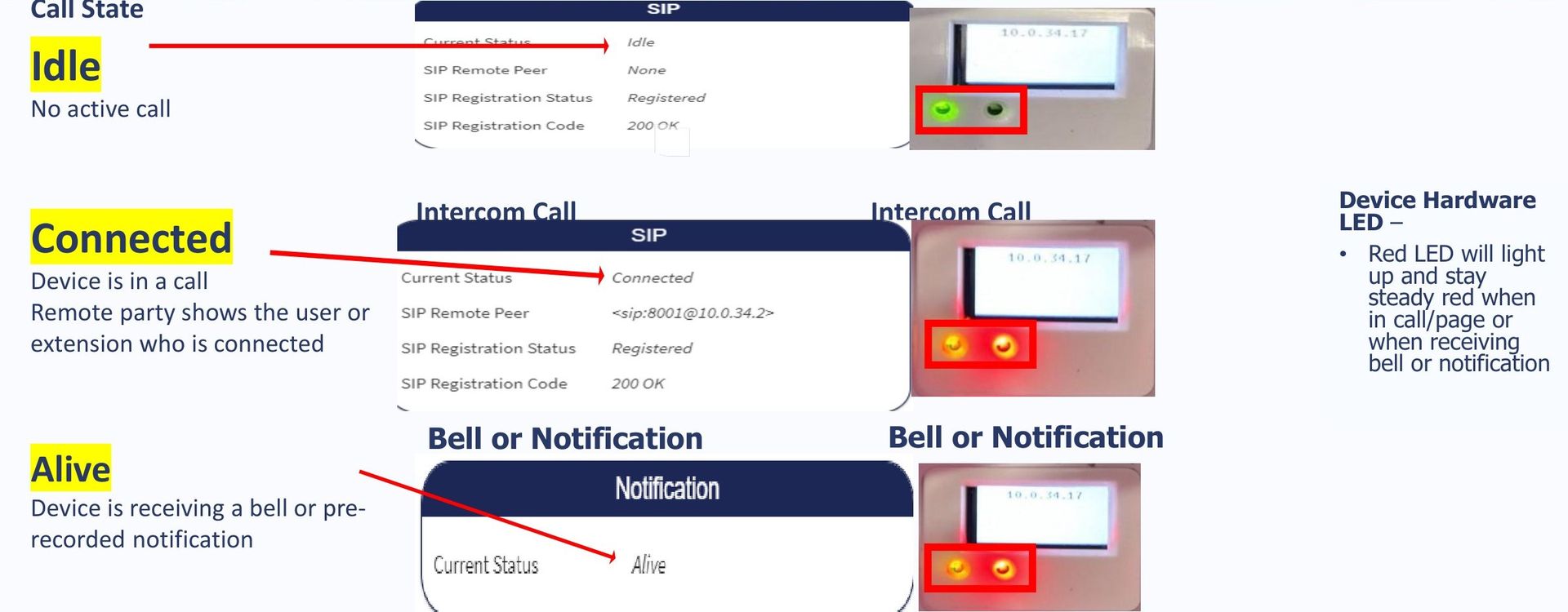
Compare (AE training, MS-700): the web page Call State next to the LCD and LEDs. Idle = no call, LED green. Connected = in a call (Remote Peer shows who). Alive = playing a bell or notification. The red LED stays on during a call, page or bell.
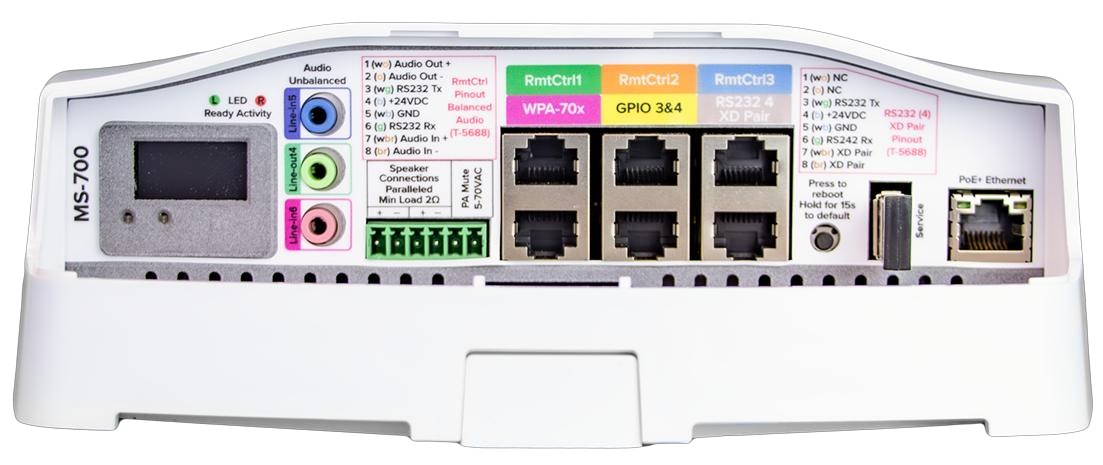
MS-700 rear panel (AE): LED Ready / Activity at top left, the LCD, line in / out jacks, speaker Phoenix, the RmtCtrl, WPA-70x and GPIO jacks, the Press to reboot, Hold for 15s to default pinhole, the Service USB (BLE adapter) and PoE+ Ethernet.
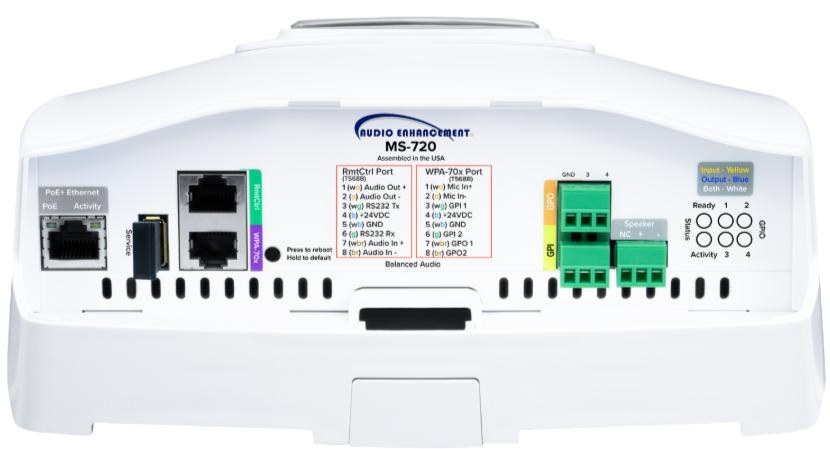
MS-720 rear (AE): PoE+ Ethernet and Ready / Activity LEDs at left, the Service USB, RmtCtrl and WPA-70x jacks, the Press to reboot / Hold to default button, GPIO and speaker Phoenix, and the Ready, Activity, GPIO 1 to 4 LEDs with the color legend at right. The MS-775 rear has the same layout and LEDs; check the label to tell them apart.
4️⃣ Prove the network and PoE
- Power and link: only the PoE+ jack goes to a switch. Check its link light and that the port gives PoE+ (802.3at on the MS-700 and MS-700-S). An MS-700 that keeps rebooting with an ITC or other wall controls attached may be pulling too much power: unplug the accessories and retest.
- Prove the port and cable: move the patch cable to a known-good PoE+ port, or use a short known-good patch cable. If the device comes online, it was the port or cable.
- VLAN: a "known-good" port only counts if it's on the correct VLAN for EPIC devices. A working port on the wrong VLAN looks exactly like a dead device. Get the EPIC VLAN from district IT. Wireshark can confirm the VLAN a port is on if you know the VLAN tag number to look for: see QR-GTS-003 Find a Device's Switch Port and VLAN with Wireshark.
- Prove the VLAN with a working room's port: at the switch, swap this device's patch cable with one from a room that's online. This device comes online and the other room drops = that switch port is on the wrong VLAN: give it to the network admin. This device stays offline and the other room is fine = the VLAN is OK; look at the IP, gateway, DNS and PBX settings next.
- IP conflict? Unplug the device, then ping or browse to its IP. Anything still answers = another device has that address.
- TCP not connected but SIP is fine? Network gear is passing SIP but blocking EPIC's TCP control traffic: give the port list (step 2) to the network admin.
- DHCP: the device needs an address inside the EPIC VLAN's range. An address from another range (wrong DHCP scope, or the port on the wrong VLAN) means EPIC never sees it.
- Offline with good LEDs? AE's causes are the IP unreachable from the EPIC server, the device powered down, or a wrong IP. Check the IP in EPIC matches the one on the device (the MS-700 LCD shows it).
Check or set its network from your phone
AE's Device Configuration app (iOS and Android) connects over Bluetooth through the BLE USB adapter in the Service port. It works the same on the MS-700, MS-720, MS-775 and CZA-1300.
- Open the app. Nearby devices are listed strongest signal first, named
BRX-. Tap Identify: the amp's LEDs cycle red, yellow, green and it plays a tone. No light or tone = wrong device. - Tap Network and check EPIC IP/URL, Network Mode (DHCP or static), IP, subnet mask, gateway and DNS. A wrong EPIC address or a wrong or duplicate static IP keeps it offline. Fix and tap the check mark to save.
- Not in the list? Once a device joins EPIC its Bluetooth is turned off. In EPIC, open the device with the pencil and, under Control Interfaces, set BLE Interface Enabled to On, then Save (switch the page to Advanced if you don't see it).
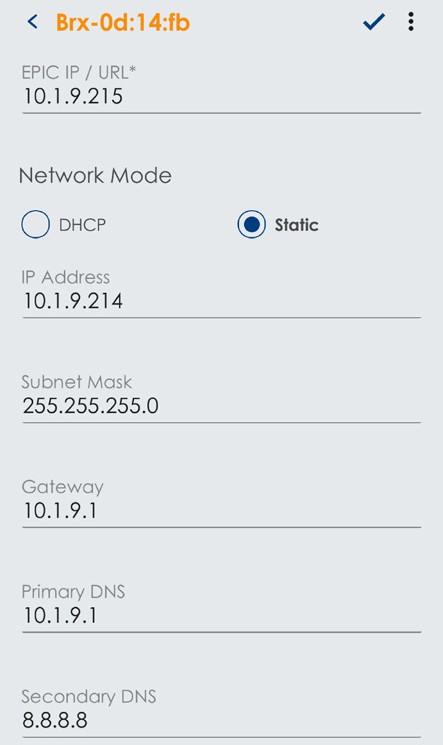
Device Configuration app, Network tab: EPIC IP / URL, Network Mode (DHCP or Static), IP, subnet mask, gateway and DNS. The check mark (top right) saves.
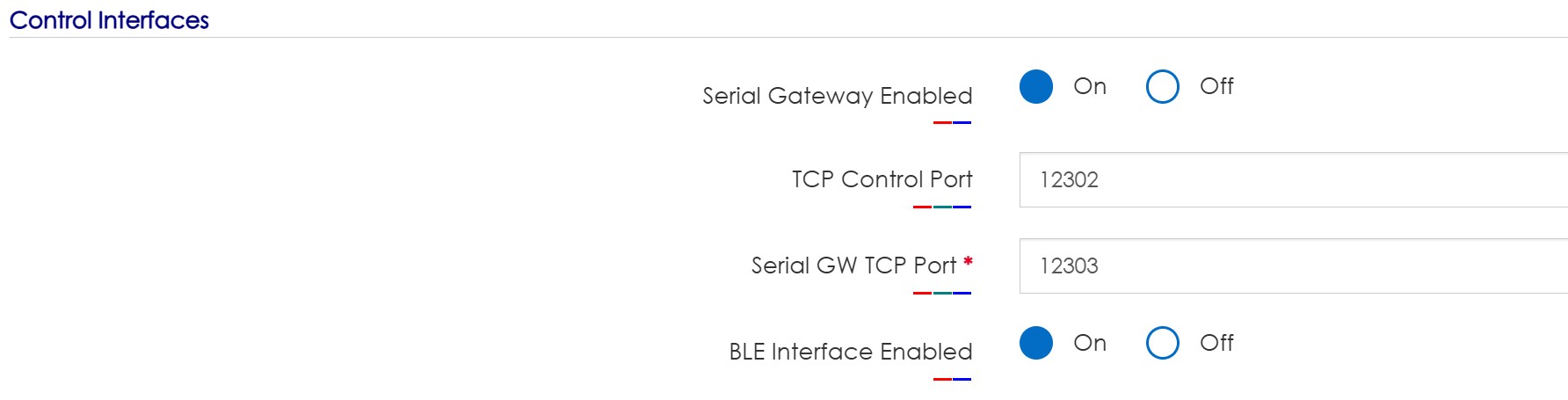
EPIC device settings, Control Interfaces (VSC demo system). BLE Interface Enabled = On lets the Device Configuration app see the device over Bluetooth. Off = the app won't list it. The same section shows the TCP Control Port (12302) and Serial GW TCP Port (12303) that EPIC uses to reach the device.
5️⃣ No paging or intercom in the room
Steps 1 and 2 good (green, volumes up, in the zones, SIP Registered)? Split the audio path at the device:
- Headphone test (MS-700, MS-700-S): plug wired headphones into the 3.5 mm Line Output (ALD-out4) and ring a bell or page the room. Hear it? The device and upstream work: it's the speakers or wiring. Don't? It's the device or upstream: recheck steps 1 to 4, then step 7. (MS-720 / MS-775 have no 3.5 mm output: use a known-good speaker and wire instead, next steps.)
- Prove the speakers: unplug PoE first (it's the device's only power). Unplug the speaker Phoenix and meter the line with an impedance meter. AE's minimums: MS-700 / MS-700-S / MS-500 / MS-600 4 Ω on each speaker pair (the two pairs are paralleled, 2 Ω overall); MS-720 / MS-775 4 Ω (built for 8 Ω speakers). Near 0 Ω = a short; infinite = an open run. All these amps are thermal and short-circuit protected, so a short can make one go quiet: fix the line, reboot, retest.
- Swap with known-good parts, one at a time: a known-good speaker straight on the device's speaker terminals with a short lead (audio = the device is good), a known-good speaker in place of a suspect one, or a known-good temporary run in place of a suspect run.
- Reverse test (MS-700): plug a phone into the amp's 3.5 mm line / aux input and play music. Heard in the room = the amp and speakers are good, so the problem is the network or EPIC side.
- PA Mute wired? AE: the MS-700 mutes whenever 5 to 70 VAC is on the PA Mute pins. Lift those two wires and retest. Audio comes back = the building PA feed is holding it muted.
6️⃣ No talkback from the room
The room hears the office but the office can't hear the room: SIP works, so look at the room's side.
| Talkback source | Check |
|---|---|
| Talkback level | Pencil › Audio Settings › WPA Talkback Level not at the bottom of the slider. MS-720 / MS-775: also Remote Port 1 Talkback Level for a mic on Remote Port 1, and Ambient Mic Volume (A/D Amplifier Gain). For an ambient mic, check Microphone Gain / Ambient Mic Volume: higher helps the office hear the room. |
| WPA wall plate (call button, mic) | Check the cable and termination, T568B: pins 1 and 2 Mic, pin 3 Call (I/O In #1), pin 4 +24 V, pin 5 GND, pin 6 Emergency. Swap in a known-good patch cable or wall plate. MS-720 / MS-775: press the call button and watch GPIO 1 (panel: WPA pin 3 = GPI 1; active input = yellow). AE doesn't document this test, so no light is a clue, not proof. |
| ITC2 (ambient mic) | Has an ambient mic for two-way talk. On the MS-700 it uses RmtCtrl 1 to 3; on the MS-720 / MS-775 the WPA port; on an MS-500 / MS-600 it needs AE's AC-2179 adapter cable. |
| XD teacher mic | Mic 1 / Mic 2 LED green on the amp = linked. Charge it: the teacher mic can't link or be used while charging. Relink: with the mic off, press LINK on the amp (blinks yellow), hold REC, then press and hold PWR. On the USB-C teacher mic, INT starts a call to the office. |
| XD Receiver (MS-700-S, MS-500) | Pencil › Capabilities = XD Enabled, right XD Receiver ID, then Query All XD on Known Devices. A yellow dot with Serial not connected = the RS-232 link to the receiver. |
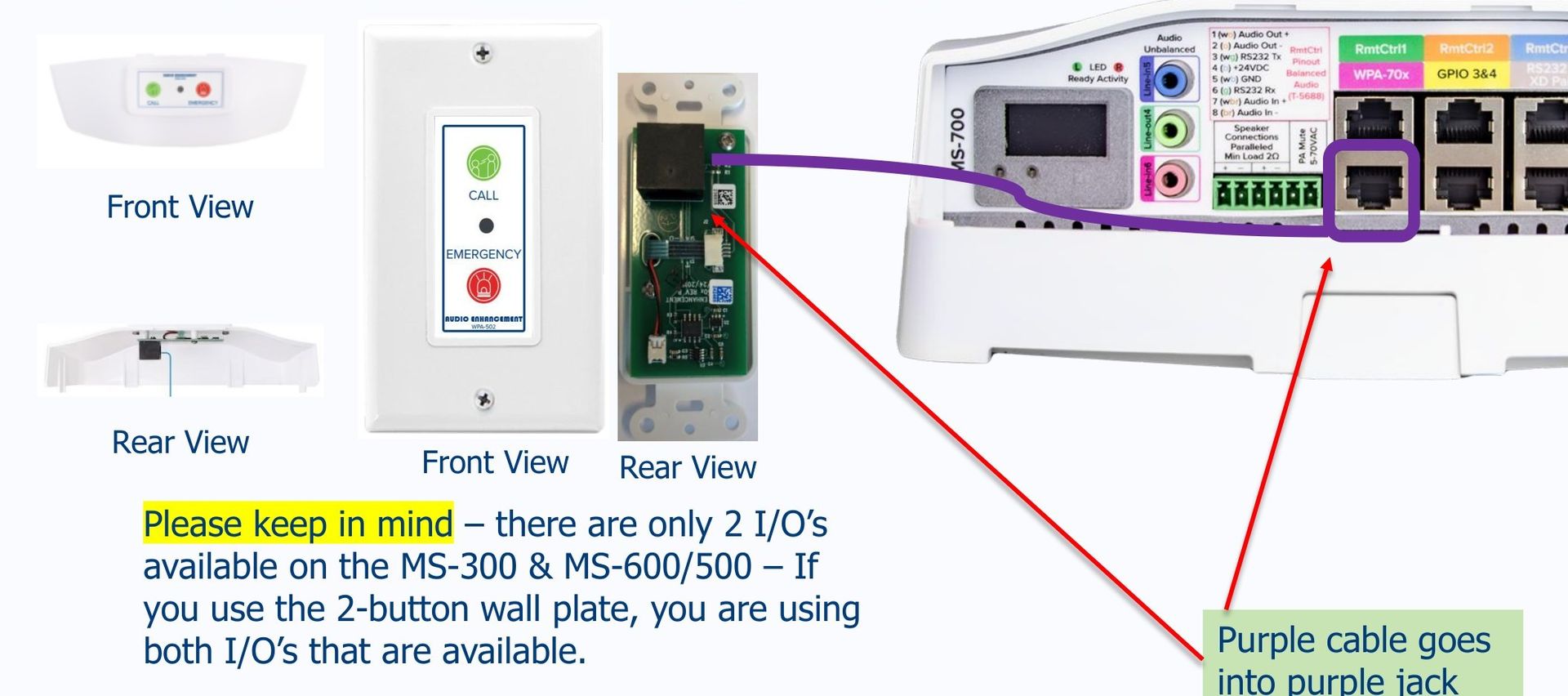
AE training: the classroom call / emergency wall plate (front and rear) and where its cable lands: the purple WPA-70x jack on the MS-700. Compare the plate and the jack it's in.
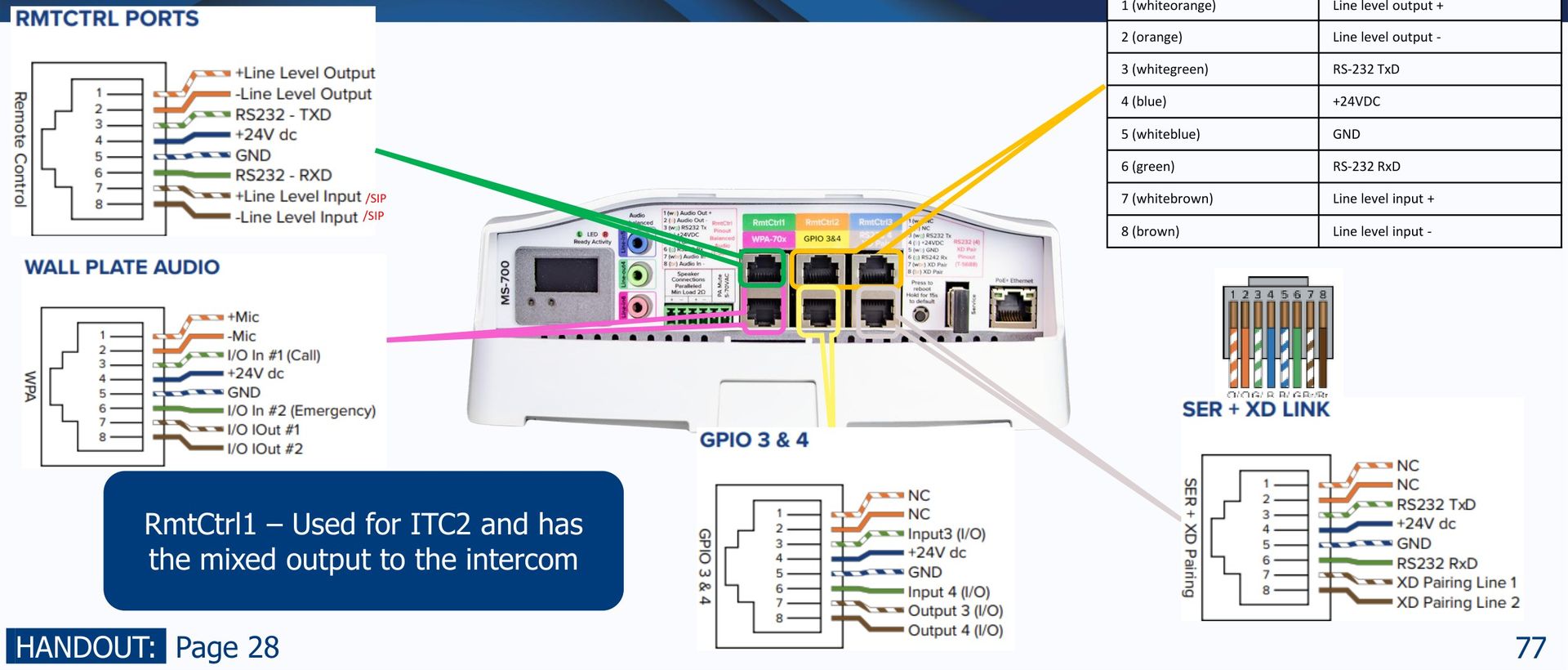
AE training: MS-700 pinouts. Wall Plate Audio (WPA): pins 1 and 2 Mic, pin 3 I/O In #1 (Call), pin 4 +24 V, pin 5 GND, pin 6 I/O In #2 (Emergency). RmtCtrl1 is used for the ITC2 and carries the mixed output to the intercom. Compare with your termination.
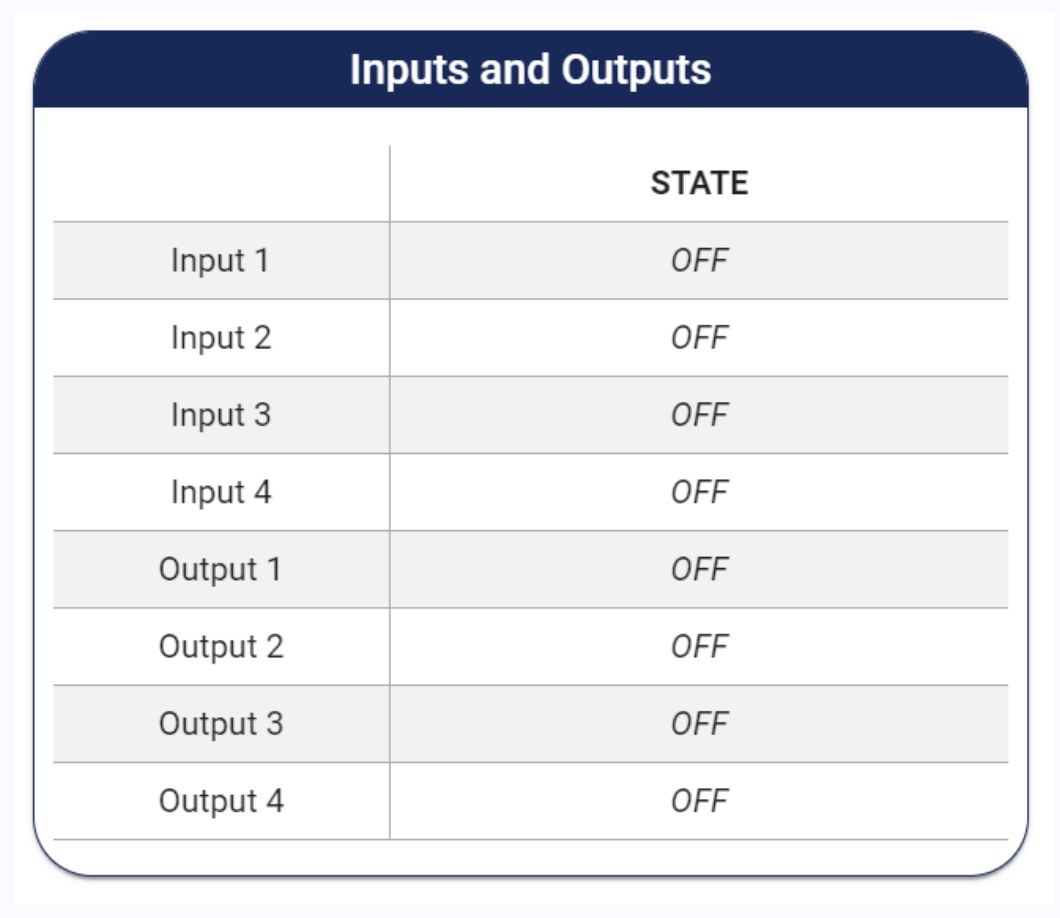
MS-700 web page, Inputs and Outputs (AE training). Nothing pressed = all OFF. Press the call button: Input 1 should read ON. ON when nobody is pressing it = a wiring problem (AE).
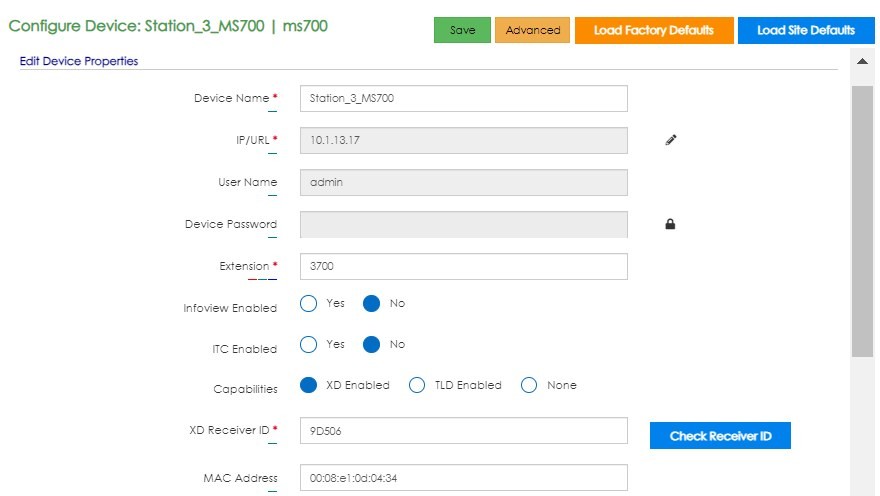
AE training screen (EPIC 2.5 UI): MS-700 pencil with Capabilities = XD Enabled, an XD Receiver ID and Check Receiver ID. Device password blanked.
Never patch RmtCtrl, WPA-70x, GPIO or XD Link into a data jack: they carry +24 V DC on pin 4. Only the PoE+ jack goes to a switch.

MS-700 Audio Settings: WPA Talkback Level sits under Intercom and Paging Volume. Here it's at the bottom of the slider (−79 db): that room would send no talkback.
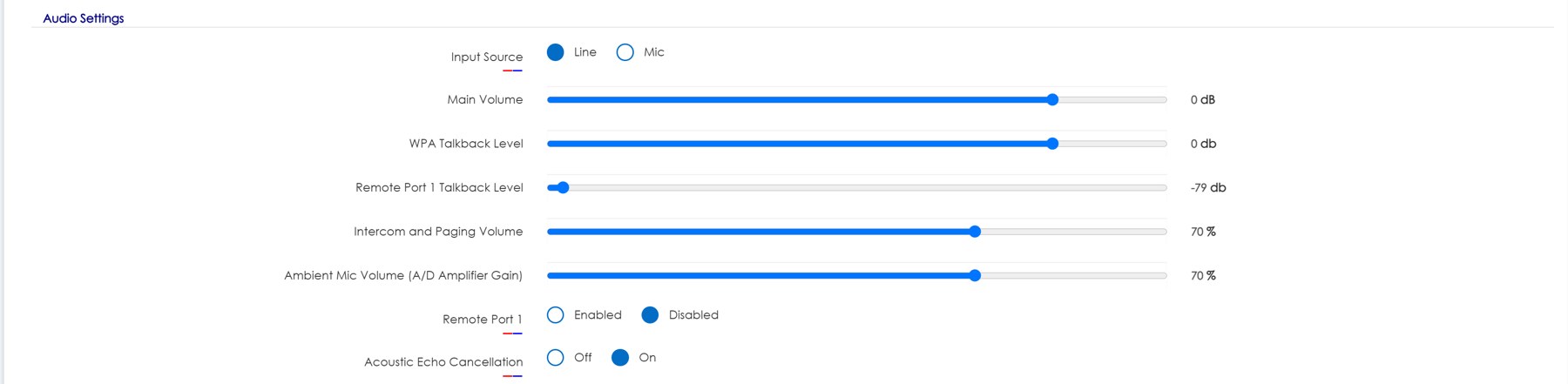
MS-720 Audio Settings (the MS-775 is the same): Main Volume, WPA Talkback Level, Remote Port 1 Talkback Level, Intercom and Paging Volume and Ambient Mic Volume. Here Remote Port 1 Talkback is at −79 db, so a mic on Remote Port 1 would send no talkback.
7️⃣ Reboot, reset, then swap
Do these in order and only after steps 1 to 6.
| Step | How | Before and after |
|---|---|---|
| Reboot | All with a documented button: hold Reboot 5 seconds. | Watch the LEDs go red, then green. Recheck EPIC (green) and SIP (Registered). |
| Factory reset | MS-700, MS-700-S: hold 15 seconds (the panel says "Hold 15s to default"), then release. MS-720, MS-775: hold until Activity flashes green (10 seconds). MS-500, MS-600: no single factory reset: IP Reset puts all network settings back to factory (MS-500: hold 10 seconds until the solid red light goes off, never press it twice or it drops into bootloader, then listen for it to speak its IP), Audio Reset puts all volume levels back to factory defaults. | Before: write down the device's settings from EPIC: name, extension, IP, MAC, room, zones, volumes and WPA Talkback Level, XD Receiver ID, and any events using its inputs. After: see below. |
| Rescue mode | MS-720, MS-775 only: hold Reboot until Activity turns red (15 seconds), or unplug PoE+, hold Reboot and plug PoE+ back in. | For a unit that won't boot normally. Note that you used it and tell AE Support. |
| Swap | Put a known-good unit of the same model in its place on the same cables. | Works on the same wiring = the original unit is faulty: start a warranty repair (RMA). Same fault = it's not the unit; go back to steps 4 to 6. |
After a factory reset: the device comes back under Unknown Devices in EPIC only if DHCP is on and gives it an address inside the EPIC VLAN's range. (If the VLAN is 10.10.10.1 to 254 and DHCP hands out 10.30.15.85, it won't show up.) Not showing?
- Any model: set its network with the Device Configuration app on your phone (step 4).
- Any model: connect it to VSC's TL-SG1005P PoE+ bench switch with a laptop, off the network, and find and set it with AE's Discover.jar tool (a Java program; the laptop needs Java) (full steps: QR-AE-041 Find and Re-address an AE Device with Discover.jar). VSC has used it to find MS-700s and CZA-1300s. Get it from AE's downloads page, audioenhancement.com/downloads, or AE's direct link s3-us-west-2.amazonaws.com/aemarketing/discovery.zip; a copy is also attached to this guide in the VSC KB.
- Once it shows: click +, check the type in Identify Unknown Device is the right model (an MS-720 or MS-775 must not be added as an MS-700), enter the recorded name and extension, pick the receiver type and Submit. Re-enter volumes, talkback level and XD Receiver ID, put it back in its room and zones, push SIP from the Configure tab, run Query All XD, then test a bell, a page and intercom both ways.
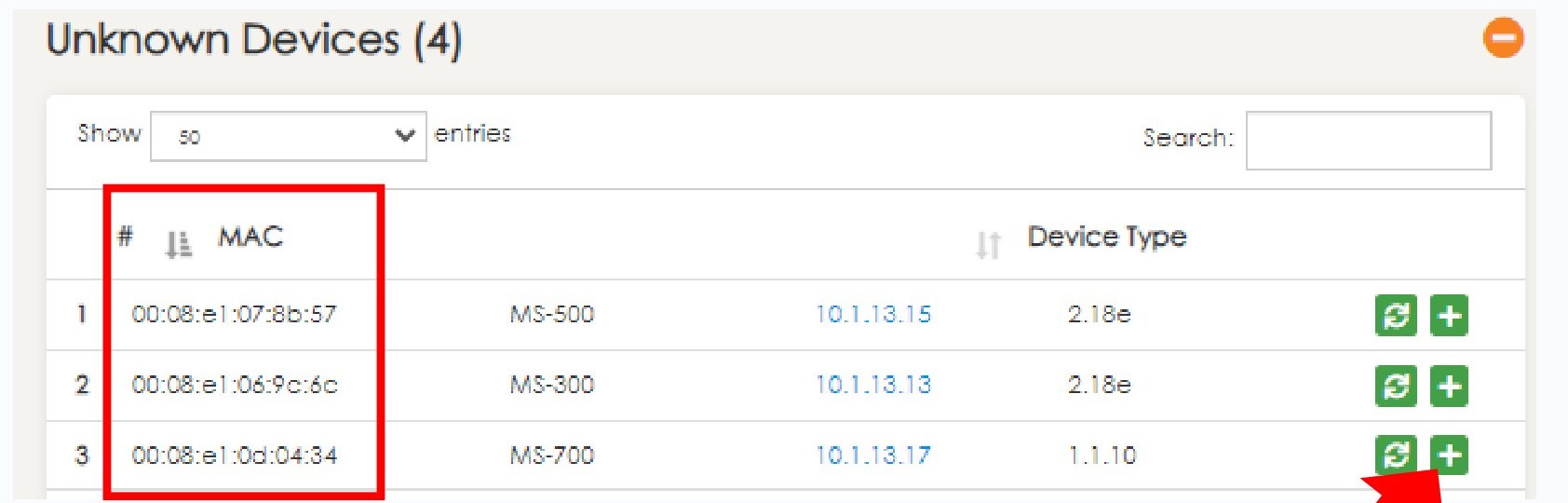
AE training screen (EPIC 2.5 UI, lab IPs): a reset device shows under Unknown Devices by MAC, type, IP and firmware. Match the MAC on the unit's label, then click the green +.
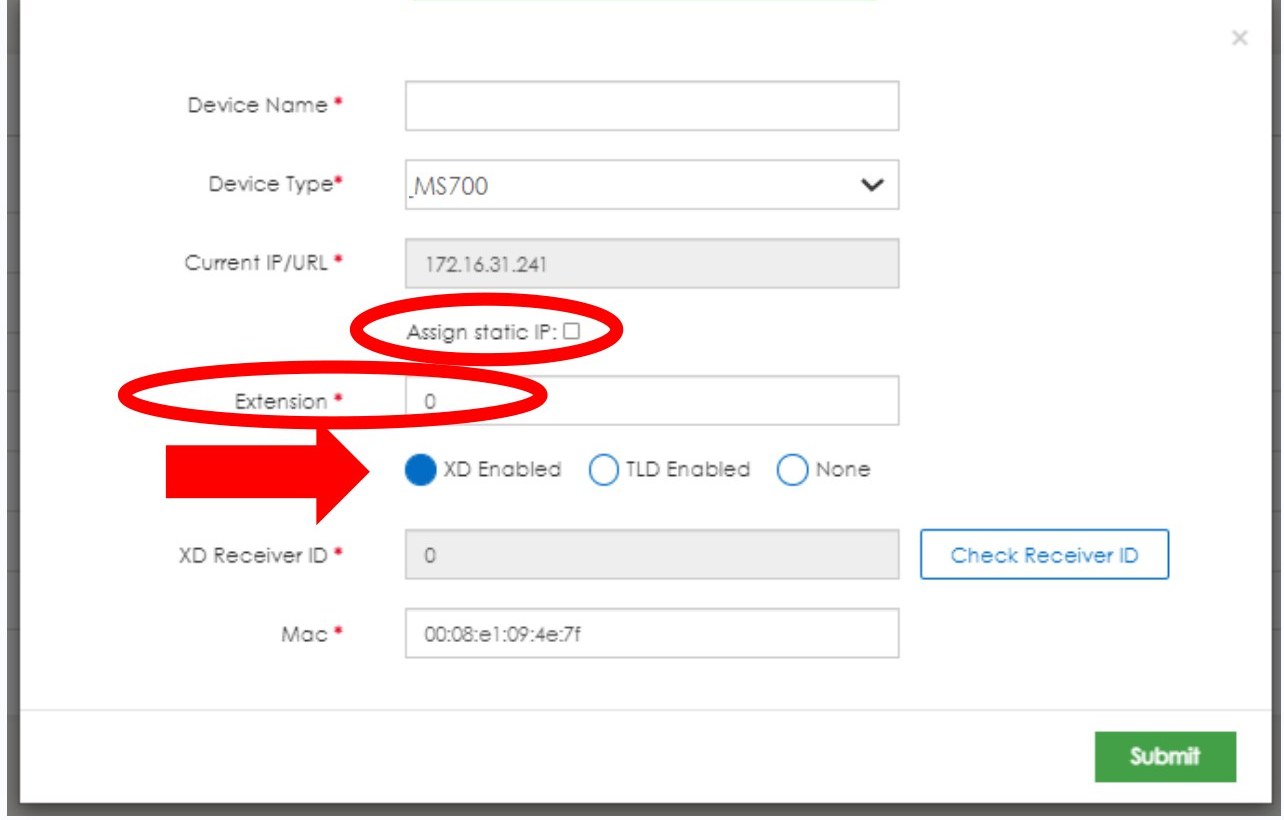
AE training screen (EPIC 2.5 UI): Identify Unknown Device. Compare: Device Type must match the unit (MS700 here), enter the Extension, pick XD Enabled, TLD Enabled or None, then Submit.
Field tips and tricks
- Bells work but pages don't? Think SIP and Intercom and Paging Volume, not the speakers.
- Pages work but bells don't? Check Bells and Notifications Volume and the bell schedule's zones.
- Identify doubles as a speaker test. On an MS-700, the app's Identify plays a tone through the room speakers. Tone heard = amp and speakers work; look upstream.
- One room too quiet, not dead? Use EPIC Settings › Classroom Volumes: it changes that device live and a Configure push won't undo it. Only online devices are listed.
- Bring: wired headphones (3.5 mm), an impedance meter, a known-good speaker with leads, known-good patch cables, a PoE+ tester, your phone with the Device Configuration app, VSC's TL-SG1005P PoE+ bench switch and a laptop with Discover.jar, and if you have one, a known-good unit.
- Photos: take one of the LEDs and the wiring before you touch anything, and again when you leave.
- Write results down as you go on the Field Service worksheet, not from memory afterward.
Still not working?
- Fault follows the unit to known-good wiring, or a known-good unit fixes it: the unit is faulty. Start a warranty repair (RMA) with AE (MS-700, MS-720 and MS-775 carry AE's 7-year warranty) and send what you found at each step.
- Fault stays with the wiring on a known-good unit: it's the field wiring, speakers or wall plate. Repair the run.
- Calling AE Support (800.932.3578, [email protected], Mon to Fri 5 AM to 6 PM MST)? Have the model, serial, MAC, IP, firmware, status dot and hover reason, LED states, SIP status and code, the headphone and impedance results, plus photos.
📚 Sources & credits
- Brad Roy, VSC Director of Operations (Oct 2026): method, order, top tickets, status-dot reasons, talkback levels, VLAN / DHCP, Unknown Devices, Discover.jar, reset buttons, and his EPIC troubleshooting flowchart (working-room port swap, IP conflict test, compare with a working device, TCP-only fault). AE training EPIC Level II (EPIC 3.1.3) and Level 1 Hardware and Systems (Dec 2025): Asterisk log, reverse audio test, MS-500 IP Reset.
- Audio Enhancement: MS-700 QSG DC-41034.0824, Pinout DC-41213.0925, SS DC-40133.0124; MS-700-S QSG DC-41151.1025; MS-720 QSG DC-41098.1025, SS DC-41099.1025, Pinout DC-41214.1025; MS-775 QSG DC-41101.1025, SS DC-41100.1025, Pinout DC-41215.1025; MS-500 QSG DC-40750.0723, SS DC-40745.0723, Pinout DC-41020.0825; MS-600 SS DC-40953.0823, Pinout DC-41019.0825; ITC SS DC-40961.0924; Device Configuration App Guide DC-41040.0324; Third Party IP Speaker QSG DC-41284.0726; Network Guidelines DC-41095.0725; Warranty DC-40723.0626. Images: AE, VSC demo EPIC and MS-720; Audio Enhancement training EPIC Level II (EPIC 3.1.3) / Level 1 Hardware and Systems (Dec 2025) (EPIC 2.5 lab screens; device password blanked).
- VSC demo system screen (CZA-1300 firmware 1.0.12): Application Status and Control Interfaces (BLE Interface Enabled), Oct 2026. MAC address blanked.