Find and Re-address an AE Device with Discover.jar
Quick Reference QR-AE-041 · Audio Enhancement · Rev 1.1 · Oct 2026
EPIC can't see it, nobody wrote its address down, or it came back from a factory reset on the wrong network. Find it by its MAC address, give it the right IP and get it back into EPIC.
📄 View or download this guide as a PDF
Click the PDF icon below to open it right here in your browser. In the viewer, use Download (top right) to save a copy, or the printer icon to print it.
What it is: Discover.jar is the Barix Discovery Tool, a small Java program. AE's devices are built on Barix network modules, so it finds them, older and new. Every device that hears its broadcast answers with its MAC, IP, type and firmware; you pick one and send it a new IP.
When to use it
| Situation | Use Discover.jar? |
|---|---|
| Device doesn't show in EPIC's Unknown Devices | Yes. AE's training: this is what it's for. |
| After a factory reset, DHCP gave it an address outside the EPIC VLAN's range | Yes. EPIC VLAN 10.10.10.1 to 254, DHCP gives 10.30.15.85: EPIC won't list it, Discover will (step 2, B). |
| You need a device's IP and only have the unit in your hand | Yes. Match the MAC on its label. |
| Pre-staging an RMA, spare or borrowed unit | Yes. Off the network, set its final district IP. |
| Device is in Known Devices and online | No. Change it from EPIC or its web page. |
| Device is on a different subnet or across a router from you | Not from there. The broadcast doesn't cross routers (step 2). |
What you need
- A laptop with Java (Java SE 5 or later) and a wired Ethernet port or USB adapter, plus Discover.jar (step 1).
- A patch cable, and for a reset, stranded or bench-staged device VSC's TP-Link TL-SG1005P bench switch (5-port gigabit, ports 1 to 4 PoE+, so it powers the device; step 2).
- The device's MAC (unit label or EPIC Known Devices) and its address: old IP from EPIC or a free one in the EPIC range from district IT, plus mask, gateway, DNS and the EPIC server's address.
1️⃣ Get it and run it
- Download it: AE's downloads page, audioenhancement.com/downloads, or AE's direct link s3-us-west-2.amazonaws.com/aemarketing/discovery.zip. A copy is also attached to QR-AE-037 and QR-AE-038 in the VSC KB. Unzip it; the file you run is Discover.jar.
- Check Java: open a command prompt (Mac: Terminal) and type java -version. A version number = installed (most VSC laptops have it). "Not recognized" or "command not found" = download the free Java runtime (JRE) from java.com and install it with the default settings.
- Run it: double-click Discover.jar. Windows opens it as a zip or blocks it as an unsigned download? Right-click › Open with › Java. Mac says "unidentified developer"? Right-click › Open. From a command prompt in the same folder this always works: java -jar Discover.jar.
- Windows Firewall asks about Java? Allow it on Private networks. If it's blocked, the devices' answers never reach the tool.
- The Discovery Tool window opens empty. That's normal: it doesn't look for anything until you click Get.
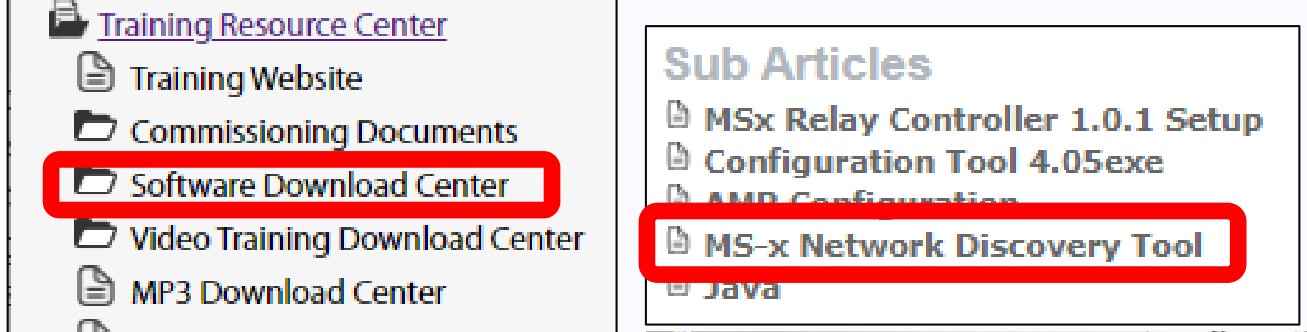
AE training (EPIC Level II, slide 189): in AE's knowledge base the tool is under Training Resource Center › Software Download Center › MS-x Network Discovery Tool, next to a Java download.
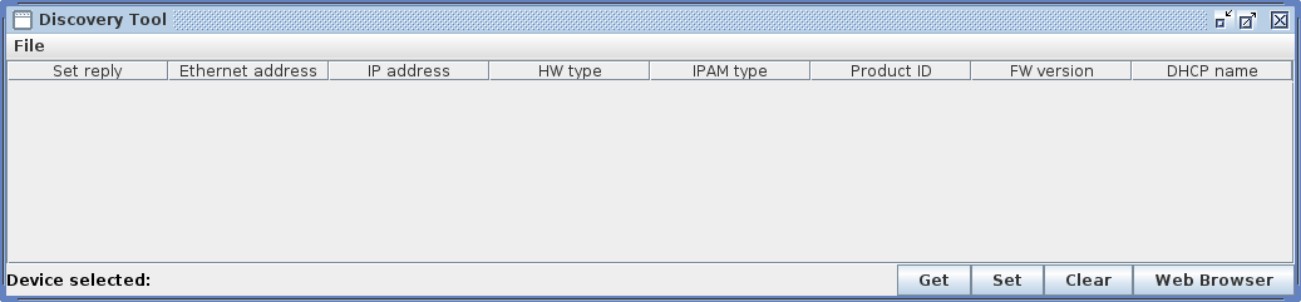
The tool when it first opens (Barix manual): columns across the top, Device selected at bottom left, and the four buttons: Get, Set, Clear, Web Browser.
Columns in the tool and what they tell you
| Column | What it tells you |
|---|---|
| Set reply | The device's answer to a Set. No error = your new IP was sent and accepted. |
| Ethernet address | The MAC, the same as on the unit's barcode label. This is how you know you have the right device. AE devices start 00-08-e1. |
| IP address | The address it has now (may be a DHCP address). Double-click it to type a new one (step 4). |
| HW type · IPAM type | The Barix hardware and IP audio module inside. They won't say "MS-700"; don't use them to tell models apart. |
| Product ID | The firmware type. Boot = the device is in bootloader mode, not running normally: stop and call AE Support. |
| FW version | The installed firmware. Note it; EPIC updates it once the device is back in EPIC (QR-AE-002). |
| DHCP name | The device's DHCP host name, if it has one. Often blank. |
2️⃣ Connect the laptop
The tool only finds devices its broadcast reaches: the same wire, switch or VLAN as your laptop (Barix: local LAN only, not across a WAN or routed network). Use a cable, not Wi-Fi (AE: school Wi-Fi may or may not pass it).
| Option | When | How |
|---|---|---|
| A. On the EPIC VLAN | The device is on the right network but EPIC doesn't list it. | Plug into a switch port on the EPIC VLAN (ask district IT which one). Take a DHCP address, or a static one in the EPIC range. |
| B. Off the network | A factory-reset or stranded device, a wrong VLAN, or a network you don't know. | Unplug the device from the building network. On VSC's TL-SG1005P bench switch, plug the device into a PoE port (1 to 4: MSx devices need PoE+, 802.3at; the CZA-1300 needs 802.3af PoE) and your laptop into any port, nothing else, and don't connect the switch to the district network. Nothing else answers, and you can't touch the district network by mistake. |
- Turn off Wi-Fi and any VPN on the laptop so the broadcast goes out the Ethernet port.
- Laptop IP: the tool can usually find and set a device on a different subnet. To open its web page afterward, give the laptop a temporary static IP in the same range (same first three numbers, different last number, same mask), not the device's own address. Windows: Ethernet adapter › IPv4 properties.
- Option B has no DHCP server. A device with no static IP may show an odd address; you'll set it in step 4.
- Done on the bench? Before you plug the device back into its own PoE port, make sure that port is on the correct EPIC VLAN (QR-GTS-003 Find a Device's Switch Port and VLAN with Wireshark).
3️⃣ Find the device
- Click Get. Every Barix-based device that hears the broadcast shows up as a row.
- Clear between Gets. The list doesn't refresh itself: click Clear, then Get, so you only see devices that answered the last Get.
- Sort by clicking a column heading (tool v0.40 and later). Sort on Ethernet address or IP address to scan a long list.
- Find the row whose Ethernet address matches the MAC on the unit's label. The tool writes it with dashes (00-08-e1-...), EPIC with colons (00:08:e1:...). Write down its IP, HW type and firmware.
- Nothing shows? Wait a few seconds and Get again, then see Still not found?
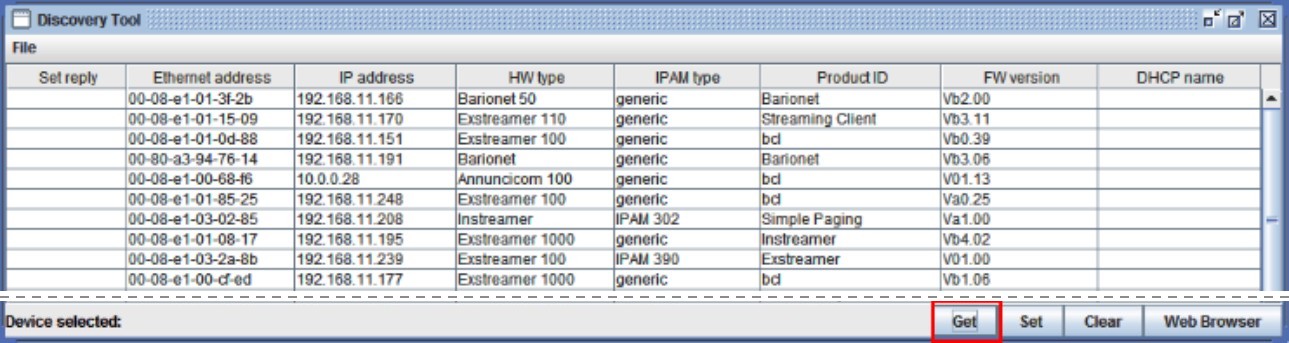
After Get (Barix manual, Barix lab devices; lower rows cropped out): one row per device. Barix MACs in the Ethernet address column start 00-08-e1. On an AE job you'll see your MS or CZA units instead of these Barix products.
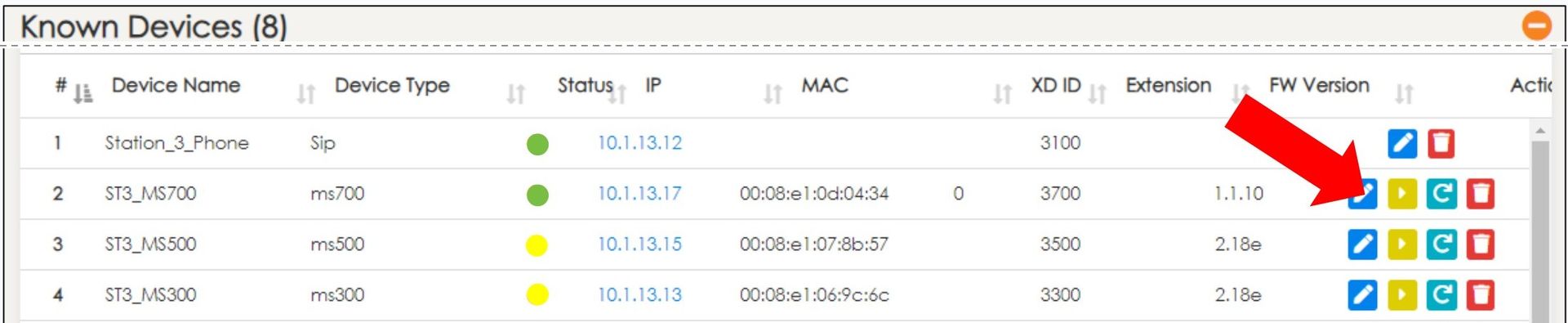
AE training (EPIC Level II, slide 201, AE lab IPs): EPIC Known Devices. The MS-700, MS-500 and MS-300 MACs all start 00:08:e1, the Barix prefix the tool finds. The SIP phone has none and won't show in the tool.
4️⃣ Set the IP
- Click the device's row. It turns blue and its MAC shows next to Device selected. Check that MAC against the label once more.
- Double-click its IP address, type the new address and press Enter (Enter is what makes the tool accept it).
- Click Set. The device reboots with the new address. No error in Set reply = it was sent.
- Wait for the reboot, then Clear and Get. The device back with the new IP is the only real proof.

A selected device (Barix manual; middle rows cropped out): the row is blue and Device selected shows its MAC.

Setting the IP (Barix manual): double-click the selected device's IP address (red box), type the new one, press Enter, then click Set.
| To get | Type in the IP field |
|---|---|
| A static address | The address from EPIC or district IT, for example its old IP. Unused, and inside the EPIC VLAN's range. |
| DHCP | 0.0.0.0 (AE training). The device goes back to asking DHCP for an address. |
Lost it after a Set? It rebooted onto the new address, maybe outside your laptop's range. Clear and Get: the tool still finds it. Then move the laptop into the new range.
5️⃣ Finish the network settings
Discover.jar sets only the IP address. The subnet mask, gateway, DNS and the EPIC (SIP PBX) server address still have to be right, or the device stays offline. On the device's web page:
- Put the laptop in the device's range, select the device and click Web Browser (or type its IP into a browser). A "not private" warning is expected: the device uses plain HTTP on the local network.
- Sign in as admin with the device's password. If it's in EPIC: Settings › Devices › Known Devices, blue pencil, copy the Device Password. Never write it down or paste it into a ticket. A factory-reset device is back on its factory login: get it from your VSC PM or AE Support.
- Click Settings and expand Network Settings. Check or set DHCP (No for a static address; Yes if the district uses DHCP for AE devices), IP Address, Netmask, Gateway IP Address and DNS (Manual: Primary and Alternative DNS). Unsure? Copy them from a working device on the same VLAN.
- On the SIP tab, confirm the SIP PBX / server address is the EPIC server's address.
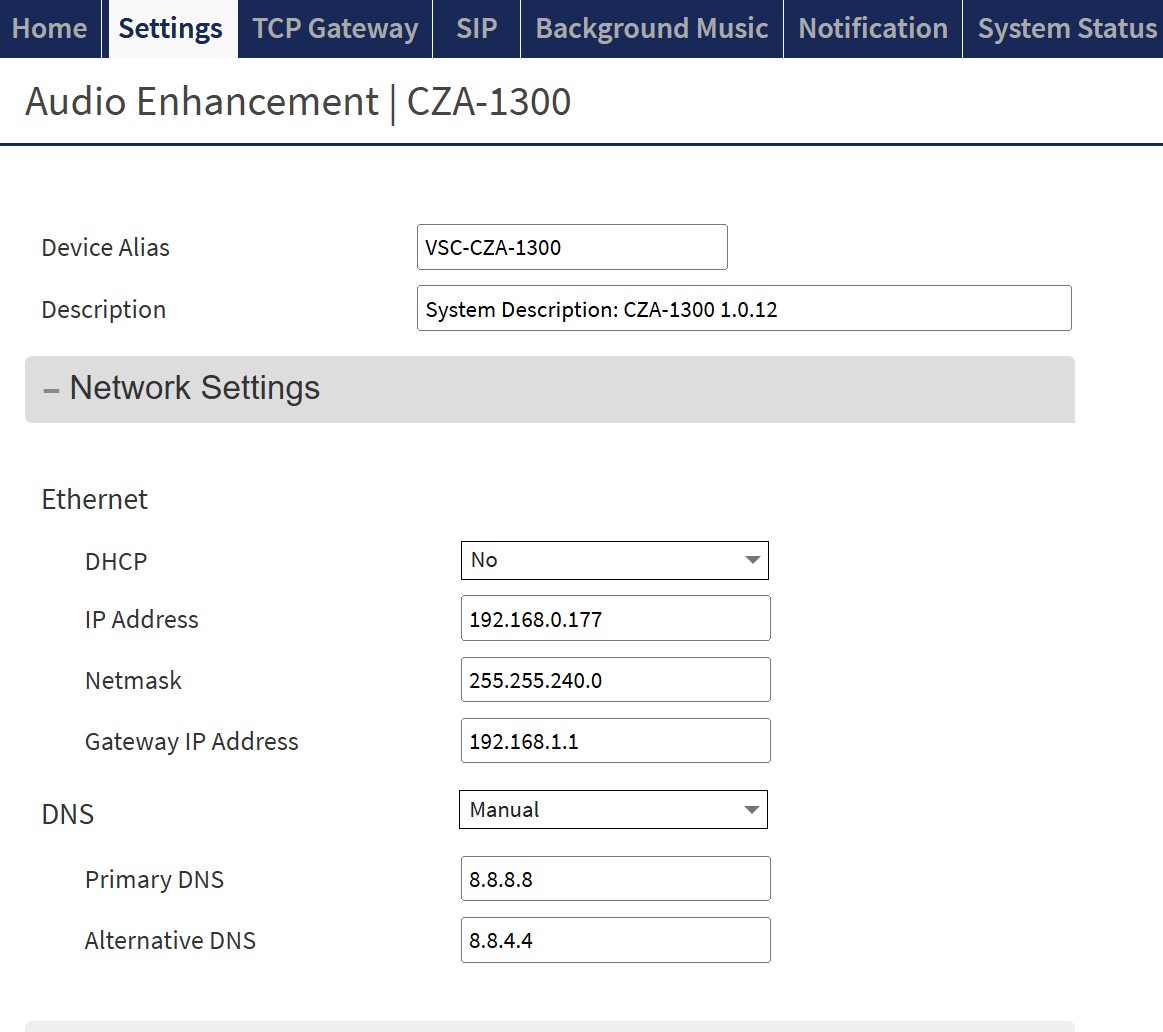
Device web page, Settings › Network Settings expanded (VSC demo CZA-1300, firmware 1.0.12; the MSx pages are the same). Compare: DHCP, IP Address, Netmask, Gateway IP Address, DNS Manual with Primary and Alternative DNS.
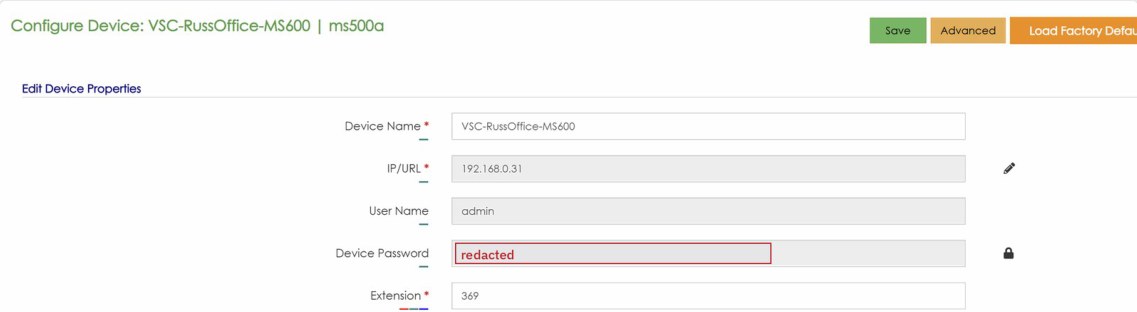
EPIC, Known Devices › blue pencil › Configure Device (VSC demo system). Copy the Device Password here to sign in to the device's web page. Password redacted.
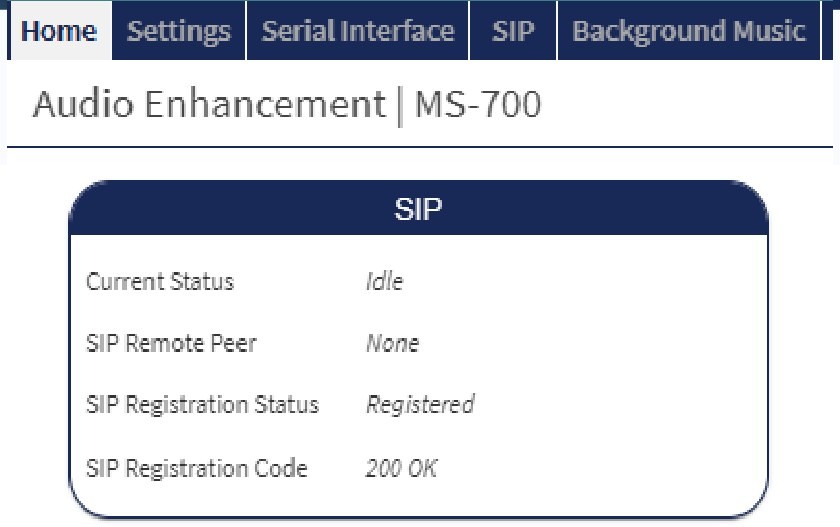
An MS-700's web page (AE training): the top menu is Home, Settings, Serial Interface, SIP, Background Music. The SIP box on Home › Application Status is where you check registration in step 8.
6️⃣ Other ways to finish the network settings
Device Configuration app (MS-700, MS-720, MS-775, CZA-1300)
AE's Device Configuration app (iOS and Android) connects over Bluetooth through the BLE adapter in the device's USB port. Pick the device from Nearby Devices (strongest signal if several show), open the Network tab, set EPIC IP / URL, Network Mode (DHCP or Static), IP, subnet mask, gateway and DNS, then tap the check mark to save. The app only lists a device whose BLE Interface Enabled is On in EPIC (see Still not found?).
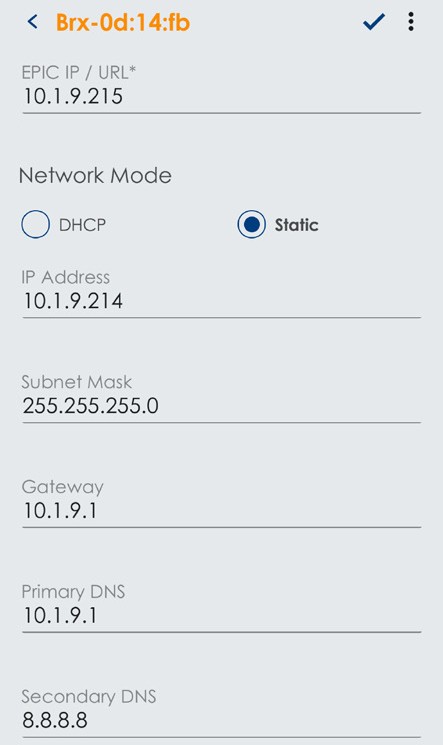
Device Configuration app, Network tab (AE).
From EPIC when you add it
AE: EPIC can set and change a device's network settings itself. When you add the device (step 7), Identify Unknown Device has an Assign static IP box, and Configure › Save and Push sends device settings. AE fixed a bug in EPIC 3.3 where a factory-reset MS device didn't always take the IP it was given when added: on an older EPIC, check the address with a new Get.
7️⃣ Add it back in EPIC
- New, reset or never added: it should now show under Settings › Devices › Unknown Devices (not yet? click Discover at the top of the Devices page). Match the MAC, click the green +, fill in Identify Unknown Device (name, the right Device Type, extension, XD Enabled / TLD Enabled / None) and Submit.
- Already in Known Devices with the old IP: open it with the blue pencil, change the IP to the new one, and Save.
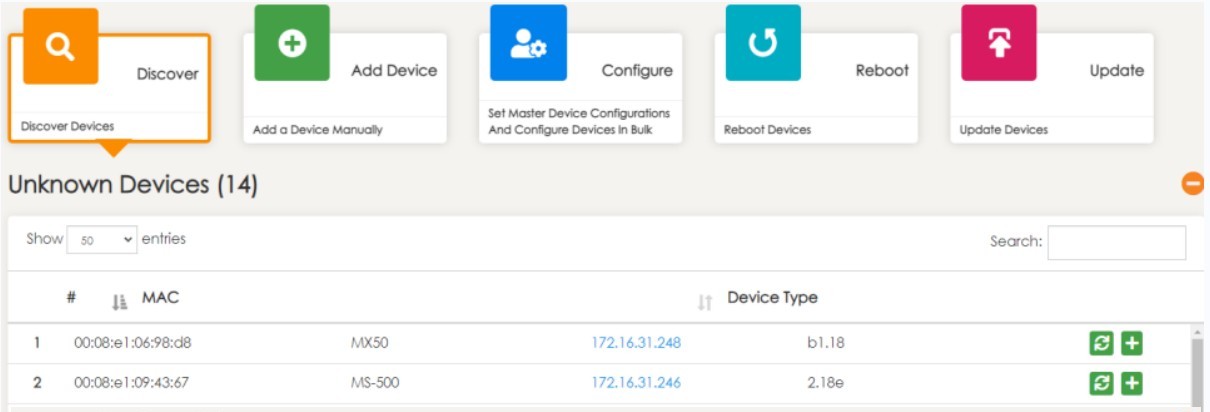
AE training (slide 185, AE lab IPs): Discover at top, Unknown Devices by MAC, type, IP and firmware, green + to add. AE: other gear such as AE's NVR can show here and never gets added. Ignore it.
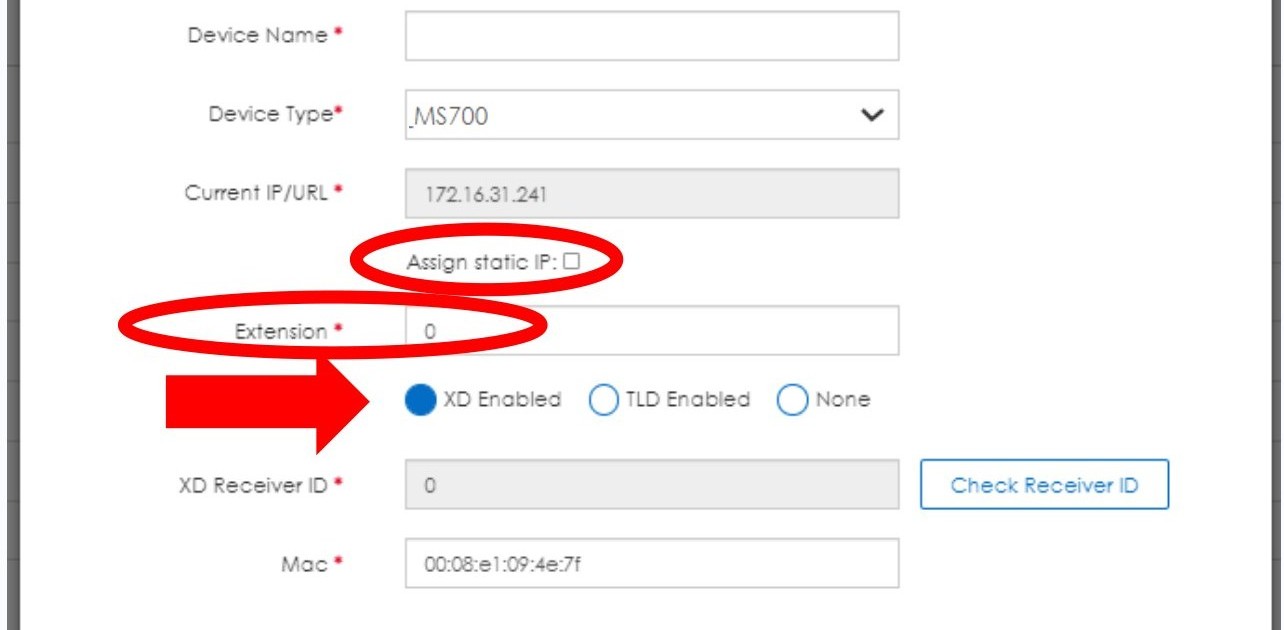
AE training (slide 190): Identify Unknown Device. Device Type must match the unit; note Assign static IP and the Mac starting 00:08:e1.
8️⃣ Push and test
- Push its settings, then push SIP settings from the Configure tab. Pushing from the Devices list does not send SIP settings.
- Check the device is green in Known Devices, and on its web page that SIP Registration Status is Registered, code 200 OK. Not registered? Recheck the SIP PBX address (step 5) and push SIP from Configure again.
- Check its zones and volumes came back (a reset device starts from scratch).
- Test: ring a bell, send a page and make an intercom call to the room or space. All three working = done.
- Used the bench switch? Make sure it's back on its own port (on the EPIC VLAN, step 2) and test again.
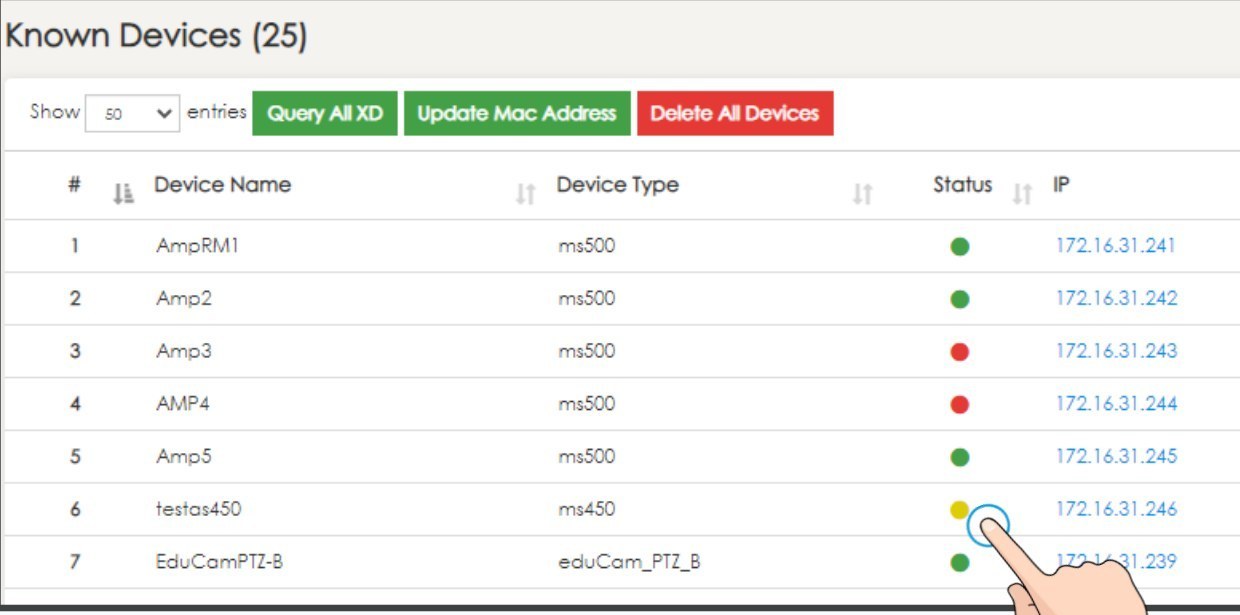
AE training (EPIC 2.5 UI, lab IPs): green = online; yellow (row 6) = something isn't connected, hover it (often SIP); red = EPIC can't reach it: recheck the IP, gateway and VLAN (steps 4 and 5).
Field tips and tricks
- Write the MAC and IP down before a reset, with name, zones, volumes and extension, from Known Devices. It's the fastest way back.
- One device at a time on the bench switch. One row in the list = no chance of setting the wrong unit.
- Keep the tool and Java on the laptop. Don't count on downloading it at a school.
- Phone first, laptop second: on MS-700-family amps and the CZA-1300 the app is often quicker. Discover.jar is the fallback that finds every model.
- Put the laptop back to DHCP and turn Wi-Fi back on when you're done.
- Record what you set on the Field Service worksheet (AE EPIC Service), under Recovery / Notes: the MAC, old IP, the IP you set and "Discover.jar used".
Still not found?
- Java: the tool never opened, or opened as a zip: step 1.
- Wrong wire: the laptop has to be on the same switch or VLAN as the device, wired. Try option B (TL-SG1005P bench switch, off the network).
- The switch blocks broadcasts: Barix notes that switches set to block frequent UDP broadcasts can stop the tool. A managed district switch may do this; an unmanaged switch like VSC's TL-SG1005P won't.
- Power: is it on? Check the link light, the PoE source and the front LEDs (on a CZA-1300, Ready stuck on red = no network or no address yet).
- Laptop firewall: Windows Firewall blocking Java stops the replies: allow Java on Private networks (step 1). Wi-Fi or a VPN still on? Turn them off (step 2). A locked-down laptop may still block them: try another laptop.
- Still nothing: use the Device Configuration app (step 6). App doesn't list it either? Turn Bluetooth back on in EPIC (below), or factory-reset the device and try both again.
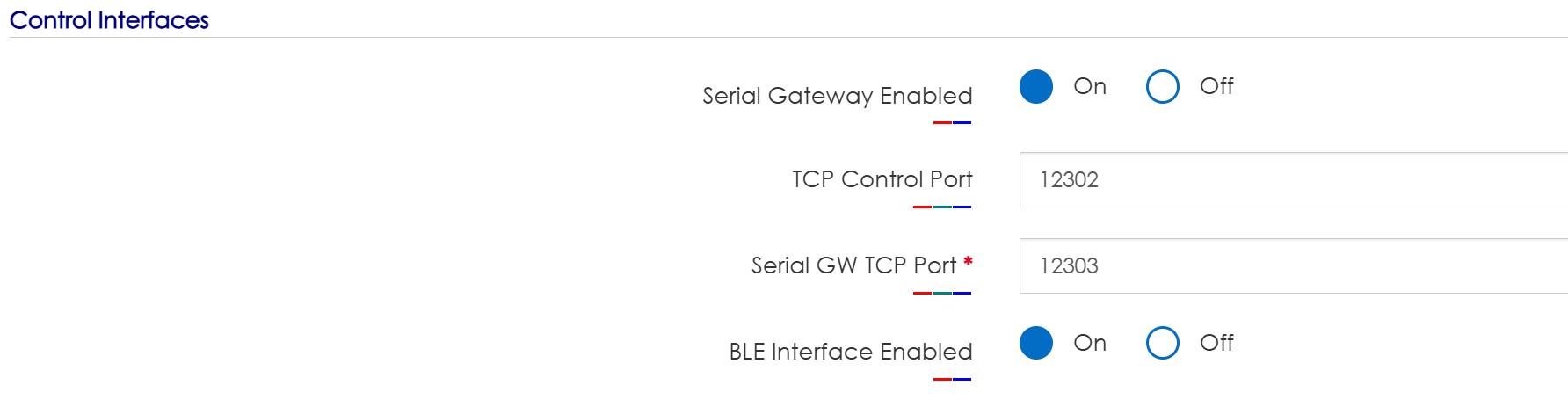
EPIC device settings, Control Interfaces (VSC demo system). BLE Interface Enabled = On lets the Device Configuration app see the device over Bluetooth. Off = the app won't list it.
AE Support: 800.932.3578 · [email protected] (Mon to Fri 5 AM to 6 PM MST). Have the MAC, the model, what the tool showed (or that it showed nothing) and how you were connected.
Leave the File menu alone
The tool's File menu has About, Recovery and Quit. Recovery forces a device into its bootloader to reload firmware. Don't use it unless AE Support tells you to. Used wrong, it can leave a device that doesn't boot.
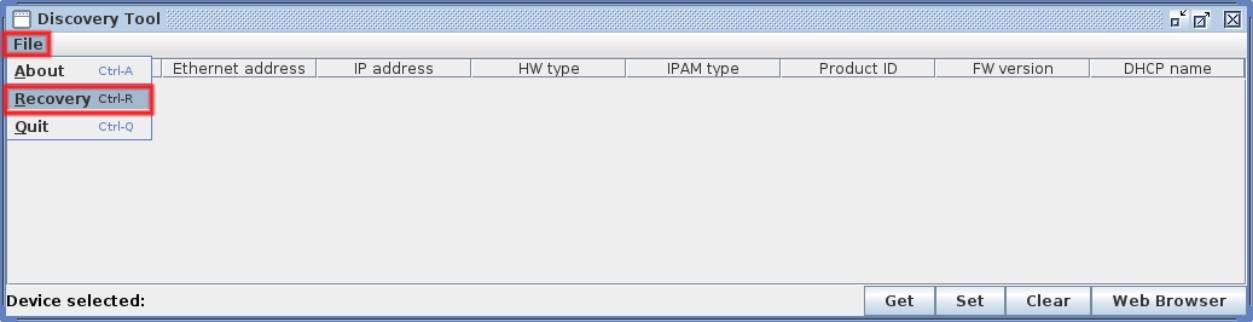
File › Recovery (Barix manual). For AE Support's use, not a field fix.
📚 Sources & credits
- Compiled by Brad Roy, VSC Director of Operations, from VSC field practice (Oct 2026): works on older and new AE devices; VSC has found MS-700s and CZA-1300s with it; off-network bench setup; reset / VLAN range example; download locations; push SIP from the Configure tab. Brad Roy (15 Oct 2026): works on all AE IP devices; bench pre-staging with the final district IP; TP-Link TL-SG1005P bench switch and PoE+ / 802.3af needs; Wi-Fi and VPN off; Windows Firewall Private networks; Java check and JRE; laptop static IP; DHCP on the device web page; EPIC VLAN check before reconnecting; not on the district network; worksheet notes.
- Barix AG: Barix Discovery Tool User Manual v1.16 (10 Sept 2025, tool v0.40), pp. 3 to 8 (Java SE 5, LAN broadcast only, Get, Set, Clear, Web Browser, "No error", Set without a new IP, columns, Recovery, UDP broadcast note); Discovery Tool v0.40 Release Note 20250910ASI2 (column sorting). Images: Barix Discovery Tool User Manual v1.16 (Barix AG), pp. 4 to 6, Barix lab devices; rows cropped.
- Audio Enhancement training EPIC Level II (EPIC 3.1.3), Dec 2025: slide 189 / Reference Handbook p. 34 (uses, Java, Get, Web Browser, same range, 0.0.0.0 for DHCP, routable, wired not Wi-Fi); slides 185, 190 and 201; MS-700 web page; Known Devices status dots. Images: slides 185, 189, 190 and 201 and Known Devices (EPIC 2.5 UI, AE lab IPs only).
- Audio Enhancement: EPIC Implementation FAQ DC-40905.0823 (EPIC can modify device network settings); EPIC 3.3 Technical Release Note DC-41286.0726 (reset MS device IP fix); Device Configuration App Guide DC-41040.0324 and DC-41313.0926 (Network tab; app image); EPIC 2.5 Admin Manual DC-40654.0824 (device password, web page login).
- VSC demo system screens (EPIC 3.2.5): Configure Device (password redacted), Control Interfaces.